

Microsoft Excel 365 Programming Best Practices
In Microsoft Excel 365 there are 10,000 ways to do anything. Well, maybe not that many, but usually there are at least 5 ways to do anything In Excel. Which way(s) are the best?
Which are the best programming practices in Microsoft Excel 365 in 2026?
In this post we cover many of our Best Practice programming methods for Microsoft Excel 365.
Some very small efforts make a huge difference.
Example of Excel Function Best Practices: How many ways are there to “lookup” values in one Table from another Table? At least 10. Is the XLOOKUP really the best of these?
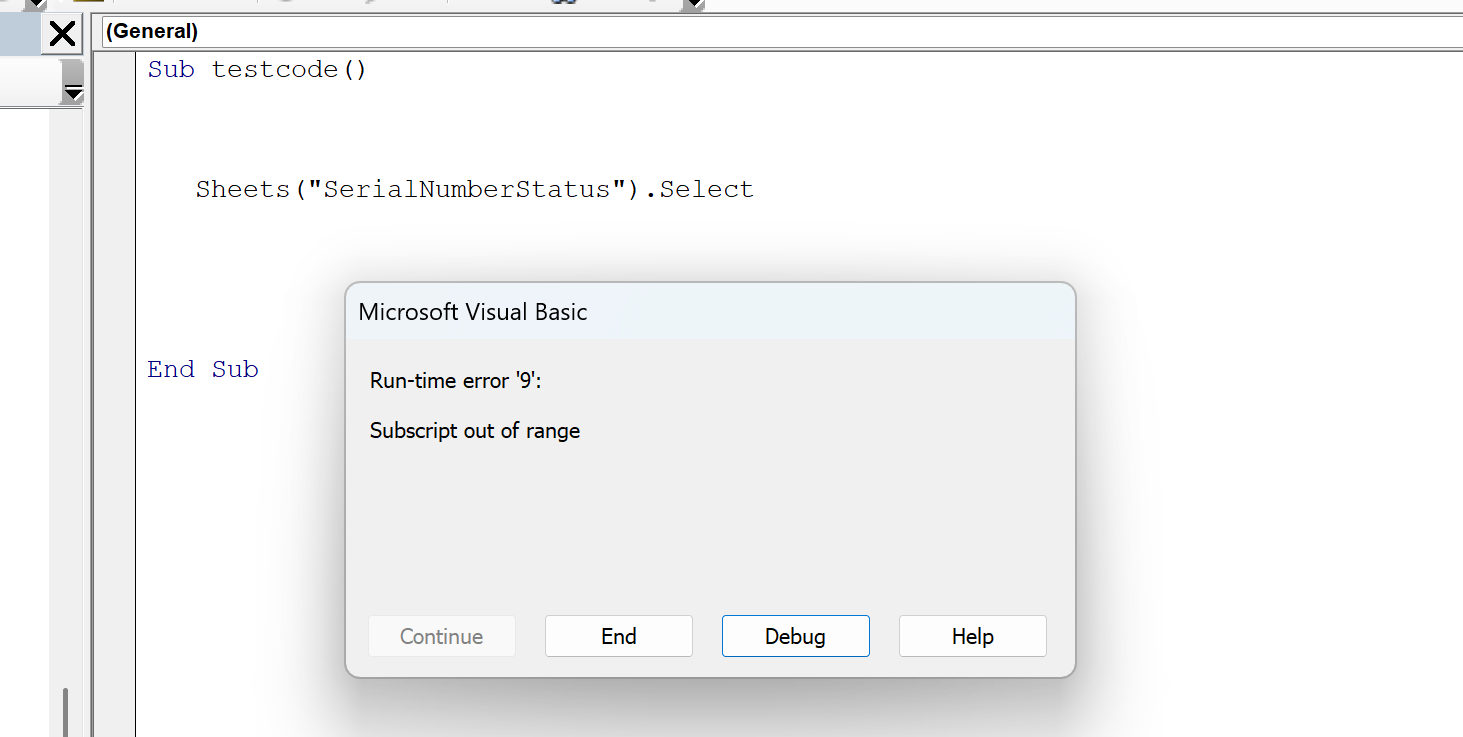
Example of VBA Best Practices: What happens to your file when the user changes the tab name? Does your code crash?
Example of Power Query Best Practices: 1) Stage your data, for the desired period, and 2) then add a Totals Row. No need to write a function to calculate the total for the year, it is in the Totals Row, just reference that cell.
Example of Pivot Table Best Practices: Base your Pivot Tables on a Power Query. Load directly to a Pivot Table with Power Query as the DataSource.
Example of Excel Table Best Practices: Tables, Tables, Tables, start your project here. Everything starts with Tables.
 Here we go over some of our favorite best practices, which we have learned over the past 25 years of custom Excel development. There really are so many options, it takes time to know what works best, where and when.
We will cover best programming practices in Excel:
- Excel VBA, Macros
- Excel Dynamic Array Functions ( GROUPBY, XLOOKUP )
- Excel Legacy Functions ( VLOOKUP, SUMIFS )
- They are now Dynamic
- Excel Pivot Tables
- Excel Power Query
- Excel Tables
- Important note on Best Practices, they are constantly changing as the Microsoft Excel Team releases new functions, methods, and tools in Excel 365. When the Pivot Table Auto Refreshes, that will change Best Practices.
For best practices, the version of Excel definitely matters, for this post, we assume Excel 365 for the Desktop.
Toll-Free: 877.392.3539 | Irvine, California: 949.612.3366 | Manhattan, New York: 646.205.3261
Contact us for a Free Consultation Today.

Microsoft Excel 365 Function Best Practices for Business – Old Versus New
~ Legacy Functions or 365’s Dynamic Array Functions ~
For the longest time, if you wanted to check to see how much of an Excel expert someone was, you asked, do you use Index/Match, if they did, they were an expert.
- That was then, this is now, and now, Spilling is where it is at. Think data flow, automated, dynamic, fluid, no user needed, etc.
Expert’s Advice: Before you say that the VLOOKUP is dead and that no one should use it, first see what version of Microsoft Excel the client is using, perhaps it is not Excel 365, thus no XLOOKUP.
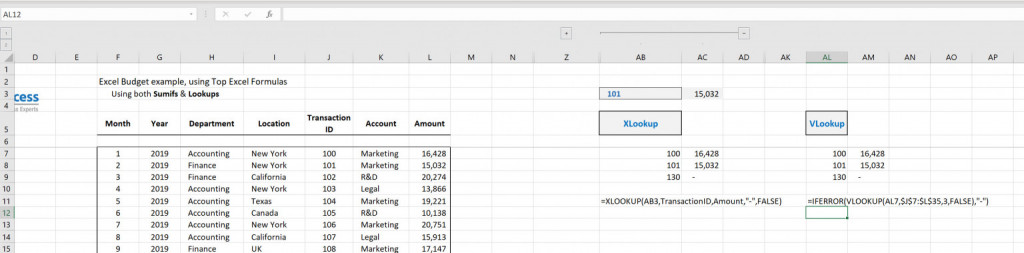
Why did so many people use Index/Match, often due to the limitations of the VLOOKUP. So best practices were often to use Index/Match. Now however, many will simply use the XLOOKUP function, which is Microsoft’s answer to the limited VLOOKUP, and it replaces the need to use Index/Match when referencing Excel Tables.
- Best Practices now says the first choice to lookup is often to use the XLOOKUP. Sure, others will do it, but if you are looking from one Table to another, use the XLOOKUP, if you have Excel 365.
So many Lookup options in Excel, which is Best Practices?
- VLOOKUP
- HLOOKUP
- INDEX & MATCH – was best practices
- XLOOKUP – Excel 365 – is best practices
- LOOKUP
- CHOOSE with MATCH
- FILTER – Excel 365
- UNIQUE – Excel 365
- OFFSET with MATCH
- Power Query
- Lookups
- Joins
If you are an expert, you should be able to use these interchangeably.
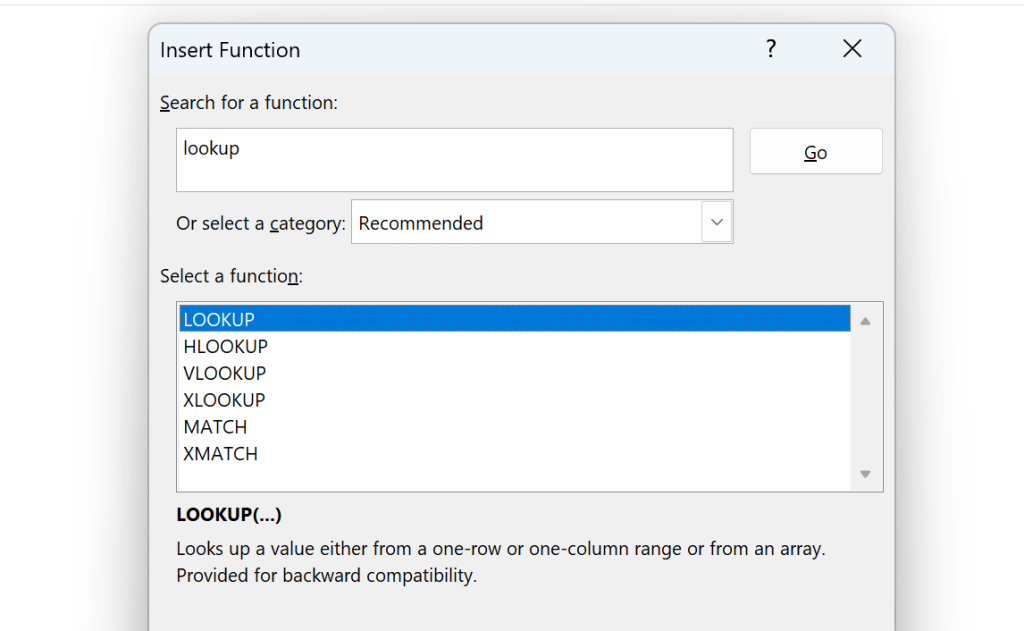
The XLOOKUP is the latest and greatest, it is one of our 5 top functions. Best Practices say use the XLOOKUP and make it Spill.
- So many ways to Concatenate values in the new Excel as well. Best practices would be to concatenate in Power Query offsheet, or use the new TEXTJOIN Function onsheet.
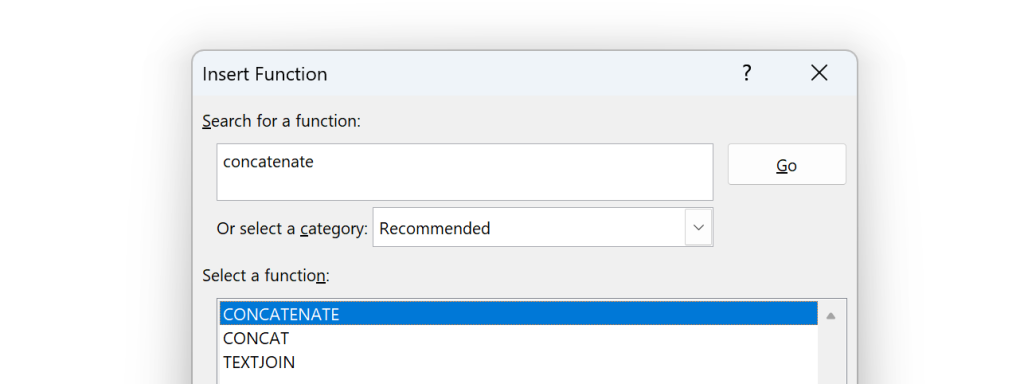
Don’t forget you can simply use the “&” to write your own. =A1 & ” – ” & b1
Expert’s Advice: Before you say you should NEVER use the VLOOKUP, remember, not everyone has access to Excel 365. They may be using an older version, pre-2018. So yes, knowing how to use the VLOOKUP in a dynamic state is still important. It is one aspect of Best Practices, knowing what to use when and why.
If you do not know the tools, how can you know if you should use it?
Best Practices using the Legacy VLOOKUP Function in Excel 365
Yes, the Legacy Functions such as the VLOOKUP will produce a Spill Cell/Ranges, if you use it properly. You can use the VLOOKUP in one cell, selecting multiple data cells, and it will Spill the results, just like the Dynamic Array Function the XLOOKUP.
While Microsoft released a series of Dynamic Array Functions, it is important to note that the Legacy Functions, most of them, are now Dynamic as well, thus will Spill.
Best Practices: One cell, one function, sizes range as needed, aka Spills.
Thus, only use one DAF, in one cell, not one DAF per cell.
Method 1 – use the # in your Excel 365 Functions
Leverage the use of the # in your functions, simply point at a Spill Cell, and add the # to make the function dynamic.
Note 1: Using a DAF will create a Spill Cell, that other functions can access, using the #.
Note 2: Using the Legacy Functions in a new way will create a Spill Cell which can be referenced via the #.
Excel 365 Dynamic Array Function Best Practice: You no longer select the entire dataset, rather you select the first cell, the Spill Cell, add the #.
Entirely different approach to Excel 365 programming.
Note the use of the # in the Lagacy VLOOKUP Function, a Dynamic Excel function in Excel 365.
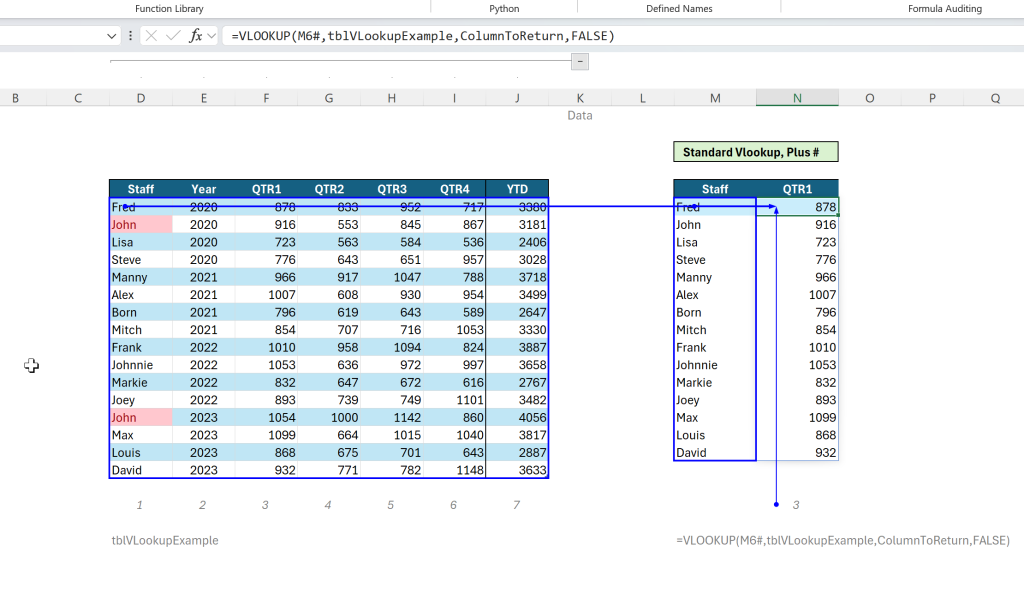
In this image, the two Blue Cells, Columns M & N, those cells have the DAF, the rest are empty, they Spill.
Method 2 – Select Multiple Lookup_Values in your Legacy Excel Functions
You do not need to place the VLOOKUP function in every cell, as you did in the past, that was then, this is now.
For Best Practices, Simply select multiple lookup values, while placing your function in one cell.
- Here the VLOOKUP is looking at the entire Staff Column, not just one cell. This allows you to continue to use the Legacy functions, but in a new, dynamic way.
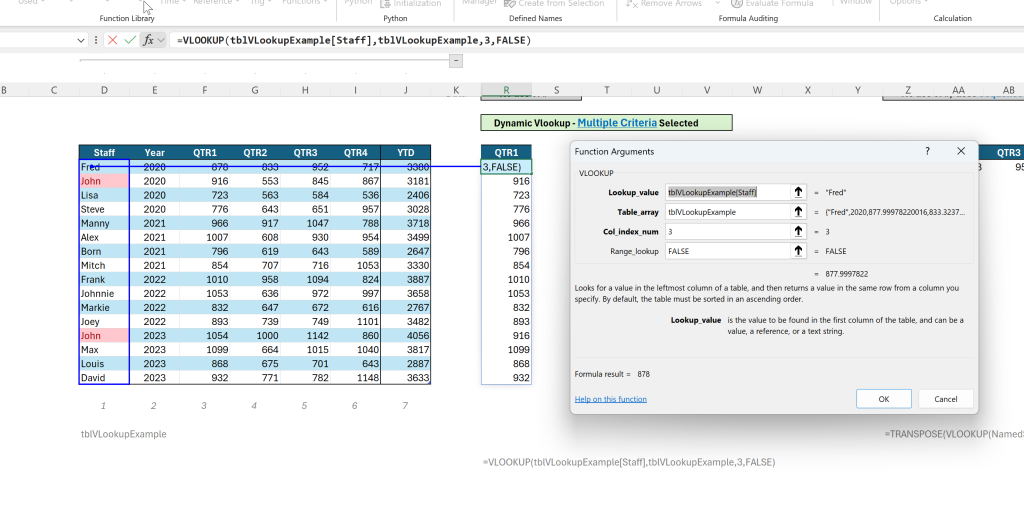
Multiple Lookup_Values selected, not just one.
Best Practices: Here, select multiple Column_Index_Numbers to force the function to Spill.
While the Excel VLOOKUP is not a dynamic array function, when used correctly, it is dynamic.
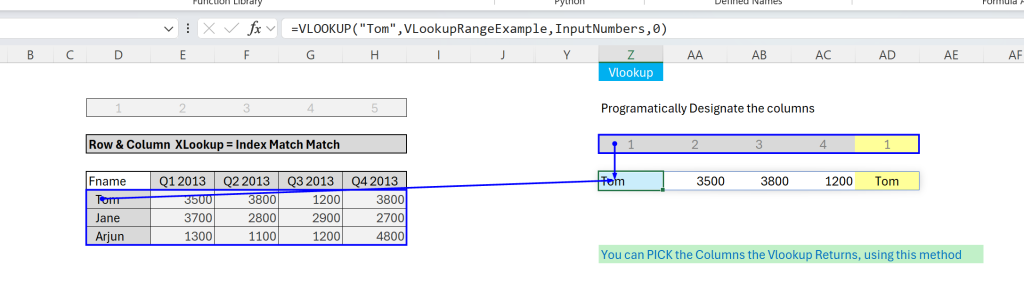
Select multiple values for the “Col_Index_Num” to create a Spill Range.
VLOOKUP Note: The VLOOKUP Function can Spill either Vertically or Horizontally, not both, at the same time.
While we no longer use the VLOOKUP, we still teach others how to use it, based on best practices in Excel 365. That means making the function dynamic, making it Spill. Not everyone has Microsoft Excel 365, they may not have the XLOOKUP, as such, the VLOOKUP still works.
Excel VBA Best Practices
Visual Basic for Applications ( VBA, aka Macros ) for the longest time was the most powerful component in an Excel solution. The things that macros can do, endless, but unfortunately, VBA was overused, often as a crutch to improper design.
The use of VBA is on the decline, as the recent changes in Microsoft Excel 365 are so advanced that you often do not need to use macros to get things done.
Yes, we still use vba, we will continue to use vba for the user experience and such, but we use as little as possible.
Code Crashes: Your users will change the file at some point. Will that crash your code?
Look at the two lines of code below. If the user changes the text on the Sheet being referenced, one of these will crash when the code is run. VBA BEST PRACTICES, don’t do that.
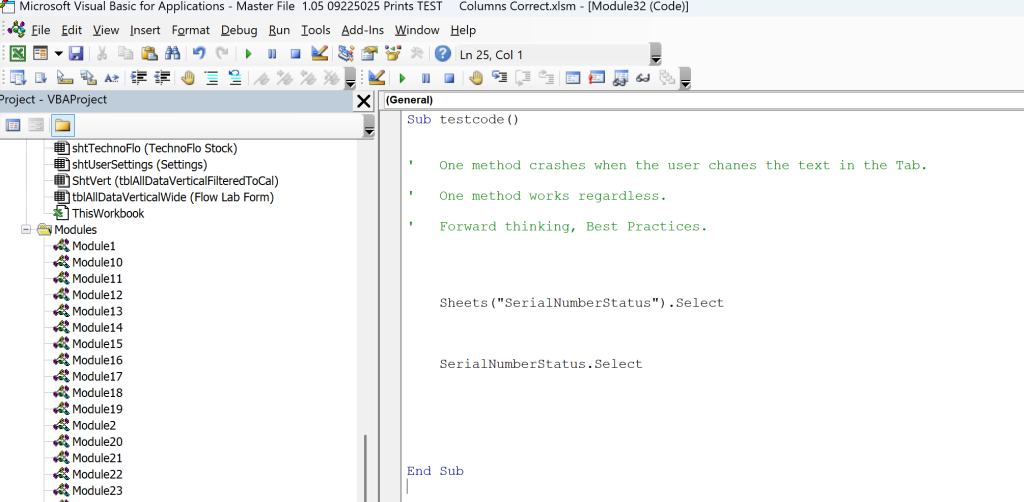
How you write your code matters, as your users will at some point, make changes to the file. If you write your code incorrectly, that will cause your code to crash. Think best practices and program to the sheet’s code name. Less typing too 😉
Using Sheet Codenames in Microsoft Excel VBA Best Practices
Program Excel to the Code Name: In Excel VBA, every worksheet has a codename in addition to its visible name (the one on the sheet tab). The codename is a programmatic identifier that is used to refer to the sheet within your VBA code. If you program to the codename, you prevent your code from crashing, should the user change the Tab name, which they often do.
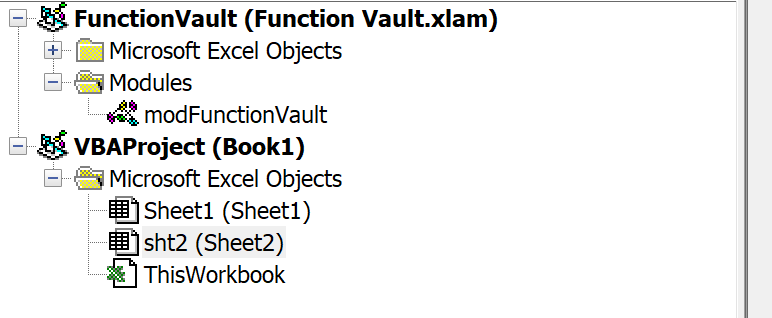
Reduces the amount of code written, reference the CodeName. sht2
This is a serious tip. I have seen Microsoft Excel MVPs that did not know this. As Best Practices are learned, over time.
Which would you rather type?
-
- Worksheets(“Sheet1”).Select
- sht2.Select

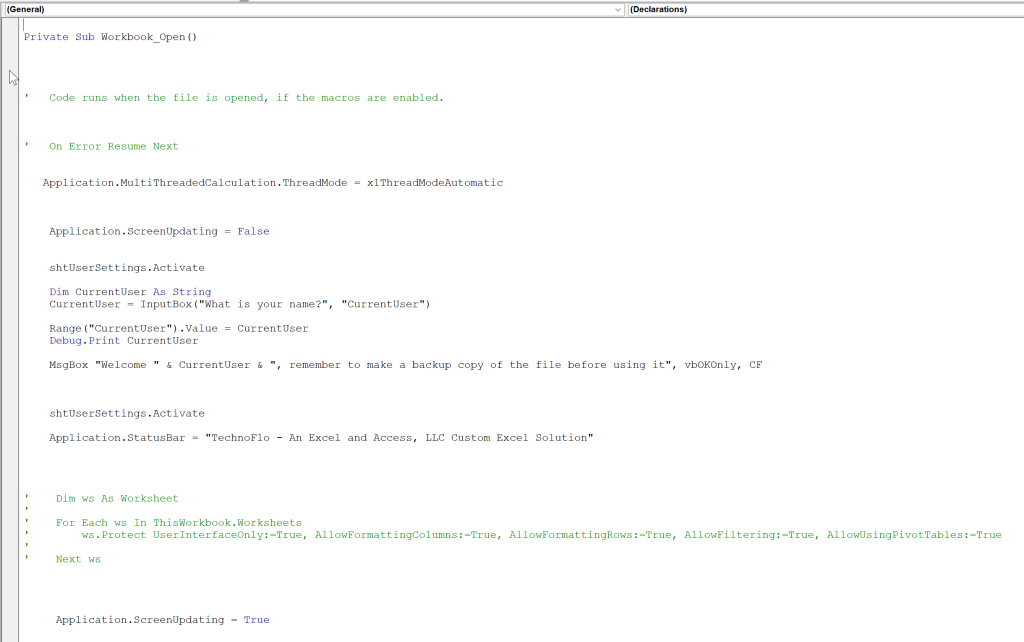
As a professional Excel developer it is your responsibility to predict what the user might do to the file, and to try to prevent crashes and such via best practice programming.
VBA Best Practices: User Friendly Files via VBA: Allow the user to make selections that will be used when the code runs. If you want to allow the user to set options, the CheckBox feature is intuitive and easy to use. It is TRUE or FALSE, and the code and the functions can reference that, and act accordingly.
The new CheckBox feature makes it easy to allow the user to determine what happens to the file, when the code runs. This with a DropDown List, Slicers, heaven.
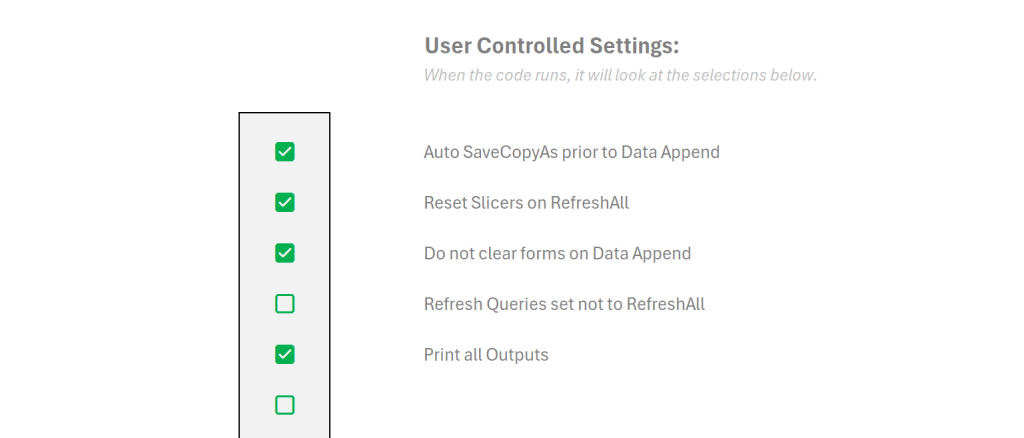
The New Check Box in Excel 365 is our favorite User Interface Tool.
Protect Your File from Accidents: Once your macro runs, other than closing the file, without saving, there is no undo. As such, we recommend that your code auto backs up the file prior to running the update process. You might not need the backup file, but if you ever do, this is a huge.
In our files we prompt the user for the location, when they want to do a backup, but when we run code like this, it knows where to save the file, and never disturbs the user. Protect the file for them.
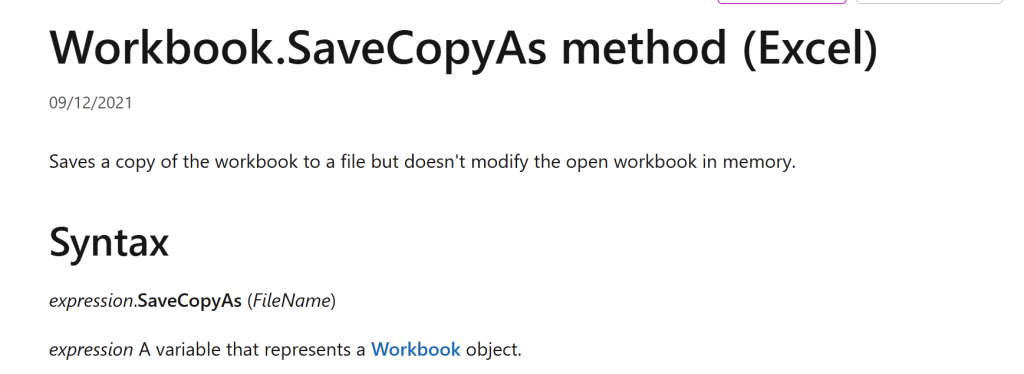
Help your client, auto backup their file.
What VBA best practices do you use? Please leave a comment in the comment box.
We would love to hear your thoughts.
Microsoft Power Query Best Practices, in Excel 365
Power Query is now how Excel is done; Excel Tables and Power Query. Using Power Query reduces other efforts in Excel. Power Query is more efficient, more Powerful, POWER is in the name.
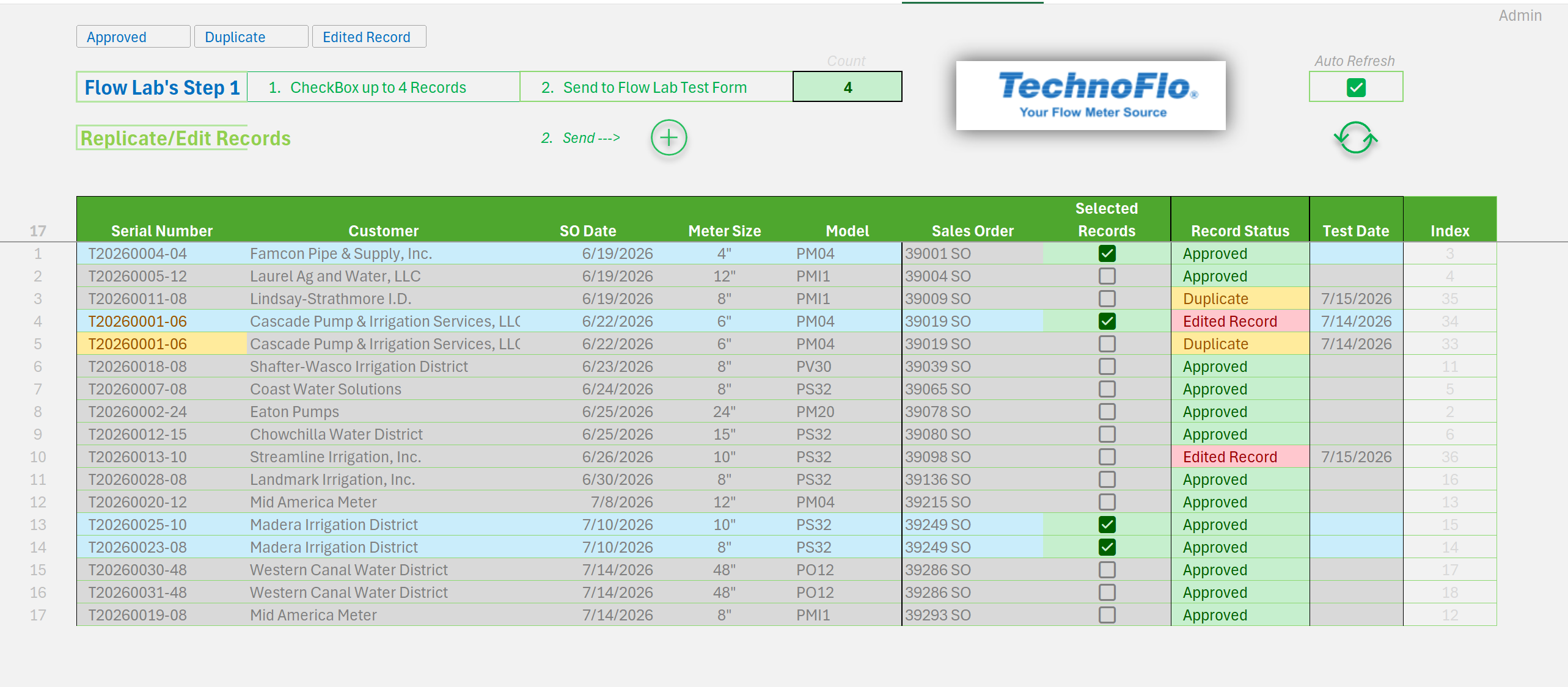
Power Query Best Practices: Use Power Query Tables as Data Entry Forms. Add a little VBA, and you have one of the most POWERFUL Solutions in Microsoft Excel 365.
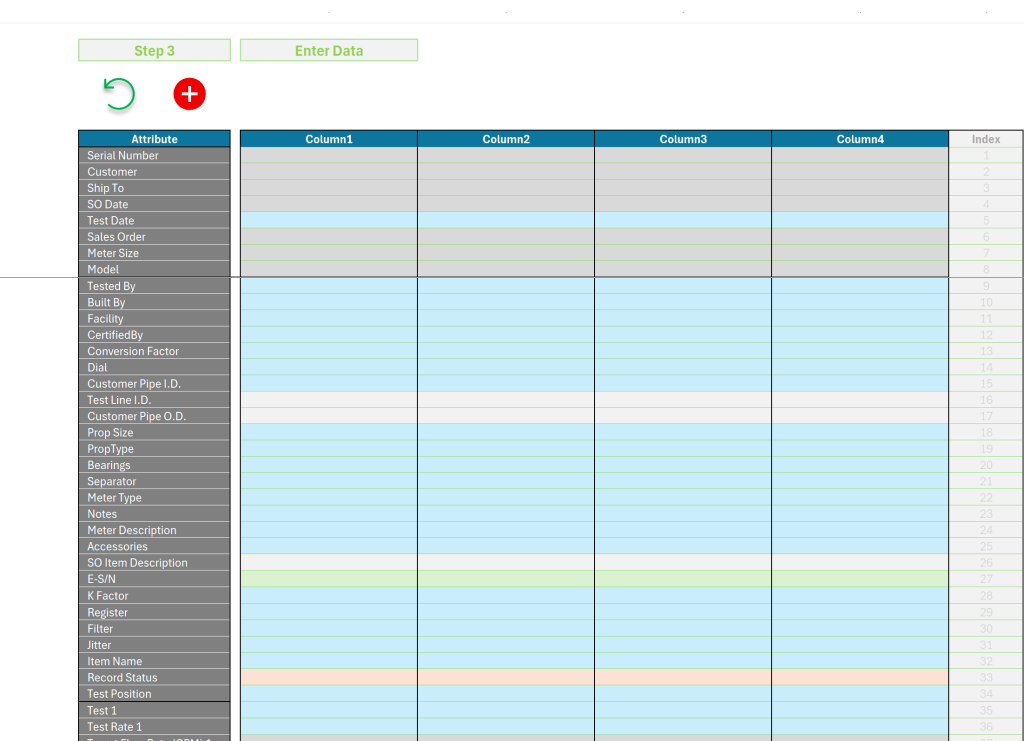
Power Query Tables being used as Data Entry and Edit Forms.
Power Query is so powerful, and yet so controversial. It is controversial because the majority of existing Excel experts do not know how to use Power Query. They simply have not tried. Had they, they too would be Power Query users.
Yes, newer methods can be better than older methods, why do you think they are new?
If you are an Excel expert, it is Time to learn Power Query. Else are you an Expert?
Power Query Best Practices: Instead of using onsheet functions to extract information from a Date column, use Power Query Transformation Tools. They greatly simplify the process. So many options, no need-to-know functions, or to embed multiple functions, just point and click. This is pretty easy, so intuitive.
Excel Flashback: Remember the days where you had to embed numerous Excel functions to extract data from a cell? Left, Mid, Count, Find, Search, IsNumber, IsText, etc……. That was a PAIN.
Expert’s Question to you: Why place these complicated calculations onsheet, in hundreds to thousands of cells, when you can do it more easily in Power Query?
- When you want to Transform your data, use Power Query, the ETL Tool. This is what it is meant to do.
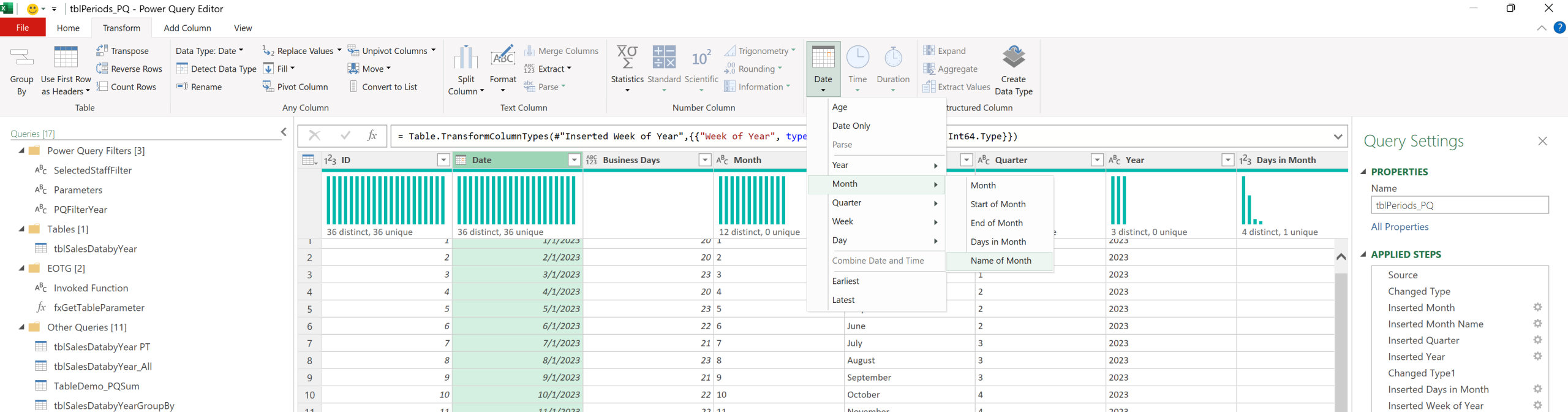
Power Query is easier to learn than the VLOOKUP Excel Function
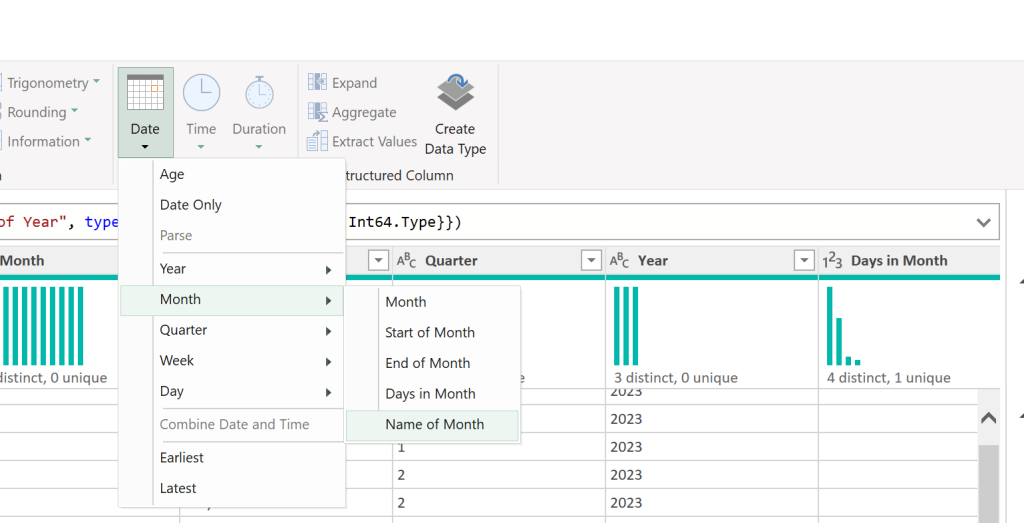
That is so easy anyone can do it, no function needed.
Use what is already available, no need to recalculate the wheel
Power Query Best Practices: Pre-Filter, aka, Stage your data. Only load the data needed for the calculations and such, to simplify, and to possibly eliminate your onsheet calculations.
Example: If you want to sum 2025 Sales Data, pre-filter off all other data, this will simplify your calculations, and you might just then use the Totals Row to get the total for the period, no need to write a formula.
What matters is that the client gets the best forward looking solution for their money.
- I first programmed Microsoft Excel on the Mac in 1985. Been at it since, and I have stopped using many functions and methods along the way, as better options became available. Methods, Functions, Objects are being created or revised for a reason.
Simplify things as much as possible; do not over think it.
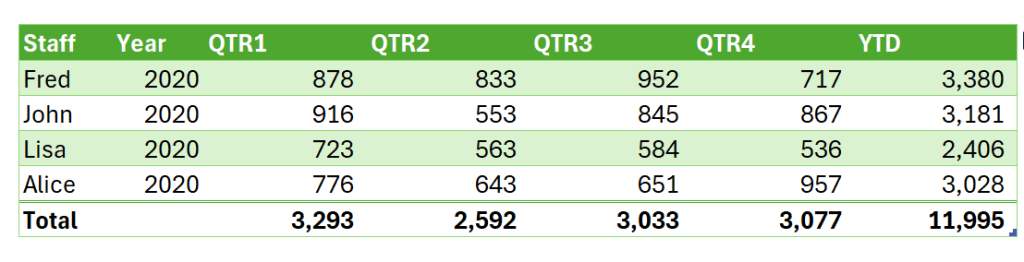
Best Practices, reference the Totals Row.
Power Query Best Practices: Use a Periods Table. Use that Table to automate Microsoft Excel and Power Query.
When I see someone manually select a period, the current period, in Excel, I want to jump out the window. Your computer knows today’s date, and that, when used with a Periods Table defines everything you need. Why manually select? Why change dates in your headers?
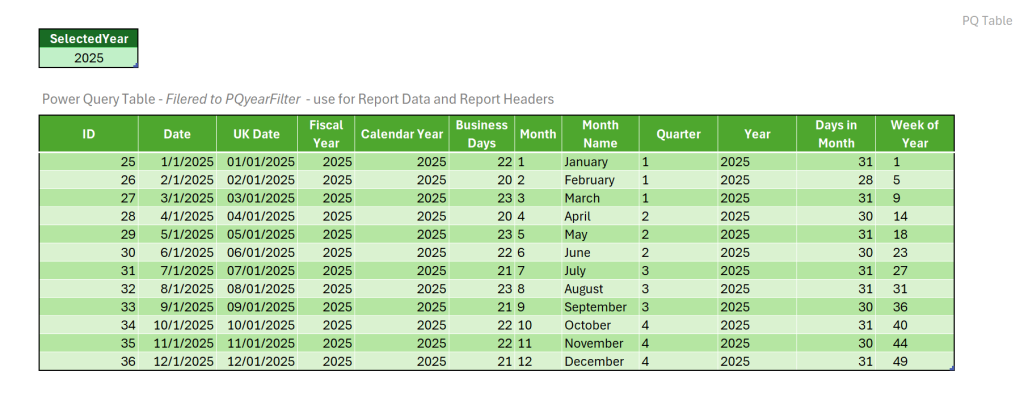
Use a Periods Table to automate Excel programming.
Blue Periods Table uploads into Power Query, where we Transform the data, based on the Date Value.
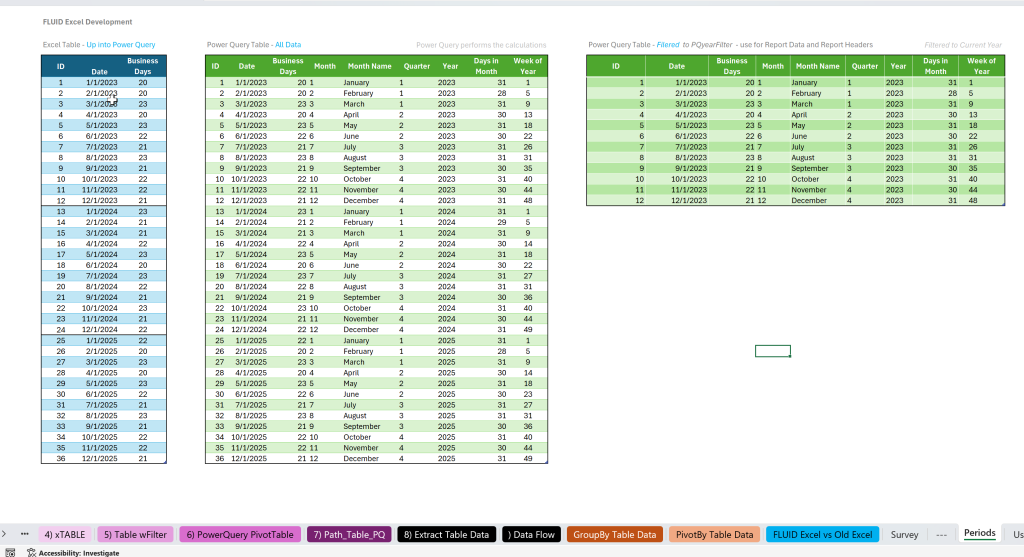
Expert’s Advice: If you use a simple Periods Table, such as the blue Table above, you quickly get the expanded Green Table via Power Query Transformation.
Power Query Best Practices: The second Green Table is filtered for the current year. Stage your data to reduce and to simplify onsheet calcs.
- Yes, you could do onsheet calcs in the Blue Excel Table to get the same results as the Green Power Query Table, after you have written six onsheet functions. And that is exactly the point; fewer onsheet functions, more Power Query Transformation.
Microsoft Excel 365 Best Practices: In Microsoft Excel 365, think more in terms of how DATABASES work and less on how Legacy Excel onsheet functions work. Excel is now Array-Based ( Ranges not Cells ).
RefreshAll versus RefreshMost
Best Practices in Power Query: If you have Queries pulling in External Data, set those to not refresh on RefreshAll. This will add a layer of control over the data in the file.
Add a macro that will refresh all of the queries set not to refresh on RefreshAll. Now you have full control over the data in the file, and when it is refreshed.
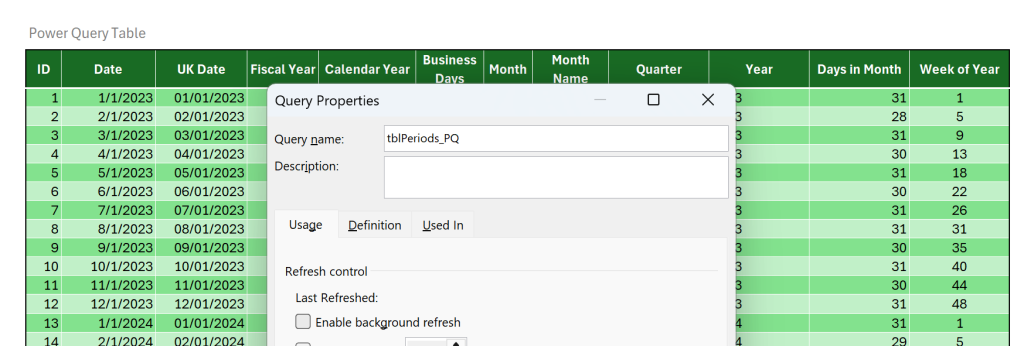
Turn off RefreshAll.
Best Practices: Power Query is where Excel is now done, data transformation. We recommend that you fully leverage Power Query and Tables in custom Excel solutions for business.
Database Replacement Solutions in Excel 365 w/ Power Query for Business
Relational Solutions in Microsoft Excel 365 with Power Query
877-392-3539
Free Consultations, Hire Excel and Access, LLC to assist your organization with all of your Excel needs
Dynamic Array Function Best Practices
In 2018 Microsoft rebuilt the Excel Calculation Engine, that changed everything. How experts program Excel is now entirely different than it was before. Leading that change, the Dynamic Array Functions, DAF, as Excel is now Range-Based.
You now place one function in one cell, the range will adjust as needed, based on the data.
This is a monumental shift
This is now Best Practices
For most cases, when referencing Excel Tables, five of the new dynamic array functions should be all that is needed, for say 95% of the heavy lifting.
Note: I am not saying that LET, LAMBDA, SEQUENCE, FILTER, TAKE, CHOOSECOLS, TOCOLS, etc., are not important, I am saying that if you are referencing a Table, with the needed data, then these five functions will do most of the work for you.
Top 5 Excel 355 Dynamic Array Functions uses against Excel Tables:
- XLOOKUP
- SUMIFS
- FILTER
- GROUPBY
- PIVOTBY
- Add the user of other functions and of Utility Functions ( Sort, Drop, Sequence, etc.) as needed.
The Future of Excel: Excel Tables, CheckBox, DropDowns, Conditional Formatting, Slicers, PQ, and DAFs.

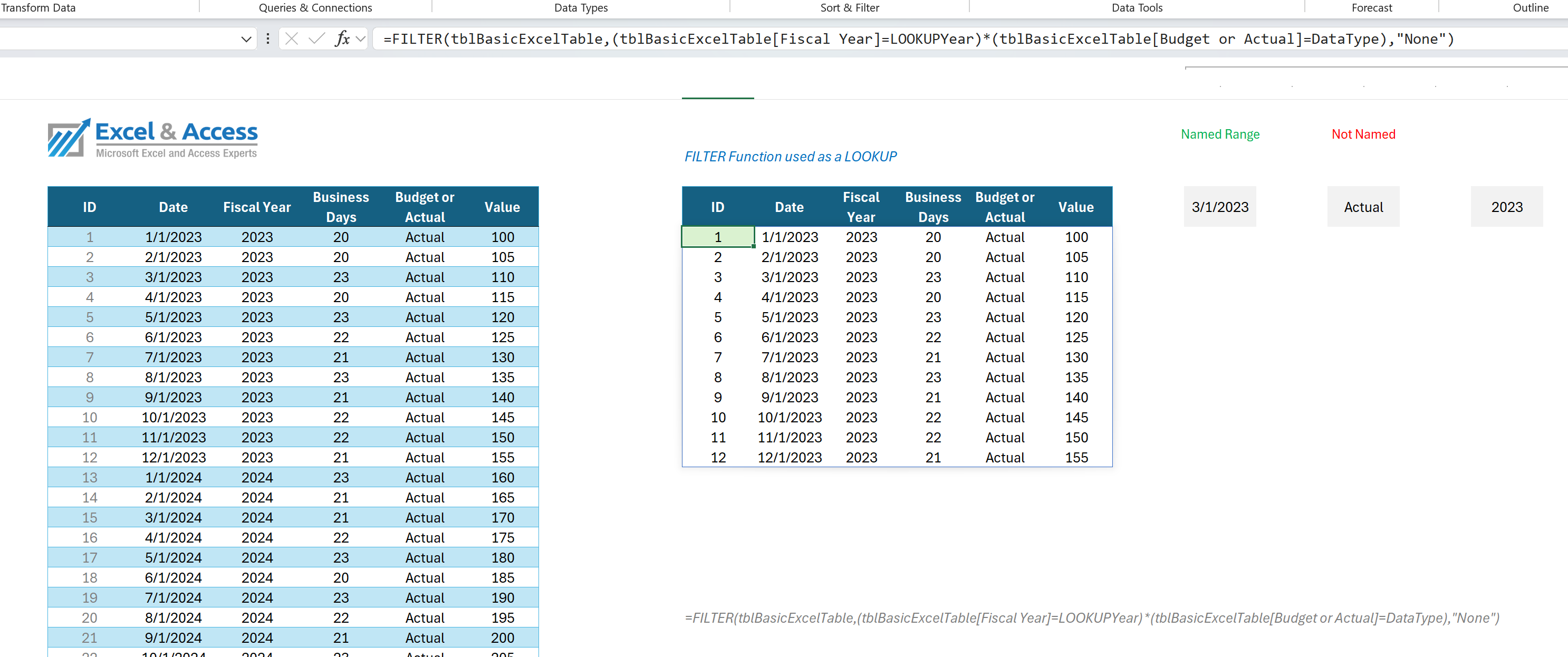
The Excel 365 FILTER Function is our favorite Excel function. Almost performs like a mini-query.
Dynamic Array Functions Best Practices: Leverage the fact that they produce a Spill Range, Cell. Use the # against that cell, in your formulas, DAFs or Legacy.
Do not place a formula in every cell, just the first cell.
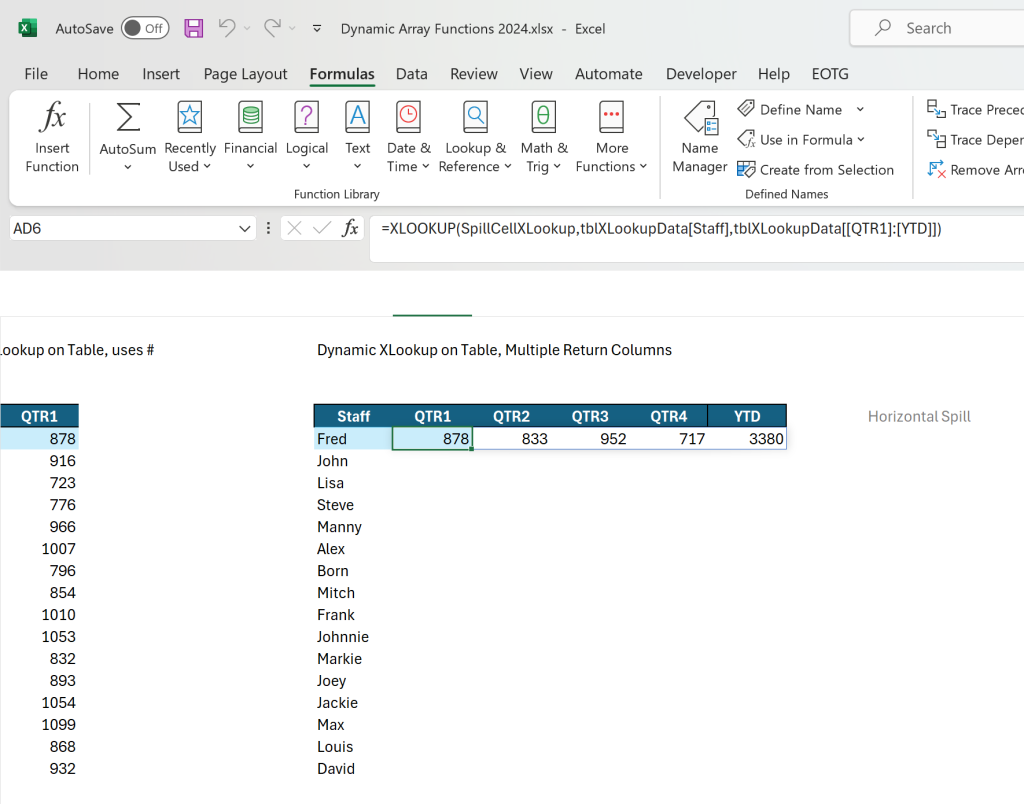
In this image, the Blue Cells have the Dynamic Array Function, that is the Spill Cell.
Dynamic Array Functions Best Practices: Make them user interactive, point them at DropDown Lists and Checkboxes, allow the user to change what is filtered.
When the user changes a selection in a drop-down list, or when they check a CheckBox, the Dynamic Array Function will instantly refresh.

Automated, Integrated, Interactive.
For Best Practices with DAFs, Point at a Table or Spill Cell
For best practices, always point your DAF at a Table or a Spill Cell. Avoid working with traditional ranges as much as possible, Tables are the best way to go, Dynamic Array Functions would be second. If the goal is full automation, integration, and easy to use.
Pivot Best Practices
Like VBA, Pivot Tables have been the backbone of many a Excel solutions for the longest time.
Soon Pivot Tables will auto refresh, as such, Pivot Tables have never been more important.
- Add the PivotBy Function for additional options.
Pivot Tables are the center of Excel Dashboards, as are Pivot Charts.
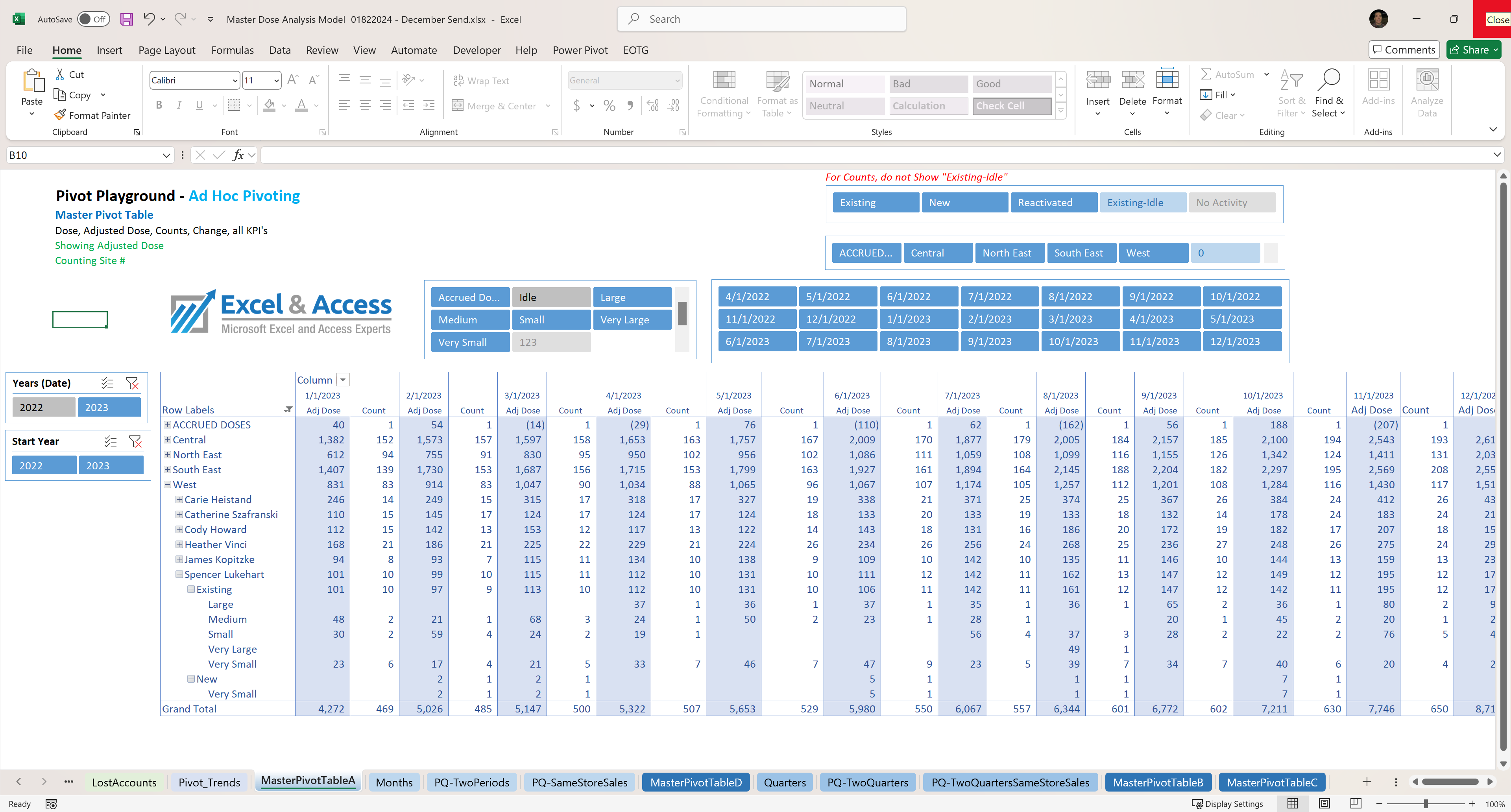
Excel Dashboards are often based on Pivot Tables. Executives love them.
Pivot Table Best Practices: The DataSource for your Pivot Tables should be Power Query for optimal results.
This method saves you a step, and it saves resourses, one less Table loaded to sheet.
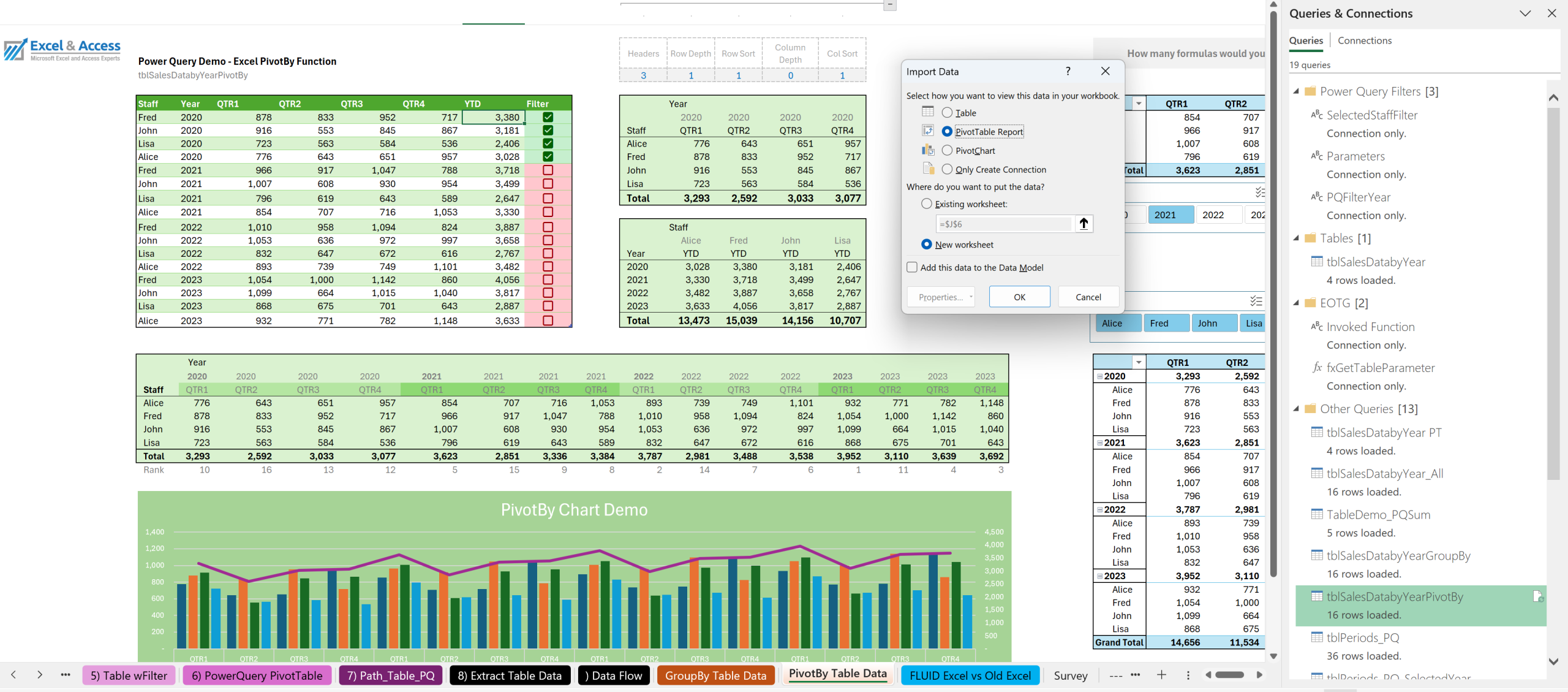
Instead of loading data to an onsheet Table and then building a Pivot Table off of that, rather create the Pivot Table DataSource directly in Power Query, then load to Pivot Table Report.
Ask the LI Excel MVP Community: Pivot Tables, much like VBA, are not going away. As relevant today as they ever were, as the Excel Team has changed how PT work in the Beta version of Excel 365.
Microsoft Excel Table Best Practices, in Excel 365
Do not use Ranges to hold your data.
Do not place your data in a blocks of unrelated cells.
For Best Practices always use Excel Tables: Place all of your data in Excel Tables, period.
This even includes your Lists, one or more column Tables, used to feed drop-down lists, used in Power Query and in Lookups.
For Best Practices: Put all like data in one vertical Excel Table. Do not place your data across tabs or files; put all of the data in one proper Excel Table. But if you did, for best practices, use Power Query to consolidate the data from the Tables into one Table. Sure, you could use VSTACK, but we want to work with Tables.
Here are some Best Practices when working with Tables in Excel 365
Misc Best Practices for Excel Tables
- Name your Tables,
- Something like tblSalesData
- Load your Excel Tables into Power Query
- Add columns to the Table, for things such as:
- KPIs, Record Status, Record Append Date, User Notes, User Filter (CheckBox), Index, Primary Key, etc.
- These will be used in Power Query, Functions, Pivot Tables, Slicers, etc.
- KPIs, Record Status, Record Append Date, User Notes, User Filter (CheckBox), Index, Primary Key, etc.
- Data should be vertical, not horizontal.
- Name columns, name cells
- Reduce typing, use drop-down validation lists.
- Add a Totals Row
- Place a Sub-Total and Aggregate Row above the Table, for ease of use.
- Do not place your Table in cell A1
- Add Slicers
- Add Column Groupings
- Add Conditional Formatting
- If a cell should be populated, Conditional Format it to red if blank or empty.
- To show unwanted duplicates.
- Add CheckBox for user interaction, Filters.
- Keep the users out of the data Table, no direct access.
- Use UserForms, or Table Forms for data interaction
- Do not put your data in your report; data goes in Tables.
- Best Excel Functions to extract data from an Excel Table.
- XLOOKUP, SUMIFS, GROUPBY, PIVOTBY, FILTER.
- When Pivot Tables that Auto-Refresh are based on an Excel Table, changes to the data in the Table will instantly show in the Pivot Table.
DO NOT use Ranges; Use Excel Tables
Ranges of data and Excel Tables may look exactly the same, they are however not. See our posts on Excel Tables for more details.
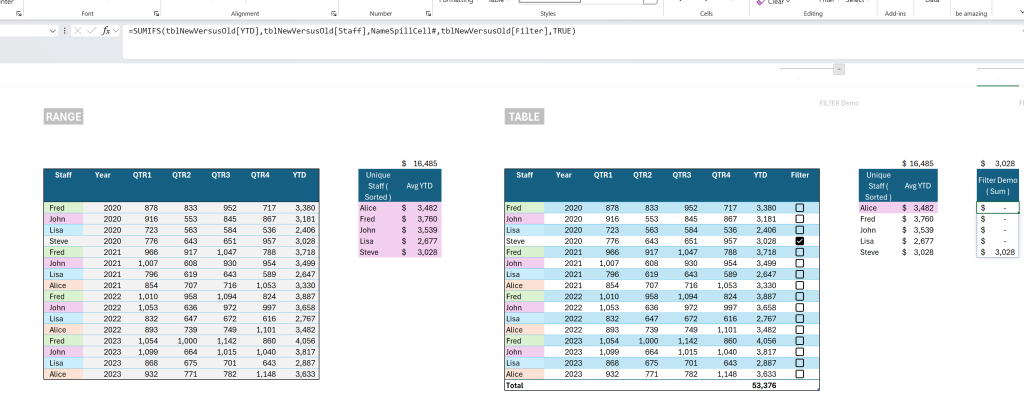
A Range can become a Table in about 2 seconds.
Best Practices: Using Excel Tables as Lists
Lists in Excel are a very important tool that allows the user the ability to easily add new selections to an existing list, and to reference those Lists, versus manually typing data, often incorrectly.
- Lists should be used in every Excel file where the user needs to make a Selection. Examples, Region, State, Customer, etc.
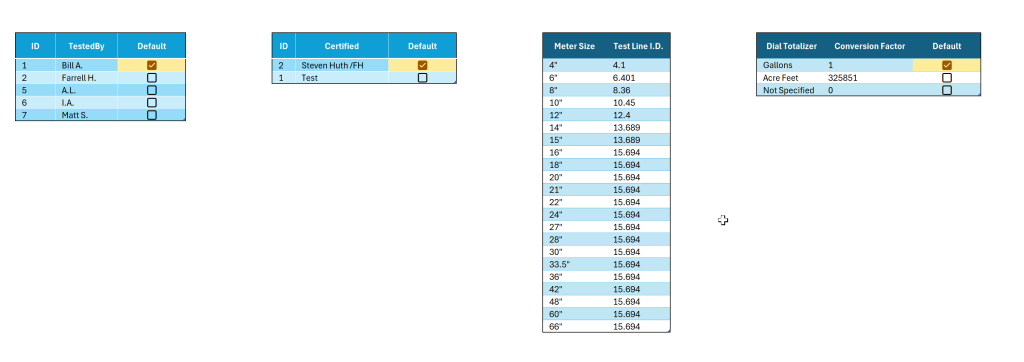
List Best Practices: Proper Excel Lists are Excel Tables, they usually have one column, but they can have several, and they can even have Defaults for Power Query.
The GROUPBY sand the PIVOTBY Functions are the functions to learn right now.
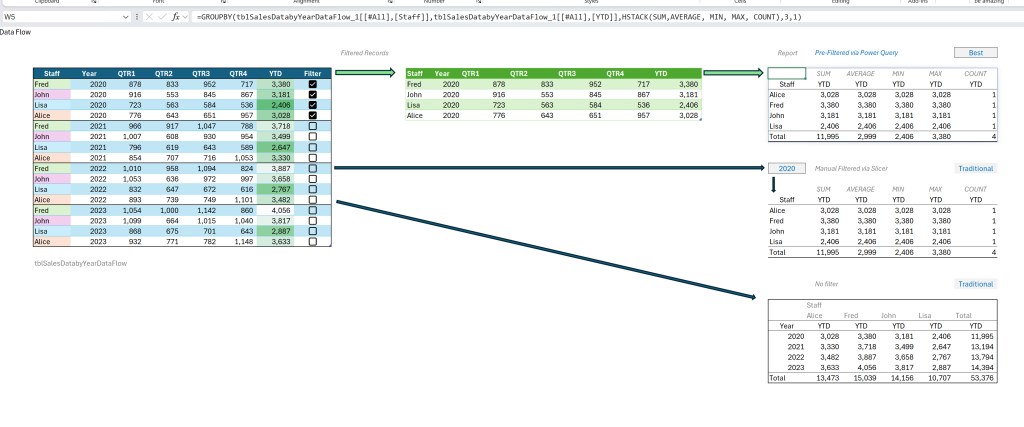
In this image we show several dynamic array functions pulling their data from Tables, one Power Query Table, two from the Excel Table. This is the future of Excel 365.
For Best Practices, use Dynamic Array Functions to reference data in your Excel Tables
Conclusion – Excel 365 Programming Best Practices
It takes a long time to learn best practices in Excel 365 programming. Much of it is learned through trial and error. These lessons once learned are usually not forgotten.
We listed several of our favorite best practices, but there are so so many more.
Toll-Free: 877.392.3539 | Irvine, California: 949.612.3366 | Manhattan, New York: 646.205.3261
Contact us for a Free Consultation Today – Hire Excel and Access, LLC
Please Leave a Comment – Your Favorite Best Practices









Leave a Reply