


Many Excel Experts use Joins Instead of LOOKUP Functions
 Top Excel experts agree the best custom Excel solutions have very few moving parts. Nothing for the user to type, nothing for the user to copy and paste, nothing for the Excel user to do at all. Top Excel Consultants know one way to simplify your Excel solution is to use Joins in Power Query, instead of doing functions onsheet. This post covers Excel lookup functions, such as the XLOOKUP. It then compares that to an Approximate Match in Power Query. You will see why this method is worthy of your attention; most Excel experts are going this way. Excel Lookup Functions Versus Joins, this post will change how you think about Excel.
Learn to use Joins, in place of XLOOKUPS, and you will decrease the number of cells, in your workbook, with onsheet Excel functions in them. Less is more.
5 Simple Steps: If you approach this open-mindedly, you might find easier ways to program Microsoft Excel. Simplify custom Excel development w/ these 5 Steps: 1) Excel Tables, 2) Power Query, 3) Pivots, 4) Dynamic Array Functions, and 5) VBA. What else do you need?
Onsheet Excel Functions Complicate Excel Programming
Excel functions and VBA used to be the basis for Excel programming, but not anymore: The XLOOKUP is an amazing function. But you can use Power Query instead, thus avoiding the constant use of functions, and you can use less vba.
If you base your custom Excel solution on Tables and Power Query, Pivots and Reports are a breeze to create.
Don’t get me wrong, the dynamic array functions are amazing. Simply amazing. I love them. But I prefer not to write them, as I use Power Query to do the heavy lifting in Excel. Functions have their place, just as does VBA. Just don’t overly rely on them.
Excel Expert’s Advice: If you do use onsheet Excel functions, try to use the Dynamic Array Functions, and force them to Spill. One cell populates one range. Could not be easier.

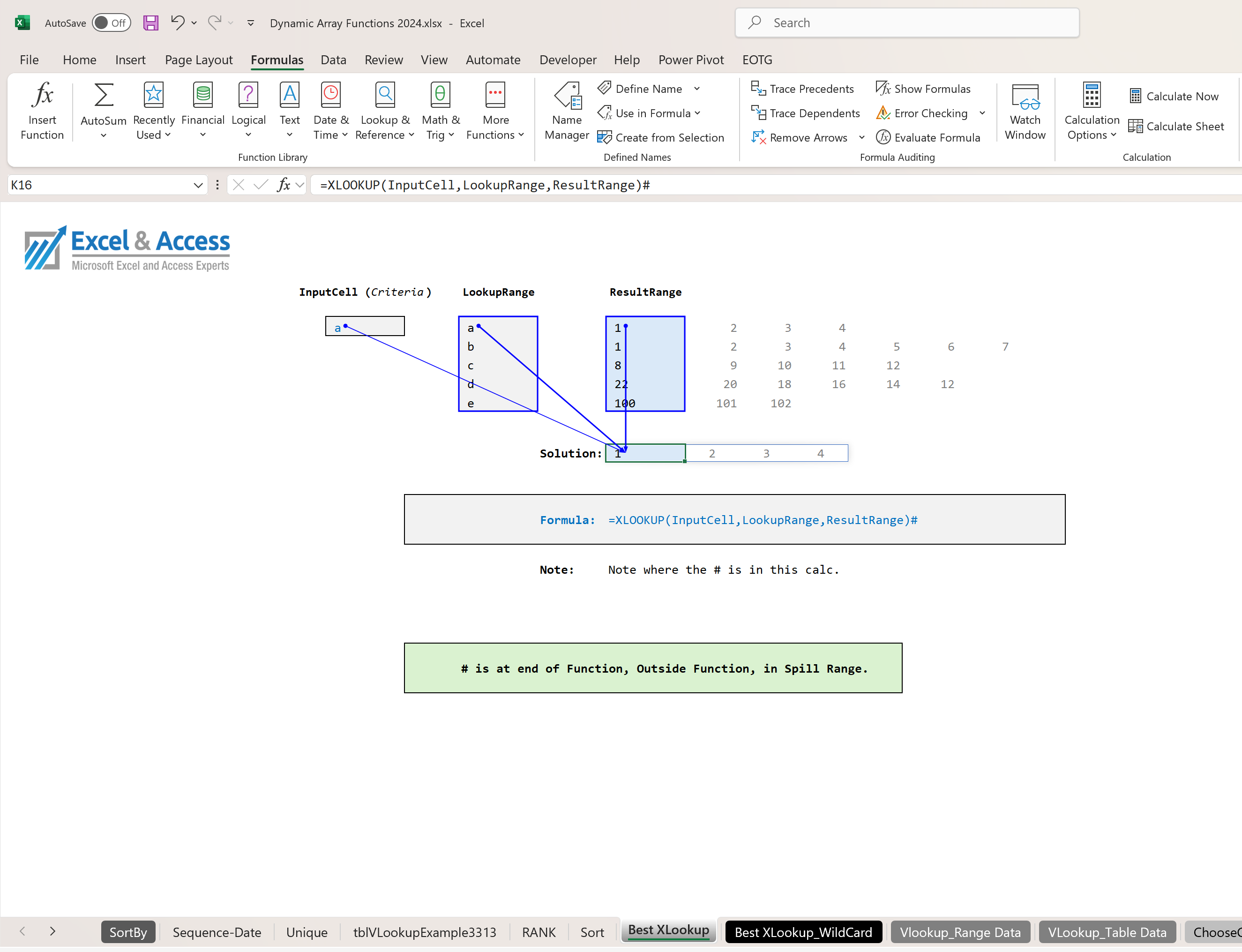
Advanced Excel LOOKUP Function: =XLOOKUP(InputCell,LookupRange,ResultRange)#
PQ Joins Simplify Excel Programming
I have yet to meet a person that learned Power Query, then decided not to use it. Once you see what Power Query can do, compared to say the LOOKUP Functions, you will see the light, and you too will use Power Query and Tables as the base of your custom Excel solutions for Business.

Power Query separates the amateurs from the professionals.
Fewer Moving Parts Means Fewer Things to Maintain and Update
Keep it Simple Shirley: Excel formulas are what we consider to be “moving parts”. If the number of rows in your workbook increases, the functions looking at that data need to know to increase as well.
Don’t Copy the Formula Down: Far too often, the Excel user manually looks to see if the formulas go to the end of the data, if not, the literally copy the formula down to the last row. They do this each time they update the file. Too many moving parts for my taste; Lazy programming.
Use VBA: Slightly better is the use of VBA to extend the functions to the end of the data range. Many many an expert does this. This was the norm; Excel used to be much harder to program.
Use DAFs: If you use the new Dynamic Array Functions, you do not need to worry about the functions referencing the entire data range, as they “Spill” as needed. Referencing a Spill Range w/ # is one of the most significant additions to Excel 365.
Decrease the Moving Parts in your Custom Excel Business Solutions
Use Excel Lookup Functions Versus Joins, to optimize your workbook.
Formulas are moving parts, use as few as possible. If you do use functions, at least use the new DAFs.
- XLOOKUP
- XMATCH
- CHOOSECOLS
- FILTER
- UNIQUE
- SORT
- SEQUENCE
- GROUPBY
- PIVOTBY
- LET
- LAMBDA
Power Query Greatly Reduces the Number of Moving Parts; Power Query is Where the Real Benefit is.
Power Query can be used for Custom Reports, Dashboards, and Analysis
The Interactve, fully automated, dynamic Waterfall Report below is based 100% on Power Query. The Slicers make the solution interactive, there were no onsheet Excel functions or vba used to create this report. Why complicate Excel programming by using hundreds or thousands of functions.

This solution does not use Excel functions to build this report, nor VBA. This was 100% done in Power Query, at the intermediate level. The Slicers make it a breeze to use.
Many Top Excel Experts use Joins in Power Query:
Watch the Top Excel Experts use of Power Query: Many of the top Excel experts today use Power Query as an OffSheet method of updating the data in a file. The consultants do so use Microsoft Power Query, via joins. By using Joins, you can lookup values from one Table to another Table, no Excel LOOKUP functions needed.

Leading Microsoft Excel MVPs- Resources:

If you want to learn Power Query Joins, LinkedIn. Com is a great resource. If you want to learn Excel Tables, Power Query, Joins, Pivot Tables and the Dynamic Array Functions, this is a great group to follow; these experts really know Excel, and even more importantly, they know how to teach. Oz for example, he is where I would start, you will learn much there.
- Mark
- Leila
- Jon
- Jeff
- Oz
* Leila and Mark offer materials in greater depth and complexity than the others. Jeff is a CPA, Jon is a Finance person, as is Mark. They know Excel, they know business, and they know how to teach.
This method greatly reduces the number of moving parts; Tables, Power Query, Pivots, DAFs, and VBA.
The Focus in Dynamic Excel Programming: these days is to do as much of it off sheet, fully integrated and automated. Excel 365 is the New Dynamic Excel and it greatly simplifies Excel programming.
Power Query has many of the same Join types as Microsoft Access.
Power Query Join Types – Excel Lookup Functions Versus Joins:
- Left Outer Join
- Right Outer Join
- Full Outer Join
- Inner Join
- Left Anti Join
- Right Anti Join
- Cartesian ( Access )
- Semi-Left
- Semi-Right
- In the image below, you can see how Joins are used between two Tables. The Query uses a Join. There are several Join types available. Left Outer Join is the Join I use most.

https://learn.microsoft.com/en-us/power-query/merge-queries-left-outer

<
There is Excel before Power Query, and there is Excel after Power Query.
Joins are the most important aspect of Power Query, if you want to build highly advanced, custom solutions for business. There is a shift in Excel programming in the past 3 or so years. Excel Tables and Power Query are now the center of the topic, Dynamic Excel simplifies programming.

Once you learn Power Query, and Joins, you will see a significant reduction in the number of Lookups you write.

Microsoft Access is a Relational Database. Relational Databases are built on Tables, Queries, and Joins..
Microsoft Excel Lookup Functions – Excel Lookup Functions Versus Joins
Excel LOOKUP Functions: I am not going to show you how to use the XLOOKUP, nor INDEX/XMATCH. Instead, we will quickly compare the use of Joins, in Power Query, to the use of functions in Excel. Why are so many Excel programmers turning in this direction? Because in 2018 Excel changed. Excel programming is much much easier this days. Using Joins greatly simplifies Excel development.
The main reason to use joins versus onsheet functions is system performance. Using Power Query to populate a report or Pivot Table is more efficient than cells with VLOOKUPS in them.
- In Microsoft Access there is the DLookup Function. You use it in queries. You can do lookups in Power Query.
Both Excel’s Power Query and Microsoft Access have Tables, Joins, and Lookups. Using Joins between Tables is one of the most important design aspects of Microsoft Excel programming.
There are many Lookup Functions in Excel:
But you really only need to know one, maybe two. If one, the XLOOKUP Function. If two, then the XLOOKUP and XMATCH Functions.
- LOOKUP
- VLOOKUP
- HLOOKUP
- XLOOKUP
- MATCH
- XMATCH
- INDEX/MATCH – Not a function, rather two functions
- DLOOKUP – In Access
As with most functions in Excel, the new, dynamic array functions work well with other functions, DAFs or not. Even the VLOOKUP Function in Excel 365 is Dynamic. Most formulas can now me made Dynamic.
 An Excel XLOOKUP Function allows you to look up values in one or more Tables, Spilling the results onto the worksheet. If you used a Join in Power Query, there would be no use of XLOOKUPS on the Tab, it would rather be flat, read-only data from Power Query. So one method has a formula in every cell, the other method has no formulas.

The XLOOKUP Function is now the top function in Excel, based on pre-2018 functions. Since then, Filter, Unique, Lambda, etc., have greatly changed the way Excel is programmed.
Excel Lookup Functions Versus Joins. The XLOOKUP is an amazing function and I use it daily. But if I can use Power Query first, that is what I will do.

Stick with the XLOOKUP and XMATCH Functions, forget the rest of the pack.
Conclusion – Excel Lookup Functions Versus Joins

A sign of a good programmer is efficiently, and the ability to optimize the custom Excel solution. Maximize system resources, do not slow down the computer. So how do you do that?
You can use Joins in Power Query, to populate certain attributes in your workbook, or you can have hundreds of thousands of cells with functions in them. Which is more efficient?
Power Query and Joins is the most efficient use of Excel.

Toll-Free: 877.392.3539 | Irvine, California: 949.612.3366 | Manhattan, New York: 646.205.3261
Post Update: See our new post on using Joins in Power Query, on an actual solution. PQ Joins versus Lookups.
Should I use Joins in Power Query, or onsheet lookup functions?


Leave a Reply