



Power Query Joins or Lookup Functions
~ Old School Programming (Pre-2018) Versus New School Development (Post-2018) ~
Excel has Changed: Power Query has never been used more than it is now, neither have Excel Tables, both are quickly gaining acceptance and momentum.
Microsoft has been very clear on the future direction of Excel 365. Online, based on Tables and Power Query.
While many Excel programmers still do not know what Joins are, or how to use them, that is changing, slowly, with this new breed of Excel 365 experts, but it is changing.
I predict that in 2-3 years most Excel experts will be using Tables, Power Query and Joins.
Joins or Lookups: So when you do use Power Query, do you use onsheet Excel lookup functions, or do you use Joins in Power Query? That is what this post is about, when to use what, and most importantly, why.
Results: Based on a real-world solution. Saves the client 4.28 of weeks of work per year. Takes him seconds to update the file.

Important Note: Before you can decide which solution is optimal, you must first consider how will the file be used. Is this a one-off, Ad-Hoc solution, or will this file be used on an ongoing basis?
Note: We are expanding this post to show a version built with the Data Model and Power Pivot.
The Controversy: To use Joins or Lookups?
- Definitely a Controversial Topic.
- Those who have worked in databases, such as Access, they see the power behind joins.
- They see the real power behind Power Query.
- Those that are strictly Excel programmers, they choose lookups, that is what they know, where they live, what they have been taught. They see that as the correct way to do this.
- Those who have worked in databases, such as Access, they see the power behind joins.
- Accepting Change is Difficult; it challenges your personal beliefs.
- But change is good.
- The world is not flat, that was very controversial.
- Germs killed more people than the wounds they suffered, that was very controversial.
- To learn how to program Excel or to use AI, that too is controversial.
- I know, when have been doing it this way since…….,
- but that does not mean it is the best way. If it did, then we would still be using the VLOOKUP and DSUM Functions.
- I know, when have been doing it this way since…….,
- But change is good.
This post is about that – Joins or XLOOKUPS
~ Based on an actual project ~
The Question: I am working on an Excel programming project that is based on QuickBooks data, Excel Tables, and Power Query. Should I use Joins in Power Query, or onsheet lookup functions?
The reason for this post: I have data in several Excel reference Tables ( List Tables ) that needs to be placed in two Excel Power Query Tables. How do I want to do it.
Methods: There are two ways to do this, use one of the various Excel Lookup Functions, onsheet, in the Power Query Tables, to retrieve the values in the Excel Tables, or use Joins in Power Query. Which method is optimal?
Which method would you use to populate 8 columns of data from 8 reference Tables?:
- Use OnSheet Lookups to get the data out of the local Excel Tables.
- Use Joins in Power Query.
The majority of Excel programmers would use Lookups, such as the XLOOKUP Function, between the Tables, but those are onsheet Excel functions, and those are breakable.
- Why would they do it this way, because they are not database programmers, they are Excel programmers, and there is a difference in how one approaches this topic, based on your experience and training.
- Not right or wrong, just one way versus another.
- You could do Index/Match, or the XLOOKUP. Both are correct.
- Not right or wrong, just one way versus another.
Current Excel 365 development methods, at the expert level, are to use Joins in Power Query, instead of onsheet Excel functions. This is how Excel is increasing done, by those who know Excel 365, at the expert level.
- The use of Power Query is on the increase, at all skill levels. But at the expert level, it is now almost universal, Tables & Power Query w/ M-Code.
 Excel Tip: Always work with Excel Tables. Give us two-hours and we will teach you everything you need to know about Excel Tables, via our mentoring services 877-392-3539.
Excel Starts with Excel Tables and Power Query, and then Dynamic Array Functions ( DAFs ).

Here the Power Query Table is the result of using a Join in Power Query, then loading the results Table to the Sheet. You could get the same result, using the XLOOKUP Function, OnSheet. But which is optimal?
( Demo File )
An important consideration: Is this a one-off, Ad-Hoc solution, or will this file be used on an ongoing basis?
Custom Excel 365 Solution: Excel Tables, w/ Power Query and Joins
In this post, we will cover a small real-world project where we chose to use Joins in Power Query, instead of onsheet Excel lookup functions. We will also show the solution, based on using XLOOKUPS onsheet. You can compare, and you can decide, which is optimal.
- Note: This solution uses zero onsheet Excel functions, and there is no use of VBA in the file. Everything is done directly in Power Query. The user does NOTHING, and that is the point.
The Client’s Need:
The client had a simple need, to cleanup QuickBooks data, to add a few columns, to populate those columns based on data in other Tables, and to upload the results back into QuickBooks. The original solution was all manual. The new solution is 100% automated.
- Not complicated, and the perfect scenario for Power Query.
** We went with Joins in Power Query, but XLOOKUPS placed in the Power Query Table, onsheet, would have given the same results.
The Data Files:
This is a monthly, now 100% automated process. It is based on ……
- Expense data, QuickBooks download
- Revenue data, QuickBooks download
- 10 Local Excel Tables, used as reference data ( Reference )
- Expense data upload into QuickBooks ( Output )
- Revenue data upload into QuickBooks ( Output )
The Solution:
Given the fact that there are two external Excel files available as the source data, we choose to use Power Query.
Power Query was used to reference the two external QuickBooks generated Excel files. Each file went through PQ, to get the data in order, to remove excess columns, and then to apply the Joins, to get the reference data into the Table. The results are loaded to sheet as Power Query Tables.
Amazing PQ based Solution: The user simply downloads the two QuickBooks data files, and then opens the Excel file, which self-updates on Open. The user basically opens, saves, and closes the file.
The user opens, saves, and closes the file
The Monthly Update Process:
Power Query, proper design, saves the user effort. That is the point; remove the user from the update process.
- The Queries Refresh automatically on open.
- Runs in seconds.
- The user then saves the file.
- The user then closes the file.
- The user then uploads the Power Query results into QuickBooks.
- The user just saved 15-hours a month, or 4.5 weeks per year!!!
This custom Excel 365 Solution based on Power Query saved the client 15-hours work each month.
That is an entire month of work saved!

Let’s Take a Look at Doing This with the XLOOKUP Function
We could have used Lookups instead, same end results
The real solution was built using Joins in Power Query. But for this post, I repeated the work, but this time I used the XLOOKUP, onsheet, in the Power Query Table, to get the same end results.
Of course, as a seasoned database programmer, I prefer the Joins in PQ, but the majority of Excel programmers out there still would have done this with Lookup functions.
- Power Query is used to manipulate the two external QuickBooks generated Excel files.
- Eight columns are added to the Power Query Table on the worksheet. Simple demo shown below (Demo XLOOKUP column).
- This is done by inserting the column(s) into the onsheet Power Query Table, in the place you want them.
- PQ does not populate those columns, as those columns are in the Power Query Table, and not in the Query.
- The XLOOKUP Function is placed in the new column(s), to extract data from the 10 local Excel reference Tables.
- This is done by inserting the column(s) into the onsheet Power Query Table, in the place you want them.
- That is the only difference between the two solutions, XLOOKUPS such as below, or Joins.
- The results are the same.
But the majority of Excel programmers out there still would have done this with Lookup functions
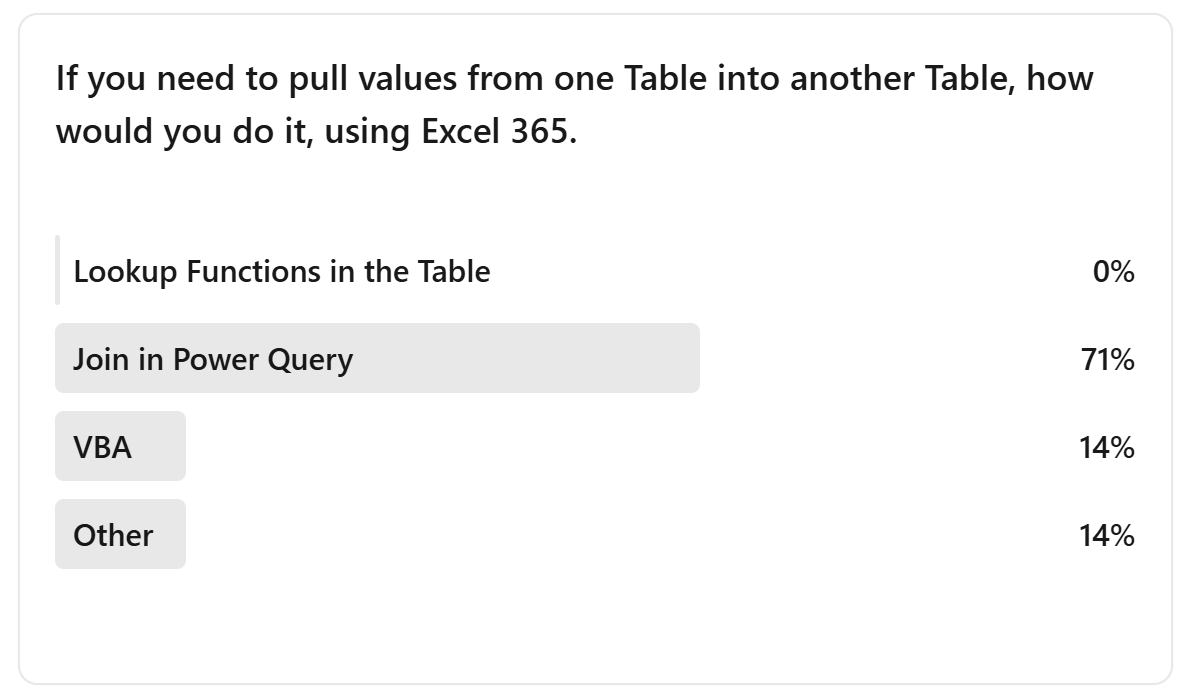
- Which do you use, or prefer?
- Why?
* Please leave a comment, we would like to know what you personally use.
Why do you prefer the XLOOKUP over the Join?

( Simple Demo File ). Here we show an example of an XLOOKUP, placed onsheet, in the Power Query Table.
Powerful, it works, but it can be broken easily.
Using the onsheet XLOOKUPs was faster to develop, maybe saves an hour of work
Personally I would eat the hour, and provide a better solution
The Difference in Development Efforts
~ One solution takes about an hour less to program ~
Both solutions are based on two external Excel Tables, 10 Excel List Tables, and Power Query. The only difference is this, did we use Joins or the XLOOKUP.
Setting up the Power Query solution based on Joins, properly, with all the settings, user interface, bells and whistles, and code, well, that takes time to properly setup. But once it is setup, it runs in seconds. The Joins do take time, as each of the reference Tables needs to be loaded into PQ. So it takes more time, but it is a nicer solution.
Placing the XLOOKUP onsheet, in the Power Query Table, is faster than the Join method. If this is a onetime solution, this is probably the way many would go.

Derek brought up a very good point. One to consider. Still, I would spend the time and do the Joins, I am that way, all in, best solution possible, one-off or not.
Joins versus Lookups Comparison
It really comes down to preference and development effort. If the reference Tables are already in PQ, then I would definitely do the Join method.
If you must load those into PQ, just for the Joins, then you can go either way, based on personal preference, both work.
But one is ultra cool.
Conclusion – Joins or Lookups
Before you can decide which solution is optimal, you must first consider how will the file be used. Is this a one-off, Ad-Hoc solution, or will this file be used on an ongoing basis?
That ultimately determines what could be done here. As setting up the fully automated Power Query solution does take time, to properly setup.
Inserting a new column, onsheet, into a Power Query Table, and populating it with say the XLOOKUP Function, that is really quick! Much quicker than setting up the Joins in PQ.
But one is built better than the other.
- For onetime use, use the XLOOKUP.
- For ongoing use, you decide which approach works best for you, based on development time, as well as how advanced you want the solution to be.
You Decide: So, is using Joins in Power Query worth the time? It is the better built solution, that is for sure.
It is the solution I would recommend, and the one I would build.
But I would understand if others went with the XLOOKUP approach.
Both work. One has onsheet functions the user can break or change, the other does not. One takes longer to develop, but is better built. You decide.
To me, fewer onsheet functions, less VBA, that is the way to go.
Next Level:
 You can also do this with Power Query and the Data Model, using Power Pivot. That really takes this up several notches. I actually prefer the Data Model version.
See the wip on the Data Model in this post.
Images from the actual solution file

The client downloaded two files from QuickBooks.

The EOTG add-in tells PQ where the source files are located. Ultra user friendly.

Making the file easy for the user to use and to update, that is our job. This ExcelOffTheGrid.Com add-in is in every file we build. Users LOVE it.

Power Query does the ETL thing.

Power Query is much like Microsoft Access. I understand why Excel programmers do not understand Joins.

Like Access, Power Query’s interface makes this so easy. Point and click.

Looks complicated, but it is not. Much easier to understand than tracking a bunch of onsheet functions.

The file refreshes the queries on open, other than saving and closing the file, there is nothing for the user to do. The real power of Power Query.

One of two Power Query Tables that will be uploaded into QuickBooks. Two files in, 10-reference Tables, two files out. Simple. Saved the client 15-hours a month, 4.28 weeks a year.

VBA was not used. Onsheet functions were not used. Neither was needed.
Data Model Version
So I have decided to take this up a notch, a 3rd version, this time using the Data Model. So far, I like this version the most. It takes knowledge to setup and all, but this is POWERFUL.
Versions for this post:
- Power Query Joins
- Excel XLOOKUPs
- Data Model
All three work, the Data Model, based on Power Query, that is the most advanced and powerful version of the solution.
Power Query queries loaded to Data Model.

The Data Model. I prefer this approach to the approach used for this project.

The Data Model takes Excel and Power Query to the next level. Like comparing Access to SQL Server.
Power Query Makes it so Simple, so Powerful
That is it, that is the actual solution. Pretty straightforward. Two files in, 10-refernce Tables, two files out, no user effort. That is the point of Power Query, to allow you to fully automate the solution.
Have you seen Power Query Tables used as Data Manipulation Forms? Now that is some next level.
What does Chat say about it Joins versus Lookups?
Chat is very clear, the best solutions are based on Joins in Power Query. If you still disagree, argue with GPT.
- If you do not know what Joins are, or how to use them, we are here to help. We offer one-on-one mentoring in Excel 365 development for business.

Need help with Power Query or the Data Model?
Toll-Free: 877.392.3539 | Irvine, California: 949.612.3366 | Manhattan, New York: 646.205.3261
Contact us for a Free Consultation Today.


Thanks for the shout out Christopher!
I think back to projects that I did 10+ years ago when I was still deep into finance and accounting, and Power Query would’ve been an amazing tool to have. Anytime I needed to do a look up back then, or any other data enhancements, that would’ve been my tool of choice.
Now that I’m more in an accounting-adjacent role (pre-sales), most of what I do is ad-hoc analysis, and it’s just easier to apply a quick formula or two. DAFs allow us to do a bunch of the things that previously we could only do with Power Query, and before that, only VBA. I’ve been a bit obsessed with Lambda lately and it is a great way to use them.
I think Power Query is certainly the best tool for the job if it’s repetitive or highly likely to be repetitive, otherwise it kind of depends on your preference and those of the people who will consume your files.
While I would do the Join method, I am retentive, I totally agree with your approach, it makes sense. Most would agree with your approach.
Hi Christopher,
Another thoughtful post (as usual).
There are usually multiple considerations such as the one Derek highlights: is this a one-off (tactical) or more permanent (strategic) solution.
When I design a strategic solution for clients, my general approach is to let the server do as much work as is practical (I do a lot of work with Excel interacting with SQL Sever/Azure in the corporate world).
Translated to this situation, that would suggest to let Power Query do as much of the heavy lifting as makes sense. Worksheet looks and/or VBA can supplement this, although if you’ve done a sound job with Power Query, this should be minimal.
In my own development for clients, I am replacing swathes of VBA code with Power Query and Dynamic Array Formulas (DAFs). The power of combining these two tools cannot be overstated. Similar to your experience, I’ve built a monthly reconciliation dashboard for a client which refreshes in seconds and saves them many hours per month. The need only drop the latest SAP extract in the report folder and click Refresh – Power Query and DAFs do all the hard work.
All the best,
Marcus
Thank you for the comment Marcus.
Your solutions, they show that you leverage both the new excel and the old excel, at the highest levels. I love your work, it inspires me.
“Power Query and DAFs do all the hard work.” Base the solution on Tables, then PQ and DAFS and add code as needed, on Teams, the future of Excel.
It just makes sense.
I use both. And I’ll probably reach for lookups more often than you do.
Here are the main reasons I use joins:
1. The data spans a large number of records. A fixed value via joins beats thousands of formulas.
2. I need multiple columns. If I’m combining multiple columns between tables, using joins is a no-brainer in terms of simplicity, tidiness, and speed.
However, I favor lookups when:
1. I’m grabbing data from multiple tables (common in lambda solutions).
2. The user may opt to manually update data in a table which impacts what would have been a joined column (looks allows for a live update).
Short answer: if the workbook functions more like a database, joins all day. If the workbook functions more like an app, live-updating lookups are my go-to.
That is one of the coolest things about this new Excel, there are so many different ways, advanced ways, to get it done. I push PQ as far as I can, you push LAMBDA as far as you can. Both of us start with Excel Tables, use Power Query, the DAFs, and code, as needed.
You are in my mind, Mr. LAMBDA. Your solutions are solid, yet cutting edge.
You, Marcus, mixing the best of the old, while really pushing the new.
For me, it’s all about context of the action. If it is data preparation, then it’s joins in Power Query; if it’s calculation then it’s formulas in Excel.
You want to load data as few times and possible and you want to calculate as little as possible. So using both, but in different contexts is the way to ensure that.
Great answer, it is always based on the solution at hand, the client’s needs and skills, and the developer’s preferred methods. Budget as well.
Lots to consider.
This is my favorite thing about excel. It’s incredibly deep tool chest and the flexibility for people to use what makes sense.
For me, I’ve been a traditional developer as well as an excel developer so I am comfortable in either space.
But to be direct. If I am grabbing data from multiple sources and it will be a repeating process the. Yes , I will try to use power query. If it’s more of a poc or a 1 off OR I am handing off to marginally savvy business partners, probably going to stick with traditional formulas ( teach them XLookup as opposed to vlookup ).
Joins are fantastic, BUT you really need to understand what they are doing.
If I had a dollar for every Cartesian product I’ve had to fix…….
It would add up, that is for sure.
The point on who will use the file after you, that is one of the most important things to consider when we build solutions. Hence, I currently do not use LAMBDA.
Well said. Seems to be the popular answer.
I am now working this same solution through the data model. I like that solution best.