
Self-Referencing Query, Explained
I have heard people talk about self-referencing queries for a few years now. Up until recently, I have never had the need to try them. But then I saw a video on ExcelOffTheGrid.Com that covered them in great detail. What Mark showed really got my attention; made me think, can I use this in production? I had to find out.
I know several Excel MVPs that use these in production, so I decided to give it a try, build a few of these, learn the ins-n-outs, and to do a blog post on what I learned.
 * In this post, David shows his take on this, using a self-referencing query in a real client solution ( “Making an Excel Database” ).
A self-referencing query is a query that uses itself as the source. Instead of pointing at an Excel Table, the query points at itself. This is not standard.
Would a Self-Referencing Query be Useful in a Real-World Solution
For this demo we wanted to see if a self-referencing query could be useful in a real-world scenario, for a paying client. I built a simple workbook demonstrating the concept. The demo has just enough detail to allow me to apply several cool techniques, while keeping it simple enough to easily comprehend. Please DM me if you would like a copy of the workbook.
What I learned: I can use a self-referencing query when I want to append external records to a local Excel Table, via Power Query, without using macros, that is significant!!!
Else, it functions much like an Excel Table, with some interesting differences that need to be noted.
Possibly Confusing: In that it looks like a Query, but if you delete the data and hit Refresh, the data does not refresh, the data is gone, you just deleted it.
Also Concerning: Typically, you want to keep the users out of the Tables, but in this case, you actually want them to interact with the Table.
What it Does: It allows you to add new records to a Table, no need for macros, based on a Join in Power Query.
Would I Use It: Personally, I would use it in a macro-free workbook; else I would not use it.
Why People Use It: It also allows you to manually enter data into the Power Query Table, and when you Refresh the Query, the data stays. That is the point, you can add data into the Query, and it will stay, properly associated with the correct row.
Same with calculations, they will stay as well. Some call this a Hybrid-Table.
In this post I Show Two Examples of a Self-Referencing Query
- I first show a complex solution, using a SRQ as a Power Query REA Form ( Table ), using External Data.
- High level summary, the concept.
- Later in the post I show step-by-step, how to create a very simple self-referencing query.
- The steps with images shown will show you how to create self-referencing query.
- Neither example uses VBA.

877-392-3539 Free Consultations.
A Self-Referencing Query Real-World Solution – TheNewExcel.Com
Guest Co-Post: David – Excel MVP, TheNewExcel.Com
The following guest section was originally written and published by David of TheNewExcel.Com. It is republished here with permission.

Making an Excel Database
Below is David’s take on the self-referencing query. In David’s solution he did leverage the power of VBA.
You can see the full-post on David’s site: https://thenewexcel.com/making-an-excel-database/
- I know, Excel is not a database………, he said it, I did not.
Making an Excel Database
Power Query is one of the most powerful tools inside Excel today. You’ve probably used Power Query to import sales, customer, or payroll data into Excel. If you need to import data into Excel, there is no better tool than Power Query.
But . . . with a small adjustment, Power Query can do more than just import records. It can execute all four standard database actions: 1) Create, 2) Read, 3) Update, and 4) Delete. You can create a database right inside Excel.
How? Easy!
Enter the self-referencing query.
Let’s have a look.
Self-Referencing Queries
All power queries have a Source . . . the place the data comes from. Well, what happens if the Source for a Table is the Table itself? That . . . is a self-referencing query . . . or SRQ.

Normally, if you edit a worksheet cell that is part of a power query, that change disappears when you refresh it. But . . .if you change a value in a self-referencing query, that value stays when you refresh it!
You’re probably saying, “Big deal!”
So am I.
A self-referencing query doesn’t really make sense on its own. However . . . when you add a few steps to an SRQ, it becomes a full database action tool.
Let’s see it in action.
Excel “Database” . . . and Its User Interface
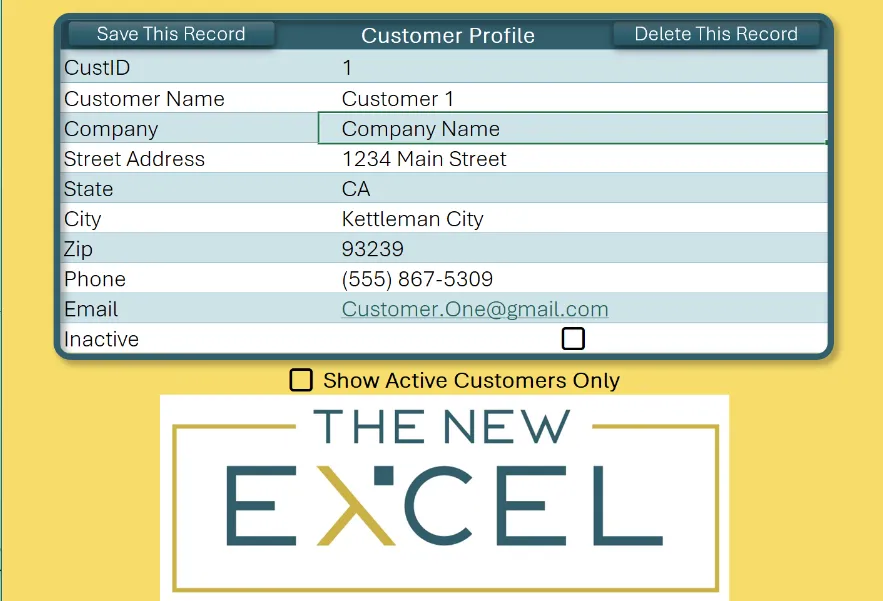
Here is our self-referencing query: a “database” of customer info.

And here is an input page connected to that SRQ. This input page allows us to Create, Read, Update, and Delete records in the master database table.

We can select an existing customer – reading the master database. Or, we can change a field and “save this record”. That record is now updated in the master database.
While a macro automates the action, this isn’t VBA-driven. The VBA code simply refreshes the query. THAT is the power of a self-referencing query (SRQ).
Advanced Database Functions with an SRQ
That’s read and update. Now, let’s create a “new customer”, enter some data, and “save this record.”
When our SRQ is refreshed, the new record is added to the database.

Finally, the SRQ allows us to delete records. With our user interface, we select a record and press “Delete This Record.”
Just as with update and create, this isn’t VBA-driven. The macro is just refreshing the SRQ.
The input sheet has a hidden cell called rng_Delete. If this cell is set to TRUE, the Power Query steps in the SRQ will remove this record.

This is powerful, so let’s recap.
An SRQ, paired with an input sheet, allows us to create, read, update, and delete records in the master SRQ table.
Almost no VBA.
Just a self-referencing query.
With established Power Query steps and already-written, easy-to-adjust VBA code, we can quickly add database functionality to any spreadsheet using SRQs.
Guest Co-Post: David – Excel MVP, TheNewExcel.Com
End of guest contribution by David of TheNewExcel.Com.
Toll-Free: 877.392.3539 | Irvine, California: 949.612.3366 | Manhattan, New York: 646.205.3261
Contact us for a Free Consultation Today.
We are here to assist with custom solutions in Microsoft Excel 365 with Power Query.

Try our one-on-one Mentoring Services

On over 100 Google Reviews.
Self-Referencing Query with an REA Form
In a recent post we covered our use of Power Query Tables as REA Forms. There we used a small amount of VBA.
The use of a Power Query Table as an REA Form is something we do regularly, something we pioneered.
As in this demo, we often use external data, brought in via Power Query, Table loaded to Sheet. We then use that PQ Table as a Form. This method allows the user the opportunity to edit any record before it is added to the data Table. See the full post to learn more.
- The PQ REA Form ( Table ) is a way to slow down incoming data, and to allow the user time to revise the data, before adding it to the data Table. It can be simple or complex.
Macro-Free Workbook Method – Enter the SRQ
But what do you do if you want to do the same thing, but in a macro-free workbook? How do you take records from an external Table, edit them, and then append them to a local Excel Table without the use of code? Simple, you use a self-referencing Query tied to a Power Query REA Form.

Left Query is the PQ REA Form, right Query is the SRQ.
Demo 1: Using a Power Query Table as an REA Form with a Self-Referencing Query.
Below are the basic steps the data travels through in the process. There are three queries used in this demo.
- External Excel Data into Power Query.
- Power Query Table loaded to a Sheet.
- Used as the REA Form.
- Loaded into Power Query.
- Join to SRQ
- Loaded into Power Query.
- Used as the REA Form.
- Add New Records to the SRQ via the REA Form.
- Add New Records in the Self-Referencing Query, directly.
- RefreshAll dos the trick, no VBA needed.
- Add Validation Lists, CheckBoxes, Conditional Formatting, Data Validation, etc.
The Video-Demo #1
In the video below we show how the self-referencing query works. Simple example, several techniques, no vba.
The External Data File
Below is an image of the external data file, an Excel Table.
Note, several Regions are purposely misspelled, to be corrected in the REA Form. One record is set as Excluded.

Here is the external data, in an Excel Table. Power Query will pull in all but the one excluded record.
The REA Form
The green Table below is out of Power Query. Here we use it as a Form. We allow the user to Review, Edit, and Append ( REA) any and all records in the Query, before they are loaded to the local Data Table.
- RefreshAll will move the approved records. VBA Is not used.
We do use:
- Data Validatio Lists.
- CheckBoxes.
- Conditional Formatting.
- Active Record Lookup
- CPK, 3-attributes.

Here we use a Power Query Table as an REA Form. Creative.
The Self-Referencing Query
The Green Table below is a Query loaded as a Table to a Sheet. But this Query is a little different.
It looks like a Query, but it works more like a Blue Excel Table; delete the data in the Query, and when you Refresh, it does not return.
If you add a record to the bottom of the Query, it stays on Refresh.
If you change any cell, in the Table, when you Refresh, it stays, associated with that row.
If you properly place calculations in the Query Table, on Refresh, they stay.
We do use:
- Data Validation Lists.
- CheckBoxes.
- Conditional Formatting.
- Filters in the Query:
- Change Record Type to Delete, on Refresh, the record is deleted.
- CPK, 3-attributes.
- RefreshAll will update the records in the SRQ. VBA Is not used.

Power Query Self-Referencing Query. This Query Table acts a bit differently.

Both Queries Together:
Fun little demo, you can watch the records move, see the changes, follow the logic.

The Design:
Here I try to layout how the file works, visually.

The Queries
Just three queries do the trick.

Three Queries are all that was needed.
How to test it:
- Add new records to the external data file.
- Refresh the REA Form.
- Make one or more changes to the data.
- RefreshAll.
- The new records are now in the SRQ Table.
- Make one or more changes to the SRQ Table.
- RefreshAll
- Look at the results.
- How did it work?
~That is Demo #1 ~
~This is Demo #2 ~
What is a Self-Referencing Query?
A self-referencing query is a query that uses itself as the source. Instead of pointing at an Excel Table, the query points at itself. This is not standard.
This is what some call a Hybrid-Table; partially an Excel Table, partially a Power Query Table, in how they act.
Refresh does not bring it back to how it was.
A Self-Referencing Query Allows:
- Append records from one Table to a Query Table without the use of vba. ( Like Copy & Paste Values )
- In macro-disabled solutions, this is useful, very useful.
- It allows you to add data to a record and have that data stay associated with that record. This is also very useful, and this is why most people use a Self-Referencing Query
- Add a Notes column, add a DropDown, add a CheckBox.
- The selections stay on Refresh.
- Normally, if you add a formula to a Query, on Refresh the value stays, and the formula vanishes.
- Use Mark’s method and the calculation stays live in the Query.
- Add a Notes column, add a DropDown, add a CheckBox.
In this simple demo #2:
The Primary Key is the Record ID & Record Type.
The “Exclude” Filters records in Power Query and allows the user to exclude records from the pending merge.
Several of the columns are in the query and not in the Excel Table. Power Query populates a few of those, the user populates the others, onsheet. Hence, a self-referencing Query.
It functions more like an Excel Table than a Query.
The Query in the image below joins the two tables in the second image.

The Source of a Self-Referencing Query is the Query itself. As is, it is more like an Excel Table than a Query.
“New Records” in the blue table are added to the green table on refresh. Macros are not used.

This Excel Table stores available items.

This is a Self-Referencing Power Query Table and it houses data, just like an Excel Table. But then it does much much more.
Steps to Create Self-Referencing Power Query
There are a series of steps needed to create a sef-referencing query. We will go over each in detail here.
See images below for better understanding.
- Create a new Excel Table
- Name it tblDataSource.
- Design it the final table layout, with all of the desired columns, etc.
- Populate with dummy data.
- This Excel Table will be used to create the Self-Referencing Query in the next step.
- Note: The Excel Table is used as source data.
- This may be changed to an external data file once the basic design is complete.
- For now it simplifies the demo.
- This may be changed to an external data file once the basic design is complete.
- Note: The Excel Table is used as source data.
- Load the Excel Table, tblDataSource, into Power Query
- Rename the Query SRQ.
- For the moment, make no changes to the query nor the data types.
- Close & Load the Query as a Table to a new tab in the workbook.
- Open Power Query, change the Source of Query to itself, SRQ.
- Close and Load the Query.
- This is now a Self-Referencing Query.
- But at this point, it does not do much, if anything other than it flattens calcs and such.
- Test the file.
- Rename the Query SRQ.
- Load the Excel Table, tblDataSource, into Power Query, again.
- Name it tblDataSource.
- Close & Load as “Connection Only”.
- Note: The Excel Table, tblDataSource, is used as the source data for the demo.
- This may be changed to an external data file once the basic design is complete.
- For now, it simplifies the demo.
- This may be changed to an external data file once the basic design is complete.
- Note: The tblDataSource Query will show the records in the tblDataSource Table but not in the SRQ Table.
- This Query will be used in a Join, to find new records.
- This query will not be loaded to sheet, no need to see it.
- This Query will be used in a Join, to find new records.
- Merge the SRQ Query with the tblDataSource Query
- Right Anti-Join, only rows in second (tblDataSource )
- We want ‘New’ records only.
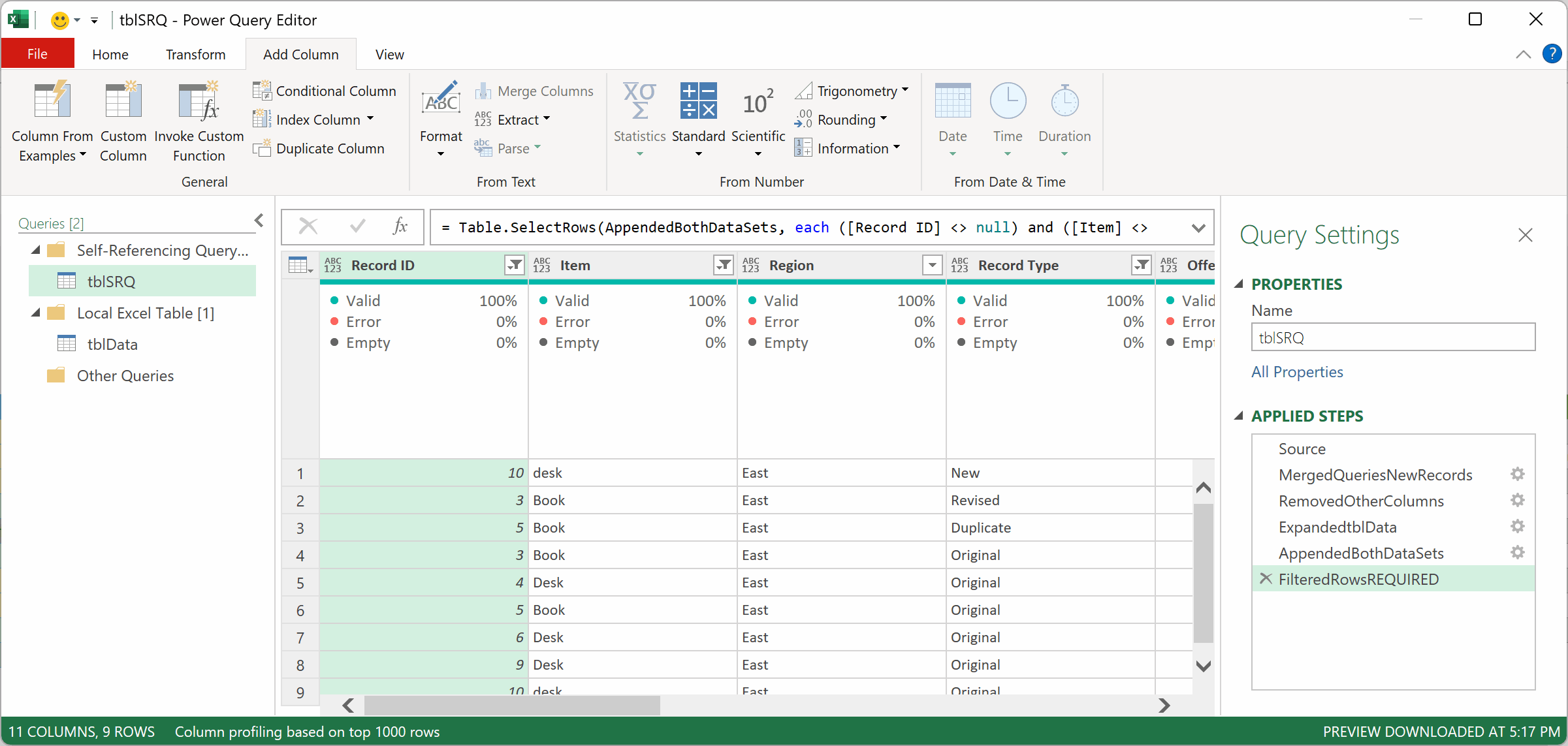
- Select the new column in the Query (tblData), then “Remove Other Columns”.
- Expand the tblData column in Power Query.
- Append both data-sets.
- This is the hardest part; you use M-Code. But it is not hard at all, once you know what to do.
- Here I used: “= ExpandedtblData & Source” to combine two steps.
- Not intuitive, I know. Hard to explain here, see Mark’s video.
- Right Anti-Join, only rows in second (tblDataSource )
- Test the File:
- Delete all the records from the Green Power Query Table.
- RefreshAll.
- Notice the changes to the Green Table.
- All of the records in the Blue Excel should now appear in the Green Power Query Table.
- Make changes to one or more records in the Green Table.
- RefreshAll, notice any changes, should be none.
- Add one new record to the Blue Excel Table.
- Refresh the Green Power Query Table.
- Notice changes.
- Delete all records from the Blue Excel Table.
- Refresh the Green Power Query Table.
- Notice changes.
- Delete one or more records from the Green Table.
- RefreshAll.
- Notice the changes.
Super simple demo. In this video, the Blue Table is a local Excel Table, not an external Table.
That is the Basic Setup for a Self-Referencing Query
But we can take that up a notch. We can change the data source to be an external data source, using Power Query. We can add a bunch of Defaults, Calculations, Lookups, you name it.
If we really want to take it to the next level, add some vba.
Step 1 – Create an Excel Data Table
For this simple demo, we want to use Power Query to pull-in available items from an external data source. We are doing this demo to show how easy it is for Power Query to isolate new records. New records would be records in the external data file, but not in the local Excel Table.
- Create a new Excel Table in Excel 365.
- Populate the Table with mock data.
- This will hold the available data.
- Save as an Excel workbook in the Data folder.
- Close the file.
- Each time the user updates the external data file with new records, those records will be instantly available in our workbook.

REA base data Table, external.
Step 2 – Load that Excel Table into Power Query
- In Master File:
- Using Power Query, import the data from the external Excel workbook.
- The workbook has one Excel Table on Sheet1.
- Save the file.

Load Excel Table into Power Query. Change the Name, Load to Table.
Step 3 – Transform the Data
- Rename the Query
- Transform the data as needed
Step 4 – Close & Load the Power Query Table to a New Worksheet
- Close & Load to a Table on a Sheet.
- Change the Properties.

Load Power Query Table to a new Sheet. Change the Properties to match the image.
Step 5 – Change the Source of the Query to Itself
- Refreshing at this point simply replaces calculations with values.
- Delete the data, hit Refresh, and nothing happens.
- Change the data, hit Refresh, nothing happens.
- It is acting more like an Excel Table than a Power Query Table.
- Be careful here; do not permanently delete your data.
- Close & Load.
- Test the Query.

Change the Source of the Query to itself.
Step 6 – Add Column(s) Inside the Query
In the Query Editor, Add Column.
- Add your new column(s) inside the Power Query Editor, not OnSheet.
- Close and Load the Query.
- The Query Refreshes
- You get an error message.
- You open the Query, and you remove the newly added column(s)
- The Error message goes away.
- Close and Load Query.
- Issue resolved.

New Column added to the Query, loading a Default value, which is based on an Excel List Table.

You will get this error when you first refresh that revised query.

Here is the error in the Power Query Editor.
Self-Referencing Query Loaded to Sheet.
Step 7 – Add Onsheet Calculations / Calculated Column
Adding a new column with a function to the Query, and wanting the function to stay, when the query refreshes might be a new concept to you.
 It is common to add a new column with a function, to the far-right side of the Table. But this is a self-referencing query, and that complicates things.
Here we add a new column directly onsheet, say to the end of the Power Query Table, right side. Let’s create a Primary Key calculation, and let’s set this up so that when the query refreshes, the function remains.
- Add new column to the onsheet PQ Table.
- Add the TEXTJOIN Function to the column, creating a Primary Key field.
- Open the Query Editor,
- Select all of the columns except the new column, and select Remove Other Columns
- On Refresh, the calculations remain.

The Self-Referencing Query has its place.

Remove all but the new column, but do it this way.
Step 8 – Adding “New” Records from an External Data Source
A very common need. Show me a list of items that are in our data source but not in our historical data table.
New records would be records that are in the data source, but not in our self-referencing Power Query Table.
To do this we need to create a Join in Power Query, so that we can isolate new records.
- Upload the Source Table into Power Query.
- Load to “Only Create Connection”
- In Power Query, Merge the two queries.
- Right Anti Join
- Show new records.
- Right Anti Join
- In PQ, Select the new column, right-click, Remove Other Columns
- Expand Table, showing all columns
- Merge two Steps in this Query.
- Yes, weird, but it works
- Close and Load Query.
Step 9 – Adding the Bells & Whistles
Now you can stop there, it works; it adds new records to the Table, without VBA, and the manual columns and calculations remain, on Refresh. Perfect.
What can we add for the user. How simple can we make it.
- DropDown Lists
- CheckBoxes
- File Path Selector
- Conditional Formatting
- Data Validation
- Cell Protection.
- VBA / Macros
Self-Referencing Query Demo #3
Automatically Adding a New User to the Permissions Table
The Permissions Table determines which tabs are visible when the user opens the file, based on the current user’s Windows ID.
Here the user will be notified when a new user is automatically added to the Table. This is important as this controls permissions, and we need to account for users not in the permissions table.
When the file opens, the Windows ID is read, if it is not already in the Permissions Table, it will be added, via a designated Refresh, Permissions set as Else. This enables the code to run, and the user to use the file, even if they are not in the Table. If the user is already in the Table, they will not be impacted.
The Permissions Table has an Else Group, so it works as a default. If you are not in the table, you will see the Tab Selection Sheet when the file opens, and that is it. This is where you select which sheets you want visible, easily, via a simple interface. ( See Below )

Permissions Interface.
Very simple, easy to understand demo, very little going on.

Self-Referencing Queries do not work like your typical Query.
RefreshAll has been turned off. The Refresh Icon refreshes the Query, plus the MsgBox.

Very simple self-referencing query, two One Table, two Queries, two attributes, 5-steps, minimal vba.

The Self-Referencing Query below has two Tables, two columns each ( Thet are green ).
Joins in Power Query, there are only a few, they are not hard to use; point and click.

This is the “Weird” part, for lack of a better term. Most people do not append in the same query, unless they have been taught. Self-Referencing Queries have several “Weird” things about them. They function differently. But those that use them swear by them. I am still not sure if they are worth the effort and the weirdness.

You do not need to use VBA to leverage the power of a self-referencing Query, that is their beauty. But usually, code is used with them, with the user in mind.

So yes, there are uses for Self-Referencing Queries, and this is one of them. Actually a good use, if there is a new record, it is automatically added, no need to impact the user. For List Tables, these are very nice and I will use them. New region, client, staff, item, user, etc., automatically added.
Conclusion: Self-Referencing Query Method
~ To Use or Not to Use ~
 In Conclusion: After building the three demos, speaking with a few MVPs on that topic, and after writing this post I have determined that in 75% of my projects, unless I wanted to work in an .xlsx format versus an .xlsm format, I would prefer to use the Excel Table with the VBA based method over the Self-Referencing Query method.
Self-Referencing Queries: Very cool in that it can append records without the use of VBA. That is useful, that is powerful.
Toll-Free: 877.392.3539 | Irvine, California: 949.612.3366 | Manhattan, New York: 646.205.3261
Contact us for a Free Consultation Today


Really cool use case for the self-referencing query. The idea that a manual edit or a new row can survive a refresh instead of getting wiped out is one of those Power Query quirks that always surprises people the first time they see it. Nice job walking through both the concept and David’s real-world build side by side. Thanks for sharing!
Jeff – https://www.stevensdataautomation.com/