



On-Sheet Versus Off-Sheet Excel Programming
FLUID Excel Development
“Fluid Excel Development”: How you program Excel today will be different than how you will do it in say, just 6 months, as Excel 365 is in a constant state of flux, and as such, so should your Excel development methods, hence FLUID Excel Development.

What is “On-Sheet” Excel Programming? If you have never heard that phrase, On-Sheet Excel programming is when you use Excel functions, in cells, on a worksheet, to perform calculations. Functions such as the XLOOKUP, SUMIFS, or LAMBDA are three of the most advanced and most used “On-Sheet” Functions, by Excel experts today. Average, Count, and Sum, are on-sheet Excel functions, used by most Excel users. In this post we cover the use of Onsheet versus Offsheet Excel Programming methods.
Most Common Programming Method: Excel is usually built with numerous functions and undefined data ranges. These are used to generate reports and analyses. This is how Excel is done. But it does not have to be that way; there are more efficient ways to program Microsoft Excel – Microsoft Excel 365 is easily automated.
Expert’s Note: If you use Power Query to populate Tables, you do not have to worry about protecting the Table’s data range, it is read-only, it refreshes; the user cannot accidentally delete the data, permanently, because when you hit Refresh, presto, the data is back. If you accidentally delete the tab with the Power Query Table on it, no worries, the query still exists in PQ, it is just not being loaded to a sheet. This is how Dynamic Excel is done.
Goal, have the fewest moving parts in your Excel workbooks.
Off-sheet Excel programming, via Power Query is increasingly the way to go, as the Excel Team rolls out changes after changes to Microsoft Excel 365.

Onsheet programming in Excel 365 is the norm.
Onsheet versus Offsheet, so many options.
On-sheet programming requires the use of Excel functions in every cell of the range, or once for a Spill Range. Every cell of the report has a calculation. In Dynamic Excel 365, that is no longer required.
Off-Sheet Excel programming is what you do when you use Power Query to perform calculations, instead of doing them on the sheets. The Power Query calculations are run in one or more queries. This is very similar to using queries in Microsoft Access, and then pulling the results into Excel. Much like an Access backend to an Excel Frontend. Here, Power Query is the relational database in the background.

The XLOOKUP is an onsheet Excel function.
Most calculations you would do with Excel functions ( XLOOKUP Function ), can also be done in Power Query. You can do an approximate match lookup in Power Query, much like the XLOOKUP Function. Power Query functions are often easier and more powerful than the use of Excel functions in cells. Power Query offers many more methods to transform your data than does Excel.
Stop using LOOKUPS: In Power Query you can often use Joins between queries and avoid the use of onsheet lookups altogether.
Why consider off-sheet Excel programming? The main reason to use Power Query in an automated solution is for efficiency and ease of use. Stop copying down formulas in your Excel workbooks. Instead, reference the # in your functions and calculations.
Transforming Your Data. When it comes to manipulating and transforming data, Excel functions cannot compete with Power Query. Period.
If you must: Even if you fully leverage thew power of Power Query, you will still find yourself in the need of writing Excel functions. You will write say 90% less, but there is usually still the need for some onsheet calcs in Excel.
So if you must do onsheet programming, first look at the new Dynamic Array Functions, and try to use those, but be sure to Spill your data (#). One Cell, One Complex Function, populate a Dynamic Range.
Dynamic Excel 365 is Range Based Programming – One Cell, One Function, Spills
Onsheet versus Offsheet Excel Programming is how dynamic Excel solutions are built. Data, Tables, Pivots.
Below is an example of Off-Sheet Excel Programming. Ranking in Power Query. Example provided by Mark P., the Power Query Expert of Experts at ExcelOffTheGrid.Com

Power Query is a Data Transformation Tool; Excel is a Reporting and Analysis Tool. Excel is an amazing program. But there are things that Power Query can do better than Excel Functions.
877-392-3539 Free Consultations, Timely Estimates on Power Query Programming Projects
What is On-Sheet Excel Programming
Onsheet programming is what the majority of Excel developers use. Functions, functions, functions, some very complex functions. Embedding functions is the norm, and LAMBDA is becoming quite popular. But you do not need to use the VLOOKUP, XLOOKUP, Index/XMATCH, etc., use Joins inside Power Query instead, off-sheet.
- Onsheet Excel Function:
- =XLOOKUP(InputCell,LookupRange,ResultRange)#
- Power Query M Code Filter (Off-sheet):
- = Table.SelectRows(#”Changed Type”, each ([Year] = tblSelectedYear))

Why Use Power Query
If you are not using Power Query to produce your output, it means that you are writing Excel functions to the sheet. If you have built custom solutions in Excel, you know this, if you use functions, they need to extend down for new rows of data. Just one thing you need to be concerned about. In off-sheet Power Query program, you do not have this concern. Same with the Dynamic Array Functions and the #.
Question: Why do most Excel experts still use INDEX/MATCH instead of the XLOOKUP? People resist change, they purposely limit the number of tools in their toolbox, happy with the ones that they have, and they really know how to use them, so why learn a new dynamic array function, such as Choosecols.
As David the Excel MVP says, this is the “New Excel”. LAMBDA Changes everything when in an Excel experts’ hands. As does Power Query.
DAFs: Dynamic Array Functions are user friendly. They can specify which columns to return, they can sort by any column, and they can filter the results, all based on dynamic array functions. Very useful in custom dashboards. It is called a dashboard for a reason, it is meant to be interactive, the more dynamic the better. The FILTER Function is an amazing tool in an expert’s hands.
This is not your boss’ Excel, this is the new, Dynamic Excel found in Excel 365.

It is easier to teach someone how to use the Unique Function than it is to teach them the VLOOKUP Function. Excel is getting easier to learn, easier to use, easier to program.
Favorite Dynamic Array Function:
What is my favorite onsheet Excel function? The FILTER Function, the function I use the most for onsheet programming. Why, simple, the FILTER Function allows a programmer to make an intuitive and interactive interface for the user of the application.
Secondly I use the CHOOSECOLS Function, and that is often integrated with the FILTER Function.
News Flash, Excel has a new tool, it is the New Checkbox. Check it out, on the Insert Ribbon. With it the user can select Yes/No, TRUE/FALSE. Functions and VBA can reference those choices.
You will be amazed how easy it is to create and to run an automated solution, using Functions like these, when properly integrated with Power Query, and VBA.
Need Help w/ Power Query, Give us a Call
Would you like to automate your business solutions? We offer free consultations, simply dial 877-392-3539. We are here to help.

What is Off-Sheet Excel Programming
Power Query is a Data Transformation Tool; Excel is not. Microsoft Excel is a reporting and analysis tool. Excel has Tables, Dashboards, Functions and VBA.
- Onsheet Excel function
- =VLOOKUP(M6#,tblVLookupExample,ColumnToReturn)
- Power Query Off-sheet programming
- = Table.Group(#”Filtered Rows”, {“Date”, “Region”, “Source”}, {{“Amount”, each List.Sum([Amount]), type nullable number}})
Important Note: If you are using Power Query, you have the ability to either greatly reduce, or possibly even eliminate the use of on-sheet Excel functions, as well as VBA.
Power Query is just now really starting to come into its own. Excel consultants that did not know Power Query just 2 or 3 years ago, now use it in every solution they build. If you look on LinkedIn.com you will see many posts by top Microsoft Excel MVPs. They will tell you everything you need to know about the new, Dynamic Excel.
Power Query Directly to Pivot Tables. Power Query has the ability to send the results of your query, directly to a Pivot Table, no need to place the data to a worksheet, skipping a whole step.
Example Solution: You can use Power Query to import data from another Excel file, or almost any data source. You then can easily transform that data in Power Query. Once you have written your queries, you can send the results directly to an Excel Pivot Table. No need to use traditional onsheet Excel functions, or vba/macros.
This is Excel automation at its finest, no user needed.
In the image below ( Quick Demo), you will see that the Pivot Table is using Power Query as the data source.

let Source = Table.Combine({tblActuals, tblForecast, tblBudget}) in Source
Reasons to use Off-sheet Excel Development methods
Off-sheet programming greatly simplifies Excel development process; our Team of expert Excel Consultants can do much more work, in far lesser time by basing their solutions on just 5 tools. Onsheet versus Offsheet Excel Programming gives you two unique options, so use which is best for the task at hand, have no bias either way.
And you will notice that Excel Tables and Power Query are two of our 5 steps in custom dynamic Excel 365 development. The two most important aspects of the custom design for our clients. We use those two items in every Excel project we take. That is where we start every project, with the data, making sure we have all of the attributes we need to build the system.
Excel Development Step by Step Guide:
See our post on our 5 steps to dynamic Excel 365 programming.
-
- Excel Data Ranges – Common, not recommended
- Convert Ranges to Excel Tables
- Excel Tables
- With Slicers
- Power Query
- With Slicers
- Pivots
- Pivot Tables
- Pivot Charts
- With Slicers
- Power Pivot
- Dynamic Array Reports / Functions
- Leverage the # in your Excel functions.
- Build Interactive reports and analysis.
- Build Excel Dashboards.
- Excel Data Ranges – Common, not recommended
-
- Add VBA as needed.
Excel Development Step by Step – Excel and Access, LLC
Watch What the Excel MPV’s do in Excel, you will almost always see the use Tables, Power Query, Pivots and VBA. It is the “new Excel”; Dynamic Excel 365.
Onsheet versus Offsheet Excel Programming is what many of the top Excel experts use when they program custom Excel solutions for their clients. Goal the fewest moving parts.
 Microsoft certified Excel MVPs know, Tables and Power Query, those are the power tools in their advanced Excel development projects. They are also masters of vba coding. MVPs are experts when it comes to combining several advanced Excel functions into one formula. Bob U. is one of the best in the game. He is my go-to Excel MVP when we need training or advanced Excel programming.
 Excel Expert’s Note: If you do this right, you do not need as much vba, nor do you need as many Excel formulas.
Excel should be easy to program, now it is.

The Power Query interface is similar to that of Microsoft Access. Power Query uses Tables to create Queries, as does Access. These are based on Joins, just like in Access. Do more, with less effort, use Power Query.
On-Sheet Excel Programming has always been the Norm
But that does not make it right. You want to do what 20% of the programming experts do, not what the 80% of non-experts do. The 80/20 Rule. 80% of the people generally do it incorrectly; 20% of the experts hit the nail on the head. Hire those in the top 20% for best results.
Most likely it always will be this way. Most Excel users still use the VLOOKUP, or Index/Match. How many use the FILTER Function? Do they understand the use of the # in Microsoft Excel? Or do they still do what they did 15 years ago, copy down the formula?
The best models these days completely eliminate the Excel user from the update process, other than pressing the Run Button.
It is surprising to see the way people still build spreadsheets; they are slaves to them. They manually update and run them. What the heck, don’t do that. Watch courses on LinkedIn Learning, or Excel Off the Grid, or Excel Campus.
These Excel MPVs will literally change how you program Microsoft Excel and Power Query.
- Very few Excel experts use Power Query.
- A few Excel programmers use Excel Tables.
- Not many Excel consultants use the LAMBDA or LET Functions.
- Most Excel MVPs use Tables, VBA/Macros, Index/Match functions and LAMBDA.
- And they do it better than most.
- Some of those MVP’s also do Power Query.
- And they do it better than most.
Off-Sheet Excel Programming is Quickly Becoming the Choice of Top Excel Consultants
Why write functions, if you do not need to? Why write VBA if you do not need to? If there is an alternative to that, why not consider it?
The use of Excel Tables and Power Query has taken on a new life in the past few years. Largely due to the efforts of Excel MPVs and their LinkedIn posts. More and more experts are turning to these tools, and for good reason, they simplify Excel programming. They really do.
- In the image below, we use Excel Tables (Purple), Power Query Tables (Green), and VBA. We did not use on-sheet Excel functions for this custom Data Entry Tool.
- VBA was used to refresh, and to move the data.
- This is a slick solution, and it would not have been possible without the use of Power Query, to populate the Tables.

One of the custom Excel solutions where we used Power Query with Excel Tables, as Data Entry/Edit Forms. And yeah, it works well. We call these “Database Replacement Solutions“. Custom builds a lot of these; it is what we do; we simplify how our clients use Excel 365.

Power Query allows you to use joins instead of lookups.
We can help you too. Just give us a call (877-392-3539), consultations are free. We are here to help.
Time to Change the way we Think About Data Integrity
In a custom Microsoft Access Application, you do not let the user touch the data, why would you not follow the same logic in Excel; separate the user from the data, via a custom, fully protected and fully automated user interface. This is dynamic Excel programming in Excel 365.
100% Custom Microsoft Excel Templates built with Excel Tables, Power Query, Dynamic Array Functions and Visual Basic for Applications

Excel and Access, LLC
ExcelAndAccess.Com
877-392-3539
Free Consultations
Custom Solutions
Power Query Programming is Relatively New, Released in 2010
While Power Query has been available in Excel since 2010, it recently regained a large following of top expert Excel consultants in the US and UK. As more and more Microsoft Excel MVPs on linkedIn.Com, talk about Power Query and what it can do, more and more people will embrace it. Most do not even know it is available in Excel, nor do they understand what Power Query does.
Power Query is the second step in our five step Excel development process.

There are several versions of Power Query, you have the PC and Mac versions, and you have the online version. Each is somewhat different.
Comparing Onsheet versus Offsheet Functions – An Example
Which is easier to do?
In a recent project we needed to find the optimal method to build a complex set of 10 reports, all based on RANK. We had almost 10 different ranking options to choose from, 3 in Excel, 6 or 7 in Power Query.
Neither method requires the use of VBA (macros).
So we looked at all options, and calculated all ways, to see how they work. Now we know best practices when we need to rank data for a client.

Both Power Query and Excel have RANK Functions. Power Query Online has a built in RANK Function, within the user interface.
According to Mark Power Query for the PC does allow three different RANK Functions, but they are not part of the interface, rather you must use M Code to access
Excel Off the Grid – UK’s Top Power Query Expert
Excel Off the Grid is where the experts go to learn Power Query. In my mind, there is no better resource for advanced Power Query knowledge than at Mark’s site. Great for beginners up. Mark takes it to the highest levels, even teaching M Code. I have learned a lot from Mark. If you really want to push the limits of Power Query, check out Mark’s site.
I asked Mark at ExcelOfftheGrid.Com about Ranking in PQ, and he sent me the file below.
In the desktop version of Excel, Power Query does not list the 3 available RANK Functions on the interface. But they do exist. You must access them via M Code. But don’t worry, it is not that hard.
You can see the code Mark wrote in the image below. Basically, you create a new Custom Column, and when you do, use code that is similar to the code in the image below.

There are three RANK Functions in Power Query. Unfortunately, for the PC, you must create them in Power Query’s M Code.
The Easiest Method to Rank a Column is not even a Function:
If you want to calculate the Ordinal Rank, you do not need to use a function at all. Simply sort by the column you want to rank, then add an Index. Done. No function needed.
There are three RANK Functions in Microsoft Excel:
We found all three to be incredibly easy to use, but only one of value (RANK.EQ). No need for complex custom functions, just use RANK.EQ.
-
-
- RANK
- For backwards compatibility.
- RANK.EQ
- This is the one to use.
- RANK.AVG
- * Include an Index column/AutoNumber column, to deal with ties
- RANK
-
Expert’s Note: RANK.EQ is the rank function that you will want to use
( Below you will see the 3 available RANK Functions in Microsoft Excel. )

There are six RANK Functions in Power Query, according to Ken ( Ken is a top Excel and Power Query expert, a longstanding Excel MVP ).
There are Three RANK Functions in Power Query
But they are not listed on the interface. Rather, you must access them via M Code, says Mark P.
Power Query Online Has Rank Functions Built into the Interface
Surprisingly Power Query has more RANK Methods than Excel, if you do those listed by Ken.
- Currently only the online version of Power Query allows you to access these functions via the user interface. If you want to do this in the desktop version of Power Query, I will use the methods used by Mark over at ExcelOfTheGrid.Com. Contact Mark the Excel MVP for details.
There are six RANK Functions in Power Query, says Ken:
We found all six to be incredibly easy to use. Note, these are not built in RANK Functions, rather these are methods to create various forms of Rank.
-
-
- Ordinal Ranking
- Same output as RANK.EQ
- Standard Competiton Ranking
- Modified Competiton Ranking
- Dense Rank
- Fractional Rank
- Ordinal Ranking
-
Below is an image from Ken’s site. His site is filled with expert level advice. It is worth a visit.

Check it out: https://excelguru.ca/ranking-method-choices-in-power-query/
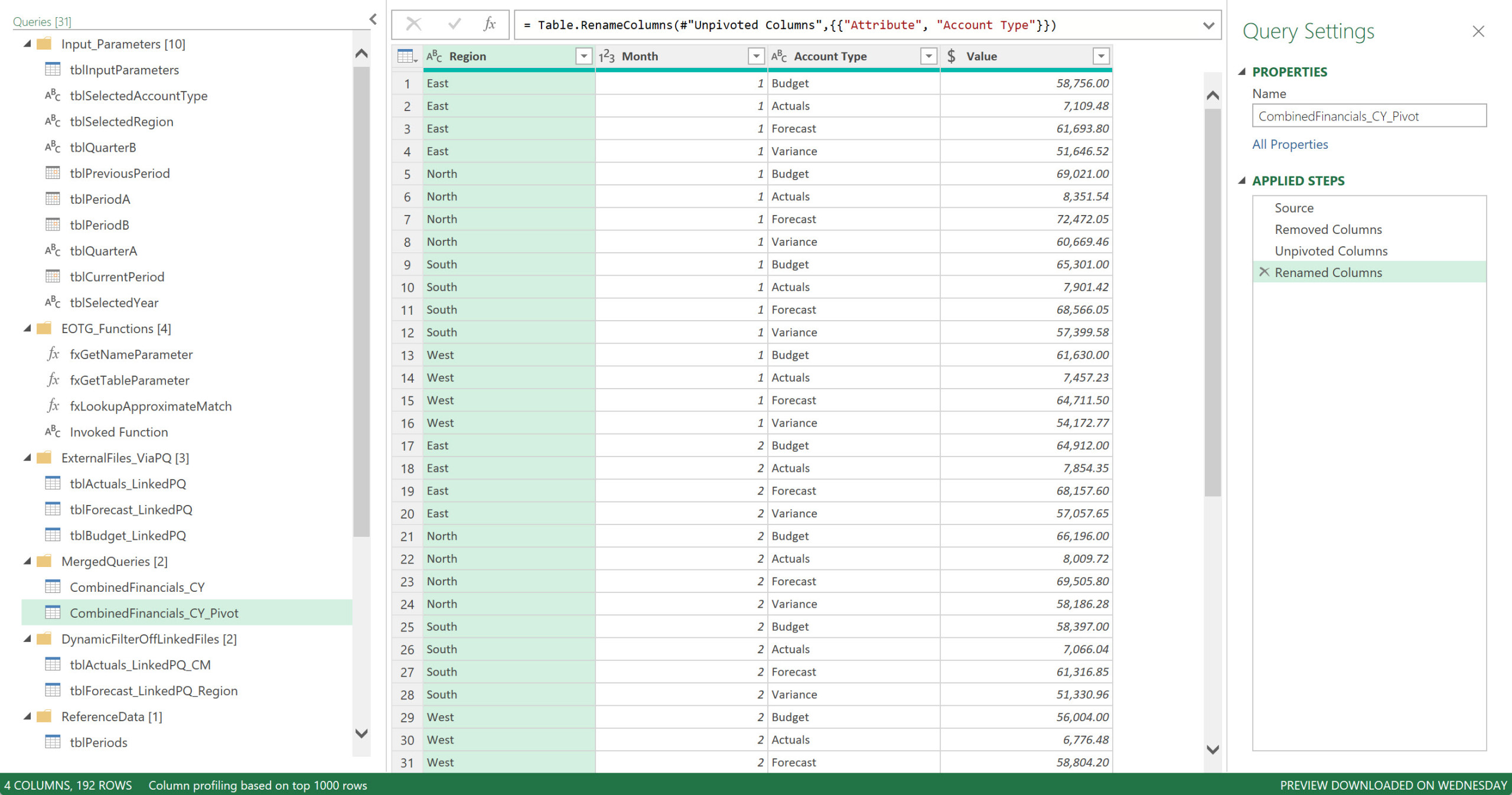
You can do Calculations Directly in Power Query:
~ EXAMPLE~
Instead of using a LOOKUP Function Onsheet, use a Left-Outer-Join Offsheet
Onsheet you can use any of the LOOKUP methods, including INDEX/XMATCH for the old-school crowd.
Offsheet you can:
- Exact Match Lookup
- Approximate Match Lookup (ExcelOffTheGrid Add-in)
- Joins
- Conditional Columns
- Mapping Tables
- M Code
- etc.
If you Power Query for offsheet programming, you can avoid onsheet programming. Joins are the key.
Date Attributes in Power Query
~ Onsheet versus Offsheet Excel Programming Examples ~
Before Power Query, all of my custom Excel solutions contained a Periods Table, with Period related data. Usually has 10-15 columns, all calculations, extracting the date related components I needed, such as name of Month, Month #, Days in Month, Quarter, Year, etc.
Now I do all of this in Power Query, simply based on the first date of interest. From there, Power Query provides me with all of the various ways to look at dates in Excel, all the attributes of interest for me.
No need to write so many functions, use Power Query, simply point and click.
Your Computer Knows What the Date is.
The computer can update cells on its own, no need to tell it which month the report is for. No need to change formulas to the Actuals Table, for the most recent period. Let the computer compute. Go get some coffee.
Example:
In a Forecasting Solution, your columns will know to be either Forecast or Actual values, based on the date. You do not need to do anything at all, nothing. Simply based on the date, the calculations or Power Query know what data to use. The user is not needed.
It could not be simpler; keep the user out of the equation.
Offsheet Excel Programming Example – Periods Table
I love Power Query. Power Query literally simplifies Excel programming, if you know how to leverage its abilities.
Yes, there are levels of normalization; the blue Excel Table could have been automated further, using the SEQUENCE Function or such. But this is an Excel Table, uploading into Power Query; it is a Table. The Business Days could have been pulled via a function or Table as well. But this works well for the average user, who will be the one maintaining the file. We do not build these files for ourselves; these are built for your average office worker. Ease of use is primary.
Onsheet versus Offsheet Excel Programming Example – Periods Table
Having a Periods Table in Microsoft Excel has many advantages. Very useful if you want to build an automated, user friendly, and user interactive solution. Functions, Pivots, Power Query, Calculations, and VBA all have the ability to reference this data range.
Excel 365 Automation: Your report headers automatically update, as do your reports and analysis, simply based on the current date. You can work harder, and less efficient, with user introduced errors, but why do that? Instead hire our team of expert Excel consultants, at ExcelAndAccess.Com.
NO USER NEEDED !!! Unless the user needs to manually enter data, the user is not needed in the update process. Focus on analysis, based on the amazing custom dashboards we build for you, at Excel and Access LLC.

Which method is easier, and more reliable, and less likely to be altered? Onsheet or offsheet programming?
Approximate Match in Power Query – Onsheet versus Offsheet Excel Programming.
You cannot natively do an Approximate Match in Power Query, without using M-Code, or an add-in. Why it is not part of the interface, I do not know. I use the Approximate Match Add-In from ExcelOffTheGrid.Com. Makes it a snap to do.
The XLOOKUP Function is the most used function in my Excel toolbox. I usually use it in Tables, if I do not want to use Power Query and Joins.
The XLOOKUP and the3 SUMIFS, my two favorite functions when it comes to extracting data from Tables.
~ Onsheet versus Offsheet Excel Programming Example ~
Filtering External Data Via Power Query, Straight to a Pivot Table
~ Onsheet versus Offsheet Excel Programming Example ~
Onsheet versus Offsheet Excel Programming when it comes to Excel Pivot Tables.
Both work very well. 97.5% of Pivot Tables are based on onsheet data, either a Table or Range.
But those who know, know that you can populate an Excel Pivot Table straight out of Power Query, no need to load the data to a sheet. Why would you do this? Optimize system resources while at the same time reducing the number of moving parts.
This is the good stuff right here – Onsheet versus Offsheet Excel Programming
No Excel calculations or VBA what so ever.
The Future in Excel Onsheet Programming is Pending
~ Onsheet versus Offsheet Excel Programming Example ~
GroupBy Example – Onsheet versus Offsheet Excel Programming
One of the most powerful Dynamic Array Functions, this takes onsheet programming to new levels. Release Pending.
IMAGES Pending
PivotBy Example – Onsheet versus Offsheet Excel Programming
Pivot Tables are not going away, most dashboards will still have them. But there is a new way to Pivot your data, without using a Pivot Table, rather you use a Dynamic Array Function. Release Pending.
IMAGES Pending
In Conclusion
The majority of Excel programmers use Excel functions on a worksheet. But expert Excel programmers are using Power Query instead of onsheet Excel functions. It just makes sense. Do as much programming in Power Query as possible. And if you need help, please give us a call at 877-392-3539. We are here to help, as expert Excel consultants, programming and training services.


Leave a Reply