

The Microsoft Excel FILTER Function is my FAVORITE Excel 365 Function
The Excel 365 FILTER Function is the one Excel Function I could not Program Without
I base much of my user interface on the use of the FILTER Function. The function allows the user to drive the Excel solution.
With the FILTER Function, you filter via a formula, this is new; this is powerful.
An Interactive Solution is the Goal. Add the new Checkbox along with the Validation Drop-Down Lists, some Power Query, a little vba and you have an easy-to-use, dynamic, Excel interface. This method of Excel programming means that a user can make selections via drop-down lists and CheckBoxes, and when they do, the results instantly update.
 At Excel and Access, LLC, these are exactly the solutions we build for our clients. We call them FLUID Excel Solutions.
The FILTER Function tops my list of favorite user interface options in Excel 365:
- FILTER Function
- CheckBox
- Data Validation List
- Slicers
- Event Code
The FILTER Function tops my list of favorite Excel 365 Functions in 2026:
- FILTER
- SUMIFS
- UNIQUE
- GROUPBY/PIVOTBY
- Remember, I push Power Query as far as I can, doing as much of the work offsheet versus onsheet, thus the limited use of functions.
- My solutions inputs and outputs are Tables, these functions work well with Tables, they do much of what I need.
- Power Query can produce reports, often no onsheet functions are needed.
- Joins over Lookups.
- Power Query can produce reports, often no onsheet functions are needed.
- My solutions inputs and outputs are Tables, these functions work well with Tables, they do much of what I need.
Want Even More POWER: Then point the FILTER Function at a Power Query Table; Filter in PQ before you FILTER onsheet.
~ HOT Off the Presses – July 2026 ~
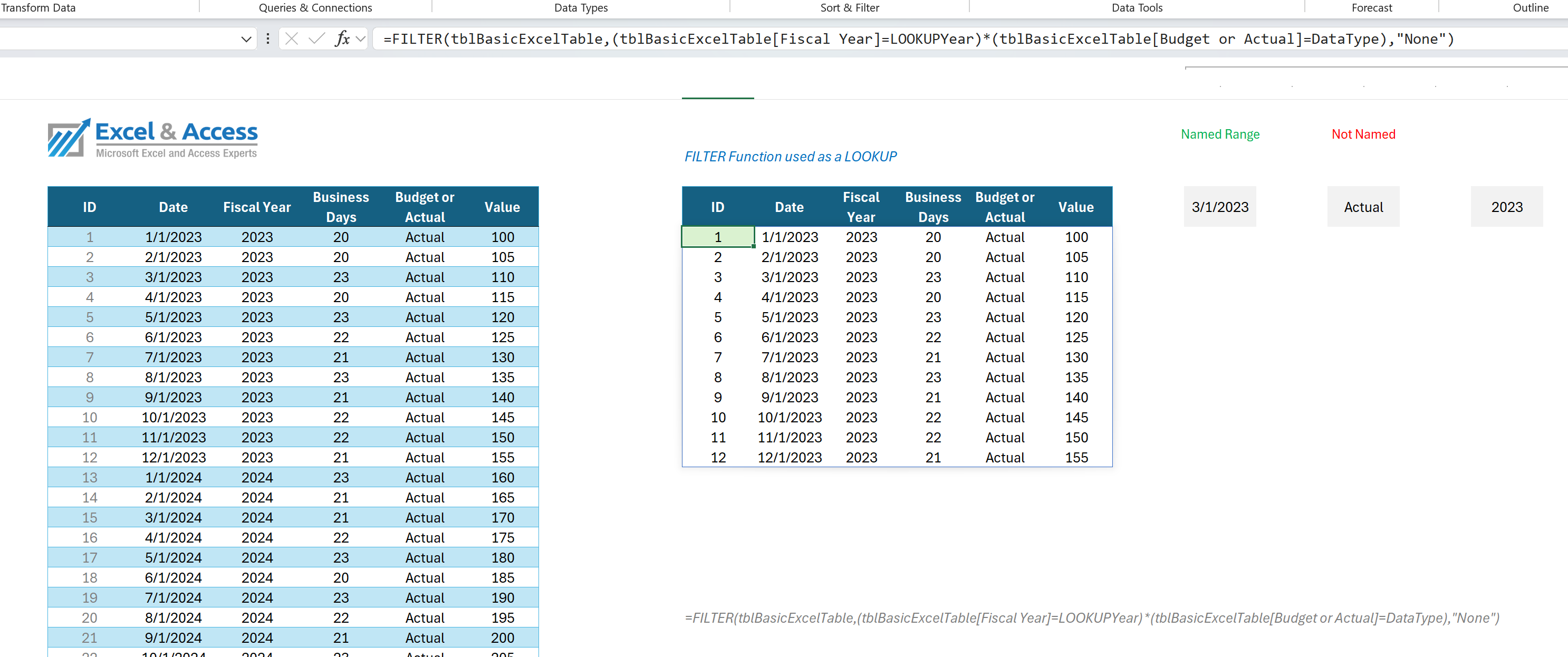
Using the FILTER Function as a LOOKUP Function
I first saw Mark do this, then I think Mynda was the other. Smart, creative use of the tools available in Excel. In many situations, the FILTER Function will outperform the XLOOKUP Function.
It will be interesting to see how many Excel developers make the switch.
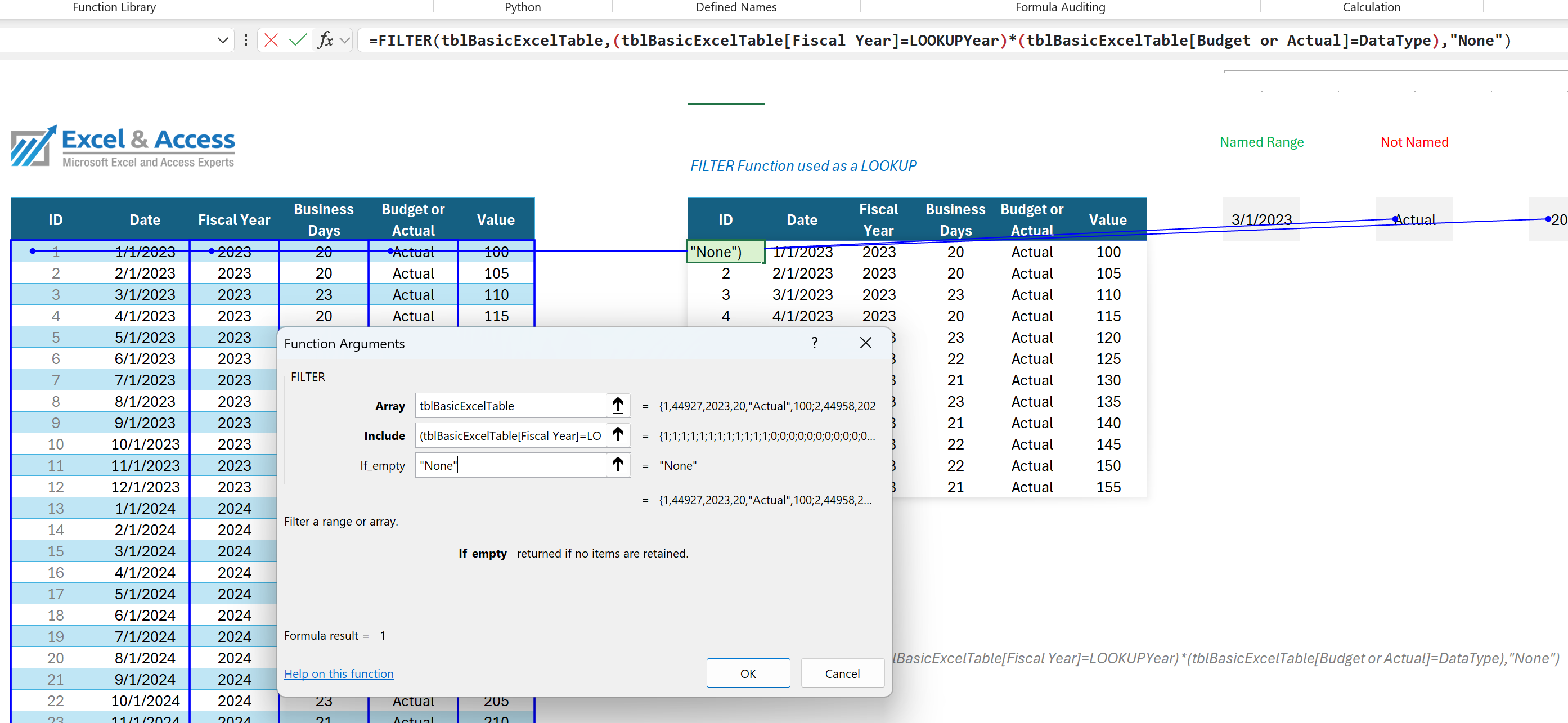
I saw two Excel MVPs do posts on this, made me rethink my use of the XLOOKUP Function.
Excel Functions with Filter Built-in
The new Microsoft Excel 365 GroupBy Function has the Filter Function built-in. So easy to use. Thank you Excel Team.
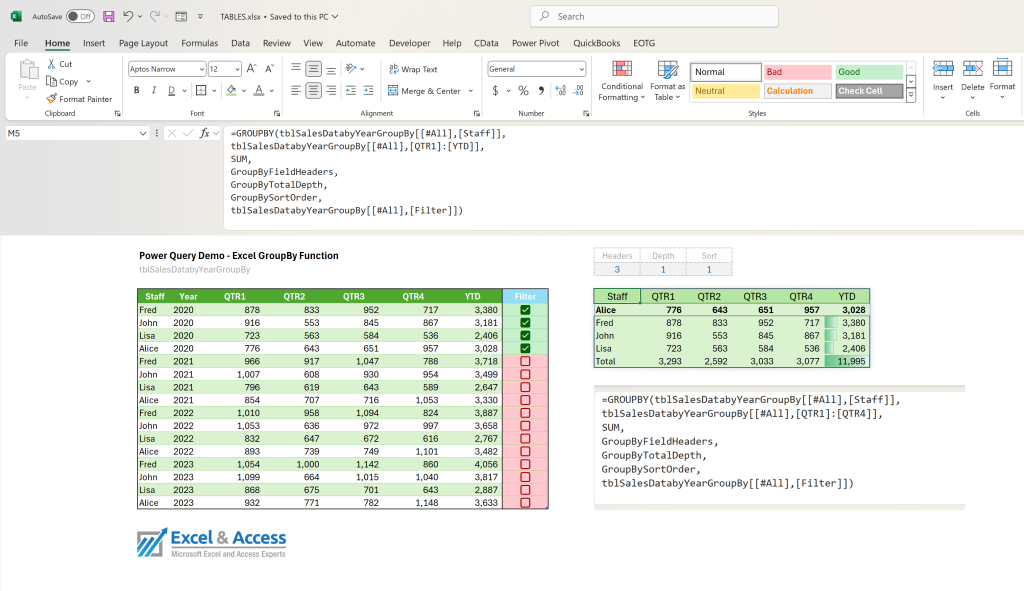
I call thee the “By Functions”, they produce an entire report in one function. PIVOTBY and GROUPBY.
Toll-Free: 877.392.3539 | Irvine, California: 949.612.3366 | Manhattan, New York: 646.205.3261
If you need help with Microsoft Excel, Please Contact us for a Free Consultation Today.

If you need to learn how to use the Microsoft Excel FILTER Function, try our one-on-one training.
The Microsoft Excel FILTER Function Explained
Countless Opportunities: There are countless ways to use the FILTER Function in Excel 365 programming as you can combine it with most other functions. Only restricted by your imagination.
Comparative Functions: You can use =CHOOSECOLS or =TAKE, or =tblSalesDatabyYear, or you can use the FILTER Function. Interchangeable, dependent on your needs.
Common use of FILTER Function: You can also use FILTER with CHOOSECOLS, TAKE, SORT, TRANSPOSE, UNIQUE, LAMBDA, LET, etc. All into one very powerful Excel function.

The Checkbox feature is new, how it will be used, is still in the works. Use the Checkbox feature in an Excel Table, to FILTER.
Once you Understand how the FILTER Function Works
Learning the FILTER Function is harder than learning say the UNIQUE Function. It might take several attempts. But it is actually really easy once you know how to do it.
As simple as listing a Table, and listing a filter column, and the filter criteria. That is how simple it can be.
You can also do multiple criteria, and / or. The options are endless.
=FILTER(tblLookupDataAND,tblLookupDataAND[Year]=2020)
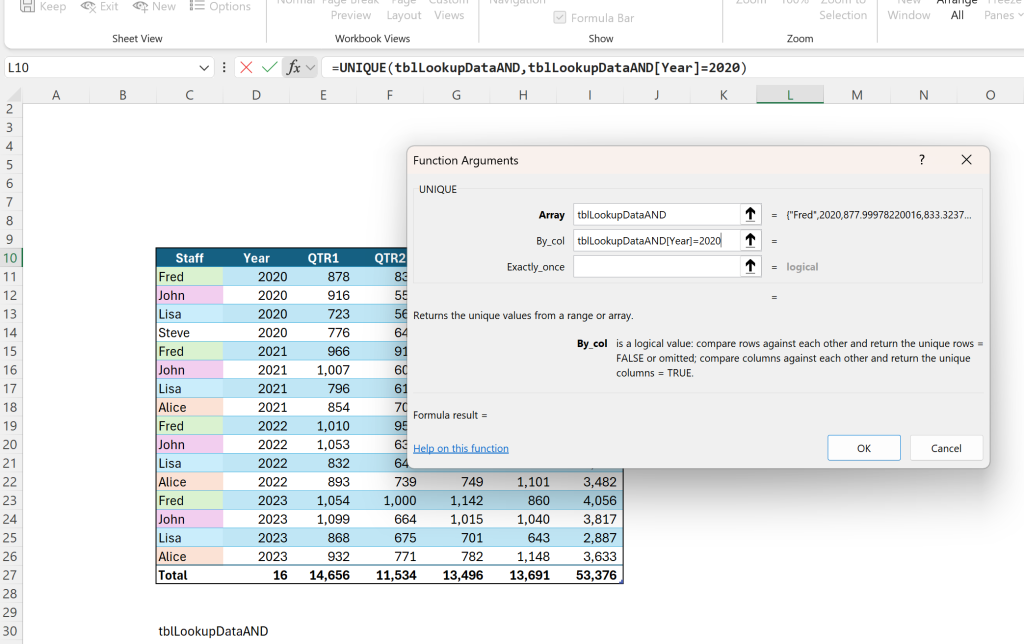
use AND or OR..
Excel FILTER Function Examples:
- ‘=FILTER(CHOOSECOLS(rangeEmployeeData,1,2,3,4,5,6,7),(AgeColumn>AgeSelection))
- ‘=SORT(UNIQUE(FILTER(H8:$H$104,H8:$H$104>0)),1)
- =FILTER(TAKE(rangeEmployeeData,,),AgeColumn>AgeSelection)
- =VSTACK(CHOOSECOLS(TableHeaderRow,D6#),FILTER(CHOOSECOLS(tblSampleData,D6#),(tblSampleData[Region]=SelectedRegion_2)))
- =FILTER(tblLookupData[Staff],tblLookupData[YTD],tblLookupData[Year]=$AR$3)
- =FILTER(tblLookupData[Staff],tblLookupData[Year]=$AR$3)
- =FILTER(tblLookupData[[Staff]:[YTD]],tblLookupData[Year]=2020)
- =INDEX(FILTER(tblLookupData[[Staff]:[YTD]],tblLookupData[Year]=2020),,4)
- =FILTER(FILTER(tblLookupData[[Staff]:[YTD]],tblLookupData[Year]=2020),{1,0,1,1,1,1,1})
- =FILTER(FILTER(tblLookupData[[Staff]:[YTD]],tblLookupData[Year]=2020),SampleCriteria)
- =FILTER(UNIQUE(FILTER(tblLookupData[[Staff]:[YTD]], SampleCriteria)),tblLookupData[Year]=$Y$5)
- =IFERROR(SORT(IFERROR(FILTER(CHOOSECOLS(EmployeesTable!$F$7:$AB$101,4,5,8,9,22),CHOOSECOLS(EmployeesTable!$F$7:$AB$101,4)=SelectedStaffMember),”No data”),4,-1),”No Data”)
The Microsoft Excel 365 FILTER Function allows Multiple Criteria
When it comes to the heavy lifting in Excel, the FILTER Function is more than up to the task. You can filter for one criteria, you can filter for multiple criteria.
AND in FILTER Function “*”
You can use multiple criteria with the FILTER Function. You can use “AND” by using the “*” key. The single line of results in the image below matches the Staff name and the Year.
You can do one filter, 2, 3, 4, etc., based on your needs. Very similar to using a Slicer on an Excel Table; but one is done in a function, the other is done by hiding rows.
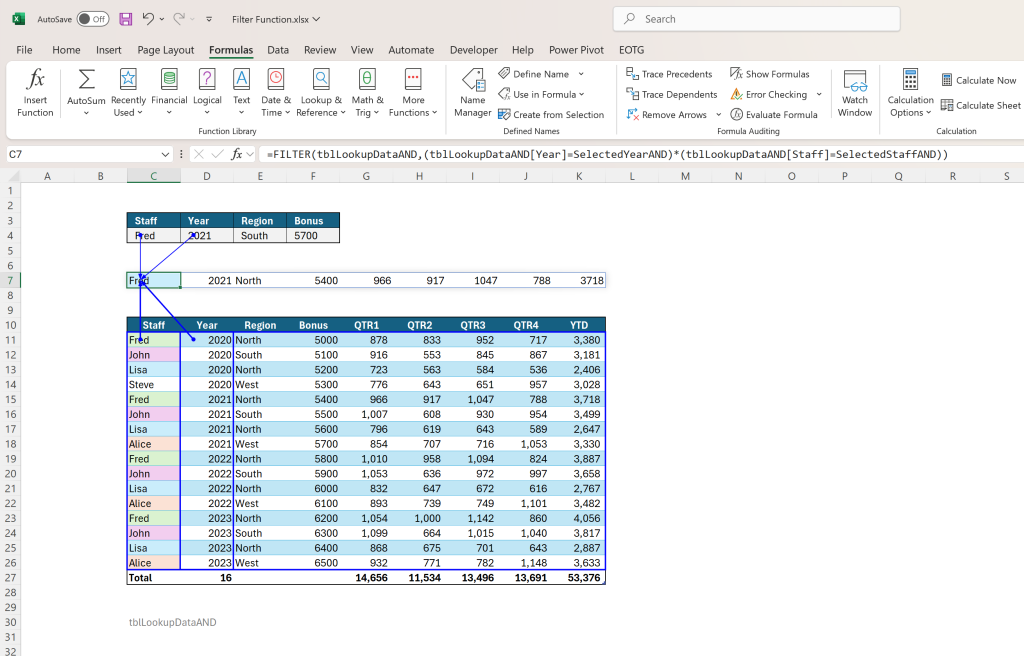
=FILTER(tblLookupDataAND,(tblLookupDataAND[Year]=SelectedYearAND)*(tblLookupDataAND[Staff]=SelectedStaffAND))
OR in FILTER Function “+”
The OR operative in the FILTER Function allows you to set multiple criteria.
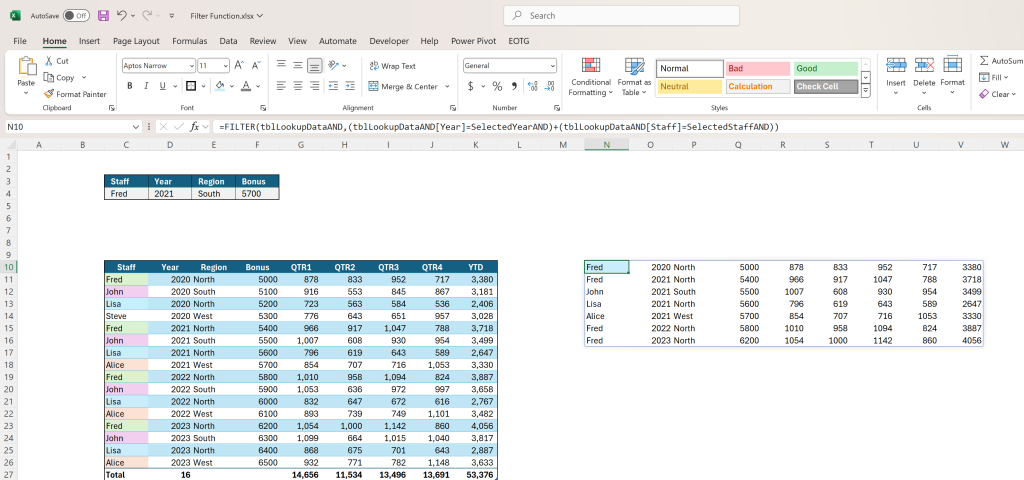
=FILTER(tblLookupDataAND,(tblLookupDataAND[Year]=SelectedYearAND)+(tblLookupDataAND[Staff]=SelectedStaffAND))
 Expert Note: The Difference between AND and OR is simply one character, * or +
Power Query FILTERS as if on Steroids
The Microsoft Excel FILTER Function is not as powerful as Power Query, but I LOVE it.
Power Query can filter like no other. Place DropDown lists in the worksheets, and allow the user to make choices. When the Update Button is pushed, Power Query will take the user inputs, and will FILTER the data, offsheet.
Expert’s Question: If you are not using Power Query in your custom Excel solutions, you need to ask yourself, why?
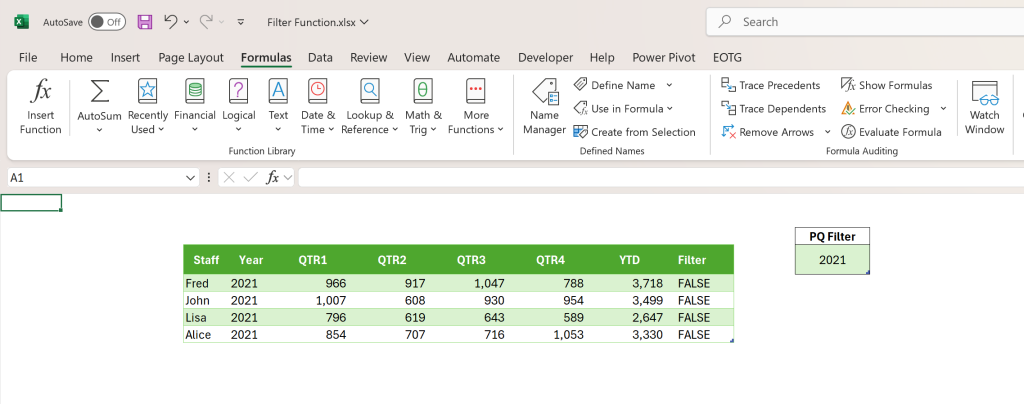
Power Query is an amazing tool in Microsoft Excel. Power Query loves to FILTER.
Conclusion: the FILTER Function is my Favorite Excel Function
Probably the hardest new dynamic array function to learn, it can be tricky, especially with multiple, criteria. But trust me, it is well worth learning, you will use this daily, I do. SO much of my user interface is based on the user experience, and the FILTER Function is a dream come true.
If you need help with the FILTER Function in Excel, our consultants can help you with all of your programming and training needs.
Contact us for an Excel FILTER Function Consultation
Toll-Free: 877.392.3539 | Irvine, California: 949.612.3366 | Manhattan, New York: 646.205.3261
This has been a fantastic solution to help me learn while building my spreadsheet in a timely fashion. I feel equipped to do programming and further development on my own based on Christopher’s mentorship.

The Microsoft Excel FILTER Function Resources
The Microsoft Excel FILTER Function Video
- The FILTER function allows you to filter a range of data based on criteria you define, says Microsoft. Check out this video that Microsoft put out on the FILTER Function. You can see why the FILTER Function is the top function in my function box.
Post revised July 2026.







Leave a Reply