


Favorite Excel 365 User Interface Techniques
The user experience is a critical component in any good Excel solution. How easy can you make it on the user, to use the file? How intuitive can you make it? How automated can you make it? Well, there are tools and techniques that not only make it easier to use Excel, but they also make it a joy. Here we cover 5 of those, in detail.
 We use each of these in every file we program for our clients, but the CheckBox is our absolute favorite. Our clients love it, they get it, it makes sense.

Here, if the checkbox is checked, the Markup column will calculate, based on the 125%. Conditional Formatting is also used here.
The Checkbox is our absolute FAVORITE.

Checkboxes in Excel 365 drive the user interface.

Our Top 5 User Interface Tools:
The Excel Team over at Microsoft has been hard at work, improving Excel 365. One of the most useful and powerful additions is the new CheckBox feature. Here we cover our five favorites, the ones we use in every custom Excel solution we program for our clients.
- Checkbox
- Drop-down Lists
- Slicers
- Conditional Formatting
- VBA, Macros, Code, Automation
- Of these, the Slicers are the easiest to implement, and we recommend them for Excel Tables, Power Query Tables and Pivot Tables.

CheckBoxes allow the user to control what the file does, without being an Excel programmer.

Slicers are our third favorite UX tool. They work with Excel Tables, Power Query Tables, Pivot Tables, Power Pivot, and more.

Here we combined the CheckBox, DropDown List, Data Validation, and Conditional Formatting.

Our Favorite Excel 365 User Interface Techniques are Below
What are your favorites? Please, leave a comment below, we would love to hear from you.
Toll-Free: 877.392.3539 | Irvine, California: 949.612.3366 | Manhattan, New York: 646.205.3261
Contact us for a Free Consultation Today.
The CheckBox Tool in Excel 365
I love this tool the most, of all tools.
~ The users love the new CheckBox in Excel 365 ~
The new CheckBox is our absolute favorite user-based tool in Excel 365 right now. These make it so easy to interact with the user.
The CheckBox is a TRUE / FALSE value, which makes it great for filtering data. TRUE when checked.
- Their choices impact what happens when vba code is run.
- The DAFs can use this to FILTER records.
- Power Query can use this as a FILTER.
- Slicers can use this as a FILTER.
- You can place it in Excel Tables.
- You can place it in a single cell.
Below we show many examples of CheckBoxes we have used in the past, to give you ideas of what is possible.

Excel Tables love CheckBoxes, Conditional Formatting, DropDown Lists and Data Validation.
We use the CheckBox is so many different ways, often combined with other techniques.

Taking Excel Tables to the next level. All the bells and whistles.
CheckBoxes inside a Power Query Table.

CheckBoxes in Tables are great for FILTERING the data. Slicers can use that, Functions can use that, Macros can use that, and Power Query can use that.
CheckBoxes above an Excel Table.

Functions, Power Query, and VBA look at the CheckBox.
Power Query Tables have all sorts of uses. Here we use a Power Query Table as a Form to allow the user to easily select up to four records.

Here the CheckBox is used to allow the user to select which records to update. With Conditional Formatting, Data Validation, and Slicers.
As you can see, there are many places to place the new CheckBox feature in Excel 365, to allow user interaction with the file.

Taking Excel Tables to the next level, here with all of the bells and whistles.
DropDown Lists in Excel 365 are a Standard
DropDown Lists, Validation Controls, are vital to correct data entry. Use them in Tables, Forms, Cells, to provide a list, that the user can select from.
- Or allow the user to select from the list, or to add any text they need.

DropDown List Reading Data in Excel Table.
Excel Expert’s Note: You can allow the user to type into the dropdown list, if the value they want to use is not listed. Do so with caution. See below.

DropDown List allowing any data to be entered.

Use Data Validation to allow one CheckBox to be checked.
Dynamic DropDown Validation Lists
Type a new value in any of the four Tables, and your item is instantly added to the dropdown list.

Dynamic Drop-Down lists, type anything you want, or select from the drop-down list.
DropDown lists will feed your Pivot Charts.

DropDown List DAF Reading Data in Excel Table.
You can use DropDown Lists to Filter your data in Power Query, as shown below.
Here the dropdown ultimately determines what is seen in the Power Query Table, the PIVOTBY Function, the Pivot Table, and the Pivot Chart. Change the value in that dropdown list, and everything updates.

DropDown List being read by Power Query, Pivot Tables, Pivot Chart and PivotBy Function.
Power Query Data Forms love CheckBoxes, DropDowns, Conditional Formatting and Data Validation.

Here we have placed several dropdown validation lists inside the Power Query Table.
There are so many ways to use DropDown Lists in Excel, here we have shown just a few.
Slicers in Excel 365
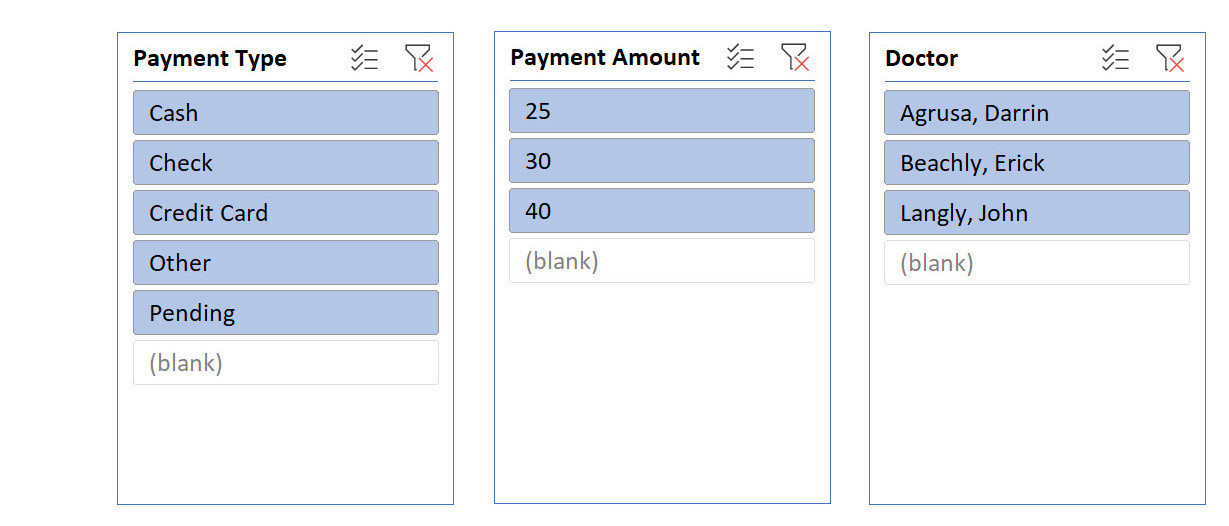
Slicers are significant. Slicers simplify Filtering. Slicers should be used a lot. Use them with Tables, Pivots, and more.

Here we use Slicers with Power Pivot and the Data Model.
Slicers drive the Waterfall Report below.

Here Slicers populate the Waterfall Report. What could be easier?
Slicers should be used with Excel Tables, Power Query Tables, Pivot Tables and Power Pivot.
Users love them, and you can see why, ease of use.
Conditional Formatting in Excel 365
Most people are now aware of and now use Conditional Formatting in Excel.

Conditional Formatting draws your eyes to where they need to look.

Lots of ways to use Conditional Formatting.
Code Automation in Excel 365
VBA has traditionally been where the user experience takes shape. VBA is how automation is done.
VBA can greatly enhance the user experience.
VBA can read a CheckBox, and take the desired action.

VBA loves the CheckBox, it allows the user to decide which code is run.

When the CheckBox is clicked, vba runs, and it then determines what to do, based on the user.
Conclusion: Favorite Excel 365 User Interface Techniques
Excel has never been more powerful nor easier to use. The five tools listed in this post, they make it such. And more changes are coming.
For Example: The CheckBox feature is literally changing how programmers program Excel
As seen on ExcelOffTheGrid.Com (EOTG)
I did a presentation on Power Query, and how I use it. The presentation included heavy use of the new CheckBox feature in Excel.
Toll-Free: 877.392.3539 | Irvine, California: 949.612.3366 | Manhattan, New York: 646.205.3261
Contact us for a Free Consultation Today.


I love this. Parameters, like you demonstrate, allow users to focus on their data, not on the spreadsheet. Good spreadsheets, like these, get out of the user’s way.
Nice demonstrations!
Thank you David.
Microsoft is making it easier for us, to make it easier for our clients, to use Excel.
The CheckBox, man, so many uses.
I love the New Excel. ( Great URL )