

 Effectively Using Excel 365 Tables
It has been estimated that fewer than 5% of Excel users work with Excel 365 Tables, as part of their custom Excel business solutions. That said, the number of people currently using Excel Tables has never been greater, and it is picking up momentum by the day. As such, this post covers how to Effectively Use Excel 365 Tables in your custom Excel solutions
Important Note on Tables Usage: Much of the momentum is due to the changes made in Excel 365 since 2018. There is also an increased awareness regarding both Tables and Power Query. This is largely due to the Excel Team at Microsoft, and by the Excel experts on LinkedIn.Com
~ Excel 365 Table Based Programming ~
Programming with Tables is far easier than programming with Ranges, named or not. For one, writing functions in a Table, or to reference a Table, has never been easier. Just look at the two examples below. One is dynamic, one is not, one is easy, one is not.
Referencing a Table:
=FILTER(CHOOSECOLS(tblLookupData,ColumnsSelectedCell#),tblLookupData[Year]=ChosenYearVC)

If you switch from Range based programming to Table based programming, you will no longer need to worry about copying down formulas, as the data range increases, as that is automatic in Excel Tables.
~ Excel 365 Range Based Programming ~
Programming Ranges does complicate programming somewhat. Not using Named Ranges or Table names further complicates it. What happens if the number of rows increases? Does the function still work, or does the user need to manually make the change to the formula.
Referencing a Range:
=FILTER(C11:I26,D11:D26=K5)

Data Range, not named. If you are going to use a Range, make sure to name it, for easier referencing.
 Excel Expert’s Advice: Learn to work with Tables in Microsoft Excel: 1) Excel Tables, 2) Power Query Tables, and 3) Pivot Tables. They are not the same thing, learn what each can do, and more importantly, learn how to merge them into a seamless Excel spreadsheet.
Excel Tables vs Power Query Tables
While both Tables look the same, they are not, they work differently. Delete the data in 10 cells in the Excel Table, and hit RefreshAll, did your data come back?
Now try that with a Power Query Table. What happened? Okay, so you get it.
- One is the source of the other.
 Pushing the Limits in Excel: Both Tables can be used in Excel, as custom Data Entry Forms.
Power Query Tables work great as Forms, because you can refresh the record, make changes to the records, and then resubmit to the Excel Table.
Excel Tables and Power Query Tables are not the same thing:
I do not want to confuse you, but in my mind, there are three types of “Tables” in Microsoft Excel 365. Many people consider an Excel Table (Blue) and a Power Query Table (Green) to be the same thing, and largely they are. They certainly look the same, other than color, but consider this, they do not work the same.
The Excel Table is a datasource, the Power Query Table reads the Excel Table as a datasource. Huge difference. As such, this post covers how to effectively use Excel Tables in your custom Excel solutions.

This is important; working with Ranges versus working with Tables, is not recommended. Avoid working with Range data as much as possible; define your data, use Excel Tables and Structured References.
Using structured references with Excel tables
- We also suggest you learn all there is to know about Power Query Tables. Doing such will change how you program Microsoft Excel.
~ All custom Excel Solutions should be based on Excel Tables & Power Query ~
Tables honestly make a world of difference when programming in Microsoft Excel. They do not complicate your programming; Tables simplify Excel programming. Once you learn how to use them, you will love them, and you will never work with Range Data again.
In the image below you see an Excel Table, with the new Checkbox tool, Validation Lists, and a Sort Option. Notice the Column Headers.

Tables are where we start a project. Excel Tables should be your focus for any new project.
Comparison Between Excel Tables and Power Query Tables
The only real differences between the two Tables is this, one is a live data source, the other is a read-only copy of the live data source. The read-only Power Query Table is a very useful tool for manual data entry.
- Excel Tables
- Totals Row
- CheckBox Column
- Slicers
- Conditional Formatting
- DropDown Validation Control
- Combination of data and calculations
- Live Data
- Power Query Tables
- Totals Row
- CheckBox Column
- Slicers
- Conditional Formatting
- DropDown Validation Control
- Combination of data and calculations
- Read-only, Refreshable
For Help with Excel Tables, Give us a call: 877-392-3539
Related Post: 5-Steps to Microsoft Excel Development
Index/Match or XLookup, Concatenate/Concat or TextJoin, GroupBy, Pivot Tables or PivotBy. Hundreds of cells with formulas, or just one dynamic one that Spills.
How you program Excel has changed; Excel Development Step by Step will help you to get up to date. Requirement, Excel 365.
Focus on 1) Excel Tables, 2) Power Query, 3) Pivots, 4) DAFs and 5) VBA
Forget XML, forget Power BI, forget Python, forget AI – focus on the basics first
How do you Store Excel Data?
In Ranges, across Tabs: Do you do what the majority of Excel users do, and that is to drop your data onto a tab and use it as an undefined Data Range? One Tab per period, possibly multiple files.
If you are doing that, 85% of you are, then I have GREAT news for you, Excel Tables greatly simplify Excel programming. Stop doing what you are doing to your data, and to yourself. All like data goes on one tab, in one file. Sales Data goes in the Sales Table, Expense Data in the Expense Table. Multiple periods in one vertical Excel Table, not across tabs.
ALWAYS Use Data Tables: It does matter, it really matters. Power Query reads Tables, as do the new Dynamic Array Functions. A Table is basically a container for your data.
If you store your data in a vertical Excel Table, you can easily use power Query to give you different looks. You can see it vertically, grouped, or horizontally. The point is, to store all of yur like data in a vertical Excel Table, for ease of use. Everything is easier if your data is in a Table.
In the image below, three green Power Query Tables are different twists, on the same data. The white range is an example of using the new Dynamic Array Functions against Power Query tables.

How do you look at your data horizontal, vertical, grouped, Pivoted?

Not all Tables are Created Equal.
There are Excel Tables, Power Query Tables, and Pivot Tables. Go ahead, delete the data in the Excel Table and in the Power Query Table, and then hit RefreshAll. What happens to the Excel Table? Nothing? What happens to the Power Query Table, is the data back?
Are they the same?

Interesting, Excel Tables which were released in 2007, are used very little by the non-experts. They are an amazing tool, yet overlooked for so long. The change in the Calculation Engine in Microsoft Excel 365, since 2018, is the reason for the sudden interest in Excel Tables. Excel Development now comes down to five steps: Excel Tables, Power Query, Pivots, Dynamic Array Functions, and VBA. In Dynamic Excel 365, it starts with Tables.
Types of Tables in Microsoft Excel 365 Desktop
- Excel Table – onsheet Table
- ( Usually Blue).
- Delete the data in it, and it is gone.
- ( Usually Blue).
- Power Query Table – on-sheet Table or off-sheet Table (Query Only)
- (Usually Green).
- Read-only
- Delete the data in it, hit RefreshAll, and the data returns.
- Read-only
- (Usually Green).
- Pivot Table.
- The data looks at Excel Tables, or Power Query Tables as its source.
In the Image below, you see a Pivot Table, that is directly reading a Power Query-only datasource. Plus six Slicers.
Pivot Tables are read-only Tables. They are one of the top data visualization tools in Excel Dashboards.
The datasource for the Pivot Table can be in a different file, than the one being used. Power Query is powerful.
Excel Expert’s Comment: Very similar, but not the same. The key is knowing when to use which. For example, we love Power Query Tables as Data Entry Forms. Our Power Query Tables have Drop-down data validation, formulas, and free type cells. An amazing tool, when in the right hand. What makes it so amazing, it refreshes; I can use that.
In this post we are mostly looking at Excel Tables and Power Query Tables, not Pivot Tables
Pivot Tables will be looked at, as Pivot Tables can use either Excel Tables or Power Query Tables as their Datasource. Pivot Tables are more of a Dashboard reporting and analysis tool; Pivot Tables do not house data; they read data.
There are several advantages to using Power Query as the data source for both Pivot Tables, but also Power Pivot. You always want to use Excel Tables as your data source and not ranges.
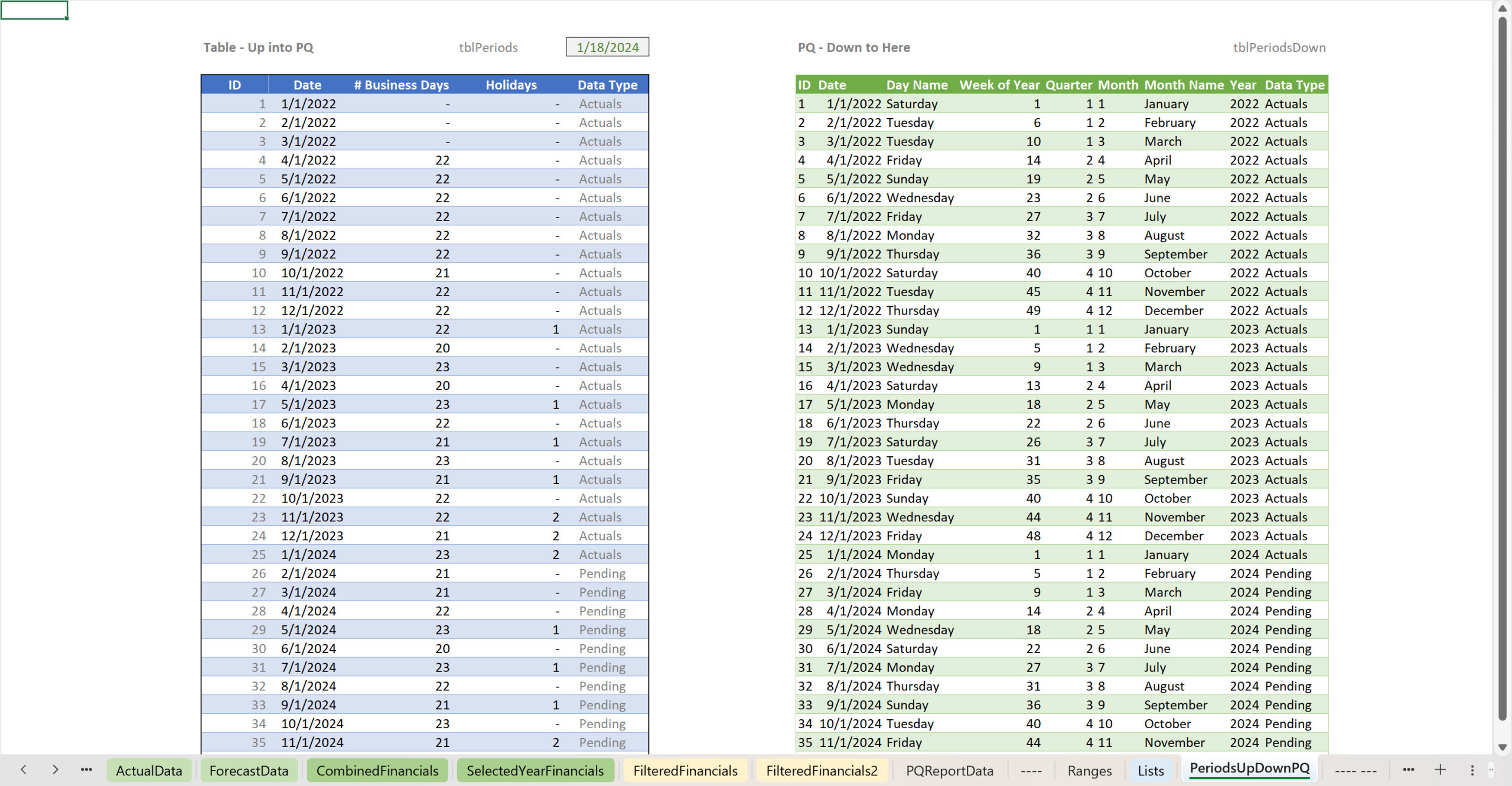
In the image below, the two Tables look very similar, but they are not the same. The blue one is an Excel Table, it stores data. The green one is a Power Query Table, it reads data. If you know how to use both, Excel is amazingly powerful.
However, if you change a number in the blue cell, when you hit RefreshAll, the value in the green cell will now match the blue cell. One Table is the source of the other.

Blue Table is an Excel Table. The Green Table is a Power Query Table. Very similar, but they are not the same; one needs a datasource, the other is the datasource.
For years Oz has been saying over and over, data data data.
Oz is and has always been spot on, a maverick of his trade. If you learn via videos, check out Oz on LinkedIn Learning. If you cannot learn what is being taught, then,…, Oz is that good, he really takes the time to teach you. Not show you, but teach you.
I highly recommend videos by Oz, Jon, Leila, Mark. If you focus on the materials provided by these four MVPs, you will learn 95% of what you will need to know.
- Oz knows the importance of effectively using Excel 365 Tables
What are the Differences between Effectively Using Excel 365 Tables and Power Query Tables
As we have been saying, they are very similar, other than Power Query Tables being read only. It is the ability to use Power Query, to recall an existing set of records, from an Excel Table, to make changes to those records, and then to resubmit them to the source Excel Table.
When it comes to effectively Using Excel 365 Tables, we say it greatly simplifies the development process.
That is a powerful tool; they can change the returned record, on screen, it update, the data is used, and the Power Query Table refreshes.
Excel Tables and Power Query Tables, used as data entry forms.
Effectively Using Excel 365 Tables simplifies writing Excel Functions
Why would using an Excel Table make a difference when writing say the XLOOKUP? Simple, Tables are objects.
If you take time to properly setup your Tables, you will find that very often all you need are the XLOOKUP and SUMIFS Functions, to extract what you are looking for.
Excel 365: Things Change for the Better: If you have a decade or so more of experience writing Excel functions, you know, you need to address the range of cells that the function will reference.
Example: In a Validation Control you used to use the combination of Counta and Offset functions. Now you just enter the spill cell name, followed by the #. Simple, done.
Which is easier, which is dynamic?
In the image below, you see an Excel Table. The XLOOKUP Function is looking at the Staff Attribute, to return the Value for the Qtr. The primary difference between the VLOOKUP and the XLOOKUP, the XLOOKUP has two arrays.

=XLOOKUP(stafflist,tblXLookupData[Staff],tblXLookupData[QTR1])
But why bother, and why not simply use Power Query, to do those same calculations for you, and then some?
I have other posts on this topic, but, you can do more in Power Query than you can in Excel, when it comes to manipulating the data. Joins are superior to LOOKUPS for example. When possible, do as much as possible offsheet, in Power Query, and as little as possible onsheet, with Excel functions.
Reasons to Effectively Use Excel 365 Tables
For the longest time, Excel users have largely, ignored Excel Tables. Which is sad, given what they can do, what they provide. But anyhow, they are the talk of the town, and everyone wants to use them. And for good reasoning, Excel Tables simplify Excel programming. Learn to use them.
Example: No longer the need to manually Filter a Table, instead, use Slicers.
- Sub Totals
- Aggregate totals
- Calculations
- Slicers
- CheckBox
- DropDown Lists
- Conditional Formatting
- Groupings
- Data source to Power Query
- Data source to Pivot Tables
~ You can Effectively Use Excel 365 Tables as Data Entry Forms, in Excel ~
Power Query is the Most Powerful Tool in Excel Programming
Quickly followed by VBA
Always start a new Excel project with the data, and that means to start with 1) Excel Tables, and 2) Power Query Tables. The output will be Pivot Table based Dashboards.
Effectively Using Excel 365 Tables – Example use:
Use Power Query to build a dynamic data entry and editing tool. 1) Recall the record, 2) Make any changes to the record, 3) Append the edited Power Query data to the source Excel Table.

Power Query Tables can be used as Data Entry Forms, in Excel.
Update Excel Table Data with XLOOKUP or a Join
- See our blog post: Many Excel Experts use Joins Instead of LOOKUP Functions, for a good reason, performance and ease of use.
Instead of using XLOOKUPS on your spreadsheet, consider using Joins in Power Query. End result is basically the same. Power Query has more power.
Expert’s Advice: If you are currently using say an XLOOKUP in one Table, looking at another Table, why not use a join in Power Query instead?

The best Excel solutions have the fewest moving parts. As such Power Query is preferable to Excel Functions.
Conclusion – Effectively Using Excel 365 Tables is Easy
If you made it to here, that means you got the point; Excel development has changed. Excel programming is easier now than it has ever been. All due to the huge effort the Microsoft Excel Team, since 2018. And they are not done yet.
If you build your custom Excel applications using 1) Excel Tables, 2) Power Query, 3) Pivots, 4) Dynamic Array Functions, and 5) VBA, your clients will love you. There simply is no better way to program Microsoft Excel 365.

If you need help with Excel Tables, give us a call: 877-392-3539
Other Excel and Power Query Posts.
Current, Table & Power Query Related Posts.
-
-
- Case Study: How Power Query is Used in Business Finance: (excelandaccess.com)
- Excel Lookup Functions Versus Joins – Excel and Access, LLC
- Onsheet versus Offsheet Excel Programming – Excel and Access, LLC
- Automated Excel Solutions for Business – Excel and Access, LLC
- Excel Development Step by Step – Excel and Access, LLC
- Mentoring Dynamic Excel Development – Excel and Access, LLC
- Excel Modeling in 2024 – Excel and Access, LLC
- Excel Consultants Leverage Power Query – Excel and Access, LLC
- Excel Tables versus Access Database – Excel and Access, LLC
- Effectively using Named Ranges in Excel Programming – Excel and Access, LLC
- Microsoft Excel is not a Database – Integrate w/ one Instead. (excelandaccess.com)
- Using VStack to Consolidate Excel Datasets – (excelandaccess.com)
- Excel GroupBy Function for Interactive Reporting
- Excel PivotBy Function versus Pivot Tables
-
Previous posts on Excel Tables by Zack B, the Excel MVP.
-
- MS Excel Pivot Table Deleted Items Remain – Excel and Access, LLC
- Working with Microsoft Excel Tables in VBA – Excel and Access, LLC
- Excel Retains Manual Calculation – Excel and Access, LLC
- Get Excel Table Addresses – Excel and Access, LLC
- Table Slicers in Microsoft Excel 2013 – Excel and Access, LLC
- Use Structured References in Excel Tables – Excel and Access, LLC
- Formula to check if table is filtered – Excel and Access, LLC
- Running Total in a Microsoft Excel Table – Excel and Access, LLC
- How do Excel tables remember formulas – Excel and Access, LLC
- How to Import Access Data to Excel Using the “Get External Data – From Access” Option


Leave a Reply