
Why Mastering Power Query in 2027 Matters
The way Power Query is used in custom Excel development has changed over the past few years. Excel developers are learning that Power Query can do much more than transform data.
Power Query can create complete reports, populate PivotTables with external data, feed Power Pivot through the Excel Data Model, and leverage Power Query Tables as data entry forms. Or you can simply use it to transform your data through the traditional ETL process.
Power Query simplifies how you use Microsoft Excel.
Power Query transforms your data while automating the process.

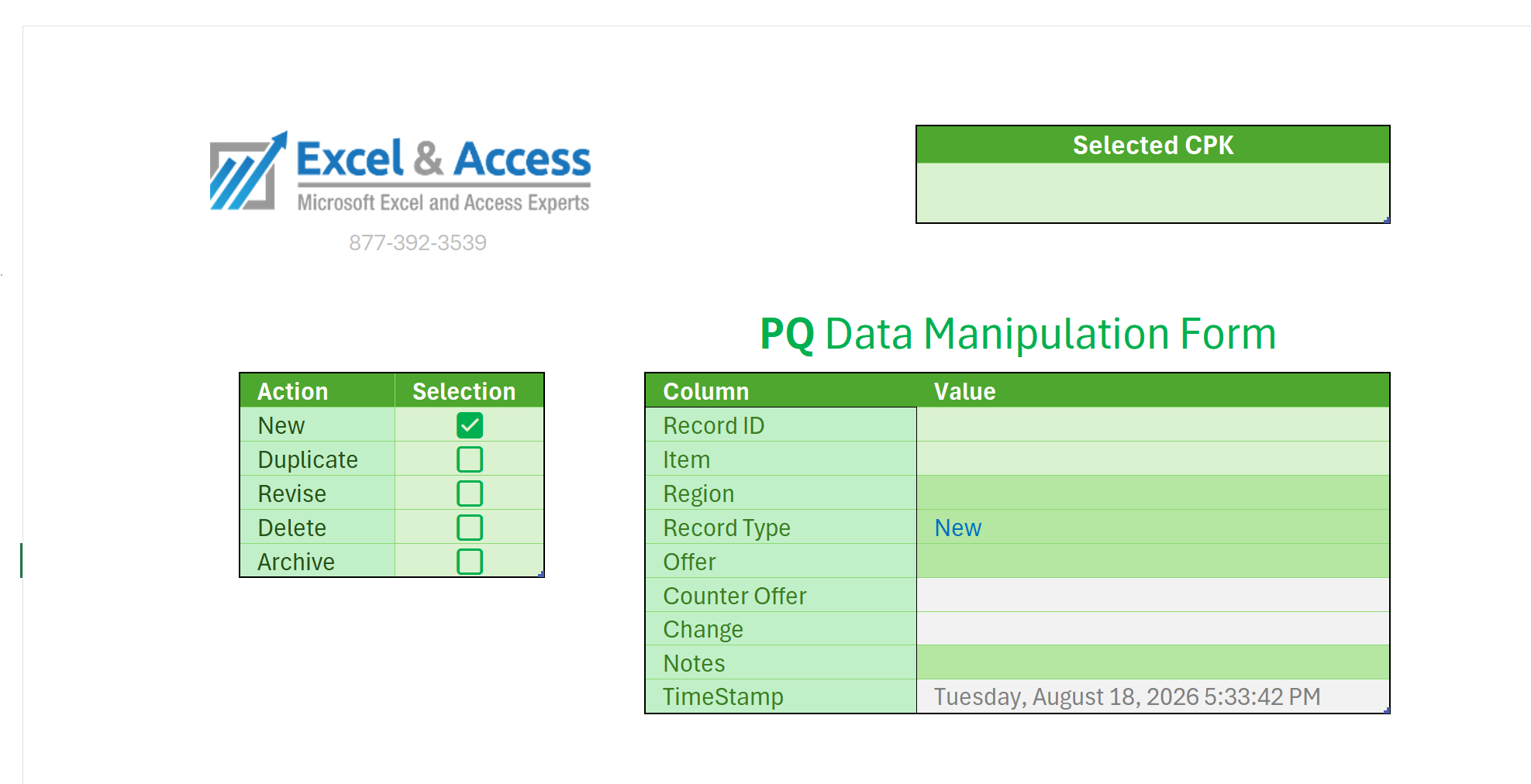
Leveraging Power Query Tables as REA Forms
 Here we push Power Query as far as we can. We use a Power Query Table loaded to a sheet as a data entry form.
This Table has a live, complex primary key. It checks for duplicate records before it appends.
The Checkboxes allow the user to determine what actions happen when the code runs.
Power Query Is Increasingly How Excel Programming Is Done
Custom Excel 365 development no longer requires massive amounts of VBA, formulas embedded inside other formulas, or formulas copied from cell to cell.
Power Query can often produce the same results with less manual effort while creating processes that are easier to refresh, understand, and maintain.

The days of the following are ending as Power Query catches on:
- Links between workbooks
- Copying and pasting
- Dragging formulas down
- Formulas that are too long to read or understand
- Cell after cell of legacy formulas
- Thousands of lines of VBA
- Hating Excel
Those days will be over when you learn to use Power Query.
Note: Power Query does not eliminate the need for formulas or VBA. Instead, it reduces the number of formulas and the amount of VBA required.
- The benefit of using Power Query is a dynamic, automated solution, that saves large amounts of time and effort.
Learning Power Query is not Hard
Learning Power Query is not difficult, and it is even easier when you have a mentor. Much of what you need to know can be learned for free. However, if you do not have the time to learn on your own—or you need help with a specific programming project—you can work with our international team of Power Query experts, many of whom are Microsoft Excel MVPs. We offer both Power Query programming and one-on-one mentoring.
Toll-Free: 877.392.3539 | Irvine, California: 949.612.3366 | Manhattan, New York: 646.205.3261
Contact us for a Free Consultation Today.
We are here to assist with custom solutions in Microsoft Excel 365 with Power Query.

How to Master Power Query
1. Master Excel Tables
Power Query works best with structured data. Before learning Power Query, understand Excel Tables, structured references, calculated columns, totals, and how tables work.
2. Learn Dynamic Array Functions
Become familiar with functions such as FILTER, SORTBY, UNIQUE, XLOOKUP, VSTACK, TAKE, DROP, PIVOTBY, GROUPBY, LAMBDA, LET, SEQUENCE, and CHOOSECOLS. These functions work alongside Power Query in Excel 365 development.
3. Understand What Power Query Does
Learn that Power Query should be used for importing, cleaning, transforming, combining, and automating data transformations.
4. Learn to Transform External Data
Become comfortable cleaning data, changing data types, filtering records, splitting and combining columns, grouping records, pivoting, and unpivoting data.
5. Master Joins and Appends
Learn how to combine tables by appending records and how to join related datasets. This is where Power Query can replace many worksheet lookups and embedded formulas.
6. Understand Where Data Is Loaded
Learn the difference between loading results to an Excel worksheet as a Table, a PivotTable, a connection, or the Excel Data Model.
7. Build Refreshable Solutions
Move beyond one-time data cleanup. Create queries that can be refreshed whenever source data changes, reducing copying, pasting, formulas, and VBA.
8. Learn M Code
Start by reading the M code Power Query creates automatically. Progress to modifying that code, writing custom transformations, creating parameters, and building reusable functions.
9. Build Applications
Mastery comes from using Power Query to create reports, dashboards, PivotTable sources, data-entry solutions, and automated Excel applications.
10. Work With an Experienced Power Query Mentor
A mentor can help you understand why a certain solution works, identify better development approaches, troubleshoot difficult queries, and move from using Power Query to programming complete Excel solutions.
Practice Practice Practice
Power Query Examples
Basic use of Power Query
Load a Power Query result to the worksheet as an Excel Table.

Intermediate use of Power Query
Filter the data loaded to the worksheet by passing a selection from an Excel Data Validation list to Power Query.

Advanced use of Power Query
Combine Power Query with Data Validation lists, checkboxes, calculations, charts, conditional formatting, Named Ranges, VBA, and other Excel features.

Expert use of Power Query
Leverage slicers, checkboxes, drop-down lists, event-driven VBA, and action code to create a fully automated user experience.

Interesting use of Power Query
At Excel and Access, LLC, we often use Power Query tables loaded to the worksheet as data-entry and data-manipulation forms. Clients love them, and they work especially well in our custom Excel trackers.

Power Query Resources
Much of Power Query can be learned for free. Below are a few of the Excel MVPs, books, courses, videos, and other resources we recommend.
Most of these Excel MVPs can be found on LinkedIn.com, LinkedIn Learning, YouTube, Instagram, TikTok, or their own websites. Each is worth following, along with the many other Excel experts sharing valuable content online.
These are not the only Power Query resources available. They are simply a good place to begin.
Power Query Resources – Microsoft Excel MVPs
 Microsoft Excel MVPs are recognized for their technical expertise and contributions to the Microsoft Excel community. Many Excel MVPs provide books, courses, videos, demonstrations, and practical examples covering Excel Tables, Dynamic Array Functions, Power Query, Power Pivot, and M code.
Some are professional trainers, while others are developers, consultants, authors, or content creators. Each MVP offers a different perspective on how Excel 365 is used.
Leading Excel MVPs on LinkedIn.com Who Teach Power Query
LinkedIn Learning offers structured Power Query courses taught by Microsoft MVPs and experienced Excel professionals. These courses can help you progress from basic data transformation to advanced reporting, automation, and M code.
Unlike individual tips and videos, LinkedIn Learning courses provide an organized learning path with demonstrations, practice files, and lessons you can complete at your own pace.
This list emphasizes well-known Excel MVPs who regularly post or teach on LinkedIn.com:
- Mynda Treacy — M365 MVP, Excel
- Leila Gharani — M365 MVP, Excel and Microsoft 365
- Wyn Hopkins — M365 and Data Platform MVP, Excel and Power BI
- Mark Proctor — M365 MVP, Excel and M365 Development
- Chandeep Chhabra — Microsoft MVP; award area not publicly confirmed
- Jon Acampora — M365 MVP, Excel
- Oz du Soleil — M365 MVP, Excel
- George Mount — M365 MVP, Excel
- Laura Szepesi — M365 MVP, Excel
- Gašper Kamenšek — M365 MVP, Excel
- John Michaloudis — M365 MVP, Excel and Microsoft 365
- Alan Murray — M365 MVP, Excel
- Microsoft currently places Excel under the M365 award category, which is why both the category and technology area appear. Award details can change between renewal years
Strongest Microsoft MVP Power Query Specialists:
This list emphasizes MVPs with strong Power Query, M code, data transformation, Power BI, or Data Platform expertise:
- Ken Puls — Microsoft 365 MVP, Excel
- Celia Alves — Microsoft 365 MVP, Excel
- Gil Raviv — Data Platform MVP, Power BI and Power Query
- Dominick Raimato — Data Platform MVP
- Frédéric Le Guen — Microsoft 365 MVP, Excel
- Renato Lira — Data Platform MVP
- Carl Seidman — Microsoft 365 MVP, Excel
- Cristiano Galvão — Microsoft 365 MVP, Excel and Data Analytics
- Yolanda Cuesta Altieri — Microsoft 365 MVP, Excel
- Laura Szepesi — Microsoft 365 MVP, Excel
- Gašper Kamenšek — Microsoft 365 MVP, Excel
- George Mount — Microsoft 365 MVP, Excel
Microsoft MVPs Teaching Power Query on LinkedIn Learning
- Oz du Soleil —
Excel: Power Query (Get & Transform) —
LinkedIn Learning - Chandeep Chhabra —
Advanced Power Query —
LinkedIn Learning - Leila Gharani —
Excel: Creating a Dashboard with Power Query —
LinkedIn Learning - Carl Seidman —
Excel Power Tools for FP&A: Power Query and PowerPivot —
LinkedIn Learning
Leading Microsoft MVPs on YouTube Who Teach Power Query
- Mynda Treacy — MyOnlineTrainingHub
- Leila Gharani — XelPlus
- Wyn Hopkins — Access Analytic and Power Query Magic
- Oz du Soleil — Excel on Fire
- Chandeep Chhabra — Goodly
- Rick de Groot — BI Gorilla
- Ken Puls — Excelguru
- Celia Alves — Solve and Excel
- Jon Acampora — Excel Campus
- Alan Murray — Computergaga
- Frédéric Le Guen — Excel Exercise
- Boris Noro
Microsoft MVPs on Instagram Who Use and Teach Power Query
- Christopher Fennell — @excelandaccessllc
- Leila Gharani — @lgharani
- Mynda Treacy — @mynda.treacy
- Chandeep Chhabra — @chandeepchhabra
- Jon Acampora — @theexcelcampus
- John Michaloudis — @myexcelonline
- Alan Murray — @computergaga1
- Oz du Soleil — @dataxl
- Celia Alves — @solveandexcel
- George Mount — @stringfestdata
- Wyn Hopkins — @wyn_excel_and_powerbi
- Mike Thomas — @thomasmike67
- Abdallah Ally — @abdallahdataguy
- Luis Gonçalves Serra — @luisgnserra
- Alison Pezzott — @alisonpezzott
- Yahya Hussien — @excel4us
- Randy Austin — @excelforfreelancers
Power Query Programmers and Mentors
 Some of the most experienced Microsoft Excel MVPs who use Power Query do not post much content. They are developers who program in Power Query when they build custom Excel solutions for their clients.
Their experience comes from programming real-world business solutions involving Power Query, Excel Tables, PivotTables, the Excel Data Model, Power Pivot, Dynamic Array Functions, VBA, and M code.
These Excel MVPs may not publish as often on LinkedIn, YouTube, or Instagram, but many provide one-on-one mentoring. They can help you understand an existing query, improve a solution, troubleshoot difficult problems, learn M code, or determine the best way to develop an entire Excel application.
They are Power Query programmers first and mentors second.
Our international team of associates includes Microsoft Excel and Access MVPs and experienced Power Query programmers. We offer custom Power Query programming and one-on-one mentoring for professionals who need practical help building real-world solutions with Excel 365 and Power Query.
Taking You from Beginner to Expert in Power Query
Excel Off The Grid covers all areas of Microsoft Excel, with a strong emphasis on Excel Tables, Power Query, M code, and Dynamic Array Functions.
Its articles, videos, courses, and live training help Excel users move from basic concepts to advanced, automated Excel solutions.
Excel Off The Grid is an excellent resource for anyone who wants to move beyond simply using Power Query and begin developing complete solutions in Excel 365.
Excel Off The Grid is one of the best resources for learning Power Query.

LinkedIn Learning: Taking You from Beginner to Advanced in Power Query
LinkedIn Learning offers structured Power Query courses taught by Microsoft MVPs and experienced Excel professionals. These courses can help you progress from basic data transformation to advanced reporting, automation, and M code.
Unlike individual tips and videos, LinkedIn Learning courses provide an organized learning path with demonstrations, practice files, and lessons you can complete at your own pace.

The BIG Guns on LinkedIn Learning.
Taking Power Query to the Highest Levels – M Code and Beyond
Power Query automatically creates M code for every transformation performed through its user interface, much like recording a macro. To truly master Power Query at the highest level, you should learn how to read, understand, modify, and write M code. Mastering M code changes what you can accomplish in Excel and Power Query.
M code allows experienced Power Query developers to build custom functions, reusable processes, advanced transformations, and solutions that cannot be created through the standard interface alone.
Microsoft MVP Chandeep Chhabra explores this advanced level of Power Query development in his book and video, Power Query Beyond the User Interface: Solving Advanced Data Cleaning Problems Using M.
See Chandeep Chhabra’s video on YouTube.
Power Query Beyond The User Interface: Solving Advanced Data Cleaning Problems Using M

https://youtu.be/UKybTQnC8AA?si=MihKfRR23-_1lYmY
What Resources do you Recommend? Please, leave a Comment
We are always looking for new resources on Power Query. If you have any to recommend, please leave a comment, help the community.

Toll-Free: 877.392.3539 | Irvine, California: 949.612.3366 | Manhattan, New York: 646.205.3261
Contact us for a Free Consultation Today.
We are here to assist with custom solutions in Microsoft Excel 365 with Power Query.
Try our one-on-one Mentoring Services

On over 100 Google Reviews.


Leave a Reply