

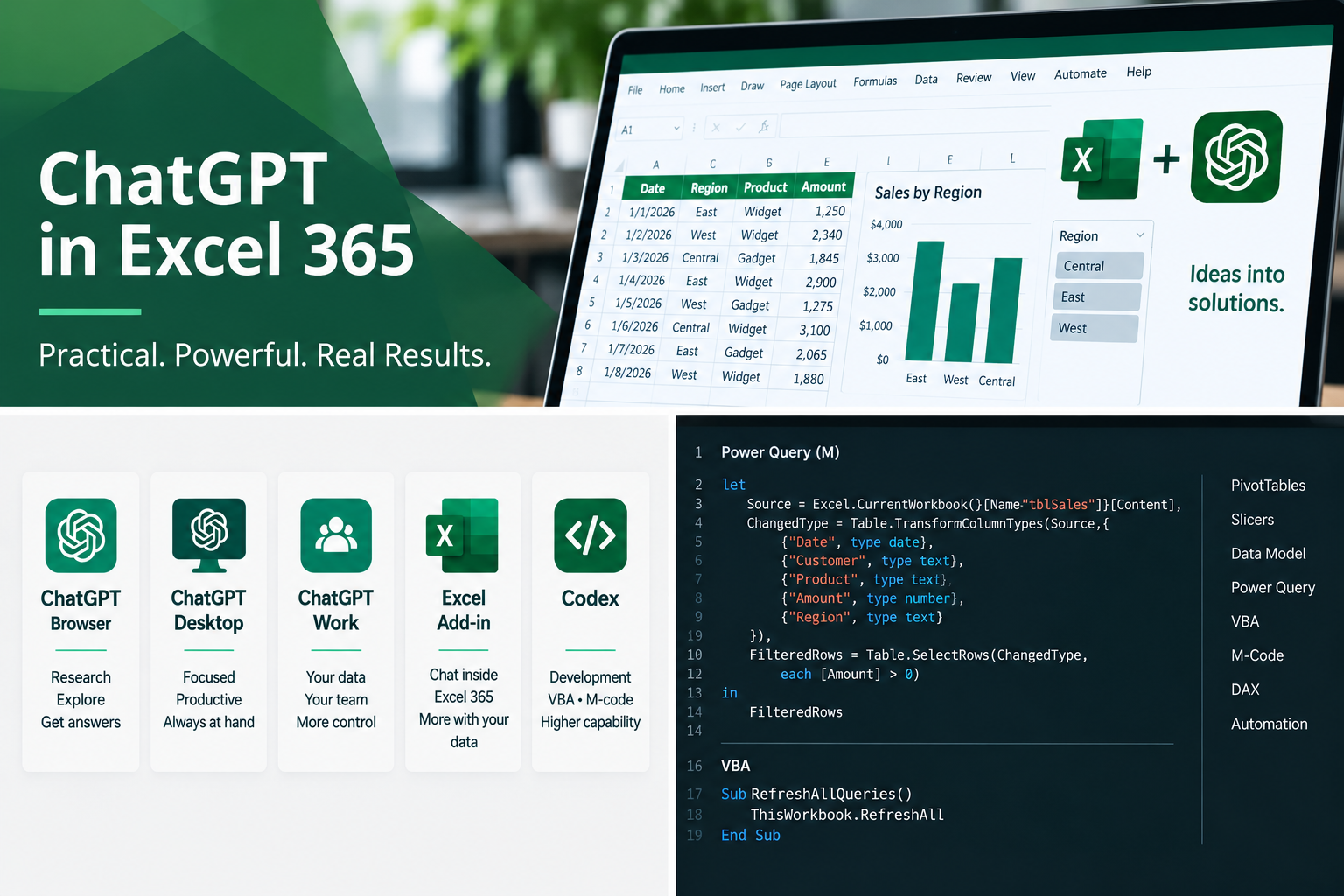
ChatGPT in Excel 365
ChatGPT, Claude, and CoPilot will change how Microsoft Excel is programmed and used. Simple, period, no possible argument.
Is that a good thing, a bad thing, who cares. It is what it is, and the fact is this, the ChatGPT Excel Add-in, when combined with Codex, will change how many Excel developers approach their work.

Here we will share what we have learned about using ChatGPT in Excel 365, from a developer’s perspective.
- Is it accurate?
- Is it reliable?
- Is it easy to use?
- Should you use it?


877-392-3539
Versions of ChatGPT Covered in this Post:
When we say ChatGPT we are actually talking about four versions. The latest two, the add-in and Work, are months old. That is how quickly things are changing. And these were BIG changes.
Which version, or versions should you use?
- ChatGPT
- ChatGPT Work
- ChatGPT Excel Add-In
- Codex
** Copilot and Claude are also covered, as needed, for comparison.

Choosing the Right ChatGPT Tool(s)
In Excel there are always ten ways to do anything. There are so many lookup functions that most people do not even know all of them ( DGET ).
Likewise, there are so many versions of ChatGPT, while most users think there is just one. Yet they might have access to the others, they just do not know it.
Which version(s) are best determined by the current need and the environment, not necessarily for the entire solution. Example, for VBA or M-Code, always use Codex, that is what Codex does.
Perfect Analogy ( Coding Power or User Experience ):
ChatGPT Work = Access.
Codex = SQL Server.
Are you a user or a developer?

Our Choice is ChatGPT Work with Codex
Codex is the Best Coder out of the Bunch
Key Consideration: Do you want Chat to work with local files.
Key Consideration: Do you want Chat to write VBA, M-Code or Office Script.
Key Consideration: Do you want Chat to create the file for you.
If you said yes to all three, then you will want to use the Excel Add-In with Codex for Excel development work.
The ChatGPT Excel Add-In Possible Uses
There are endless uses of ChatGPT with Microsoft Excel 365. What you do with it depends on you. Which version(s) you use largely comes down to awareness, not need.
But to be clear, each version, each environment, works somewhat differently.
Possibly the best first-use of ChatGPT in Excel
Someone emails you an Excel file and asks you to work on it. Where do you start, you have never seen the file before. In the past, I would open the file, and spend an hour or so, looking through it. Not now.
Now I open the Excel file, I open the ChatGPT add-in, and I ask Chat to analyze the file for me, make no changes. That is the best way to start using ChatGPT; you will learn a lot real fast.
Currently one of the best uses of ChatGPT Work – M Code
M-Code is the next frontier. The problem is we might need to be experts in M Code now. So to bridge the gap, use Codex, not ChatGPT.
That said, ChatGPT Work is very good with M Code. But if you feed that to Codex, Codex will most likely revise it. Same with VBA.
But Codex is even better at M Code than is ChatGPT Work.
Our First Use of the ChatGPT Excel Add-In
Here we created a two-column Excel Table
This was the first test in terms of seeing how accurate and reliable ChatGPT can be.
Our Second Use of the ChatGPT Excel Add-In
Here we created a massive Excel Table
This was our second test, right after the successful List Builds test.
It also created an associated Pivot Table with Slicers, and the M Code needed for the associated Query.
Here we wrote our first Skills.
This took 4 minutes to run. Manually this would take 2-3+ hours.
Another Great use of ChatGPT – Writing Excel Functions
Probably one of the first uses in Claude for most people would be to write a function for Excel. Makes sense, and perfect, if you tell it which function(s) to use.
Same Request to all versions.
Example: Have Chat write a Lookup, from one table to another, based on two columns, in each table.
USE AI WITH EXTREME CAUTION
Seriously, if you like your file that is. ChatGPT will do things that you do not want it to, let’s be clear on that.

I have had issues with ChatGPT doing this to my file that it should not have. I have had at least one file corrupted. I have had multiple files changed. I ALWAYS work in a backup copy, and as I work on it, I constantly back that up. YOU HAVE BEEN WARNED.
I do as much as possible outside the workbook. I program my files, not Chat, so that is not an issue. I may use Chat to build a Table or such, but not much more than that at the moment.
Currently I use Codex to review M-Code, review my VBA, and I use ChatGPT Work Desktop to analyze workbooks; I greatly restrict its use in my live files.
Inspect what you expect.
Quick Video on the Various Versions of ChatGPT
We quickly show each version of ChatGPT in the video below. This is what you could expect to see if you went online, opened the desktop app, or the new Excel add-in.
- Plus you can see each version run the same code to create a Table, Slicer and validation List.
The Versions & the Tests ( See ChatGPT in Action )
ChatGPT — Browser
This is the one everyone is familiar with and thinks of.
- Excel questions and explanations
- Formula development
- Power Query guidance
- Research
- Uploading and analyzing workbooks
- Planning workbook designs
- Does not burn a lot of usage. I use this most, for the simple quick stuff.

ChatGPT — Desktop
- Working alongside Excel on your computer
- Working with local files
- Moving between Excel, code, documentation, and ChatGPT
- Longer development sessions

The Test
ChatGPT Work ( Online and Desktop )
- Complex, multi-step Excel projects
- Working through an entire task rather than answering individual questions
- Researching, analyzing, and producing finished work
- Working across files and applications
- Larger workbook-development workflows
- Tasks that require sustained execution
That is my Pet, Neo. He is my personal digital assistant in Work.
The Test ( Work, Online )
Work Often CRASHES
ChatGPT in Excel 365 — Add-in
I use this daily. Not for coding, but for analysis. I use Codex for coding.
The add-in can really help you to understand a workbook. A great tool for those of us who receive several Excel files daily.
You will want to use this. Proceed with caution.
- Working directly with the active workbook
- Creating and modifying Excel Tables
- Creating formulas and calculated columns
- Building Power Query solutions ( M Code )
- Creating PivotTables and slicers
- Applying formatting, validation, and controls
- Inspecting and repairing workbook objects
- Testing and verifying workbook construction
- Working with local files

The Test
Codex ( Desktop )
This is the one for advanced Excel developers.
- VBA development
- Power Query M code
- Office Scripts
- Writing larger blocks of code
- Debugging existing code
- Refactoring and improving code
- Reviewing multi-module VBA projects
- Maintaining code-heavy Excel applications
- Working with local files


The Test
ChatGPT in Excel – The Tests
Same Exact Instructions
Instructions:
Create a new workbook, name it “bkTest1”.
Create a new Sheet, name it “shtTest1”.
In Cell F7. create a new one column Excel Table named ‘tb’Test1’.
Populate the table with “North, South, East, West, RO.”
Name the Column ‘test1’.
In cell F4, place a new Data Validation List, populated via the ‘test1’ named range.
Make the data validation list allow overrides.
Place a Slicer to the right of the table. Base it on the ‘test1’ range.
Test One: ChatGPT Excel 365 Add-In
The test took 1:55 minutes to run. The test was successful; it did exactly as requested.
The Test Video:
The Results Tab

Test Two: Codex
The test took 2.5 minutes to run. The test was successful; it did exactly as requested.
The Test Video:
Test Three: ChatGPT Work Online
The test took 1.25 minutes to run. The test was partially successful; it did not load the Slicer.
The Test Video:
Test Four: ChatGPT Work Desktop
The test took 2.5 minutes to run. The test was partially successful; it did not load the Slicer.
The Test Video:
Test Five: ChatGPT Online
The test took 1. minute to run. The test was only partially successful; it did not load the Slicer, and the Data Validation list did not work. On a second test, the file produced was corrupt and would not open.
Not so good, not useful.
The Test Video:
Test Six: Claude Online
The test took 4 minutes to run. The test was partially successful; it did not load the Slicer.
The Test Video:
Test Seven: Claude Excel Add-In
The test took 4 minutes to run. The test was successful; it did exactly as requested.
The Test Image:

In Conclusion: ChatGPT in Excel 365 is the Future
There is no way to get around it, each day it will get better, each day more people will try it, each day more people will recommend it. It is here to stay.
Resistance is Futile, but completely understood and warranted.
Straight out of the box, just simple prompts:
- Is it accurate? NO.
- Is it reliable? NO.
- Is it easy to use? NO.
- Would I use it? YES – Carefully
My Recommendation
If you are an Excel Developer, you definitely want to use Codex as your code development assistant. You will want to use ChatGPT Work as your design assistant. You will use ChatGPT Add-In as your development associate, and they will work as a team, usually 2-3 windows open at once, with Claude and CoPilot open in the background as well, a group effort.
The future will be interesting. At Excel and Access, LLC we are here to help.
The LinkedIn.Com Surveys:


The Real Question, Which of These do you use?
Please, leave a comment


Leave a Reply