


Integrating & Automating Microsoft Excel with QuickBooks/Sage
At Excel and Access, LLC one of the many solutions we provide to businesses is the integration and automation of Excel with QuickBooks. Within Excel, we can directly access the Tables inside of QuickBooks. With that, the user can Query, Edit/Revise, Delete, and Submit new records to QuickBooks. All of that is from within Microsoft Excel, with zero use of VBA. Integrating Microsoft Excel with QuickBooks is something that can benefit most small businesses. We offer Excel programming services to businesses.
Read/Write to QuickBooks/Sage Data Tables via Microsoft Excel Add-In or ODBC
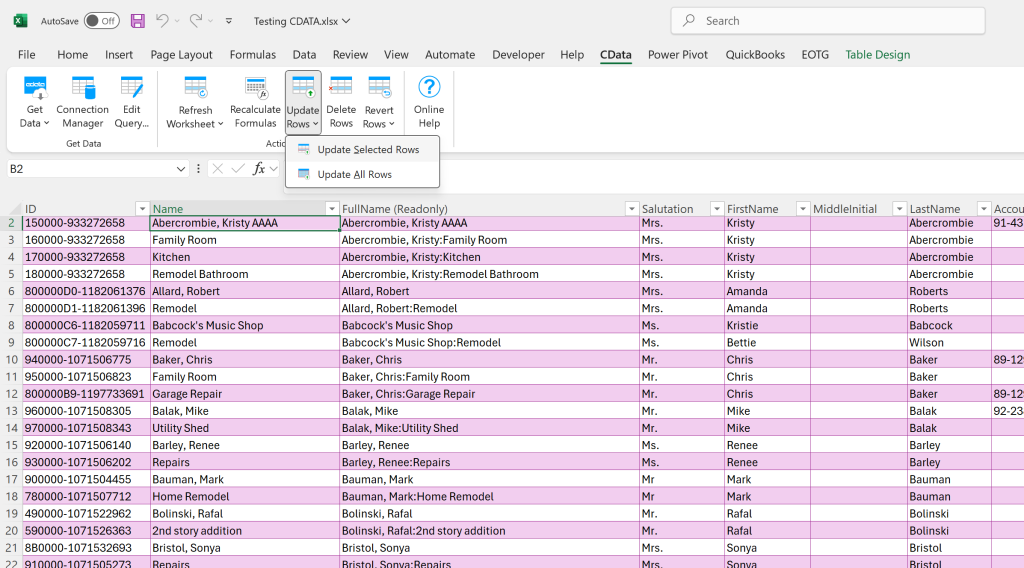
In the video below, you can see the user change a record in Excel, and then submit that change to QuickBooks. In an instant, w/ no code. Priceless.

This is the easiest way that I know of, to integrate and automate Microsoft Excel with QuickBooks. Read-Write.

Excel & Access Consultancy Since 2004.
A Large Number of our Clients use QuickBooks/Sage for Accounting
So many of our small to medium-sized business clients use QuickBooks to run their business. And I can see why, QuickBooks is both powerful, and yet easy to use. We use it to run our consultancy.
- Well, we have news for you, Integrating & Automating MS Excel with QuickBooks has never been easier. And if you need help, we are here to assist 877-392-3539.
Excel Reporting, QuickBooks Data: Our clients also happen to use Microsoft Excel, for their reporting and analysis needs. Fully Integrated, Fully Automated.

QuickBooks 2024 Desktop Version. Access to the Data Tables, inside QuickBooks, has never been easier. Well worth the effort.
 That is Power: Often, what the client wants is to not only pull records from QuickBooks, programmatically, into Microsoft Excel. But they also want the ability to send new records to QuickBooks. Yes, the client wants to send data from Excel, into QuickBooks, which is a very common need.
Four Ways to Manipulate QuickBooks Data, via Excel 365:
There are four ways to manipulate the QuickBooks Table data. You really do not need anymore options.
- Pull Existing Data: QuickBooks Table Data into Excel
- Edit Existing Data: Edit a parameter, in a record, in Microsoft Excel, and update the associated QuickBooks record.
- Add New Data: Add one or more new records to the QuickBooks Tables.
- Delete Existing Data: From within Excel, using the Excel Table, you can “delete” one or more rows of data.
- That is powerful folks.
Even More Power: Most people do not know this, but you can edit any record, and value, in QuickBooks, from within Microsoft Excel, without the use of VBA. You can easily delete a record in QuickBooks, from within Excel. Often without the use of an ODBC Connection, depending on the third-party app you choose.
Contact Excel and Access LLC for all of your Excel, Access, & QuickBooks Programming Needs

Toll-Free: 877.392.3539 | Irvine, California: 949.612.3366 | Manhattan, New York: 646.205.3261
Free 45-minute Zoom Consultations
Integrating Excel with QuickBooks will Simplify Financial Reporting
It is game changer folks. Integrate your financial data, right into your reporting package. Your QuickBooks data at your fingertips, programmatically with read-write access.
- No need to jump between programs, making changes, make them all inside Microsoft Excel.
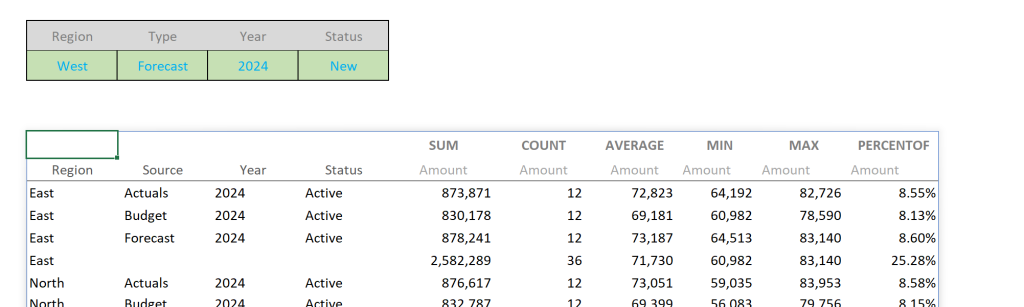
Integrate Microsoft Excel with QuickBooks, use the Dynamic Array Functions such as PivotBy or GroupBy to get an instant report, based on the integrated QuickBooks data. SO easy.
Huge Benefit, Low Cost – Integrating & Automating Excel w/ QuickBooks
It is remarkedly affordable if you consider not only how much time this will save your company, but also how much easier it is to get all of the QuickBooks data you need. So simple. So much you can do with that data.
This is the low hanging fruit folks; this is Excel integration made easy. Fully dynamic, easy to use, so much power at your fingertips: You have Read/Write access to QuickBooks Data Tables.
Please Stop That: Instead of importing a downloaded QuickBooks Report, Query the QuickBooks Tables instead. No copy & paste, none of that nonsense, this is full-blown integration and automation at its finest. Often without the use of Macros.
- Please do not type data that is in Excel, into QuickBooks, please stop doing that. Stop printing and typing.
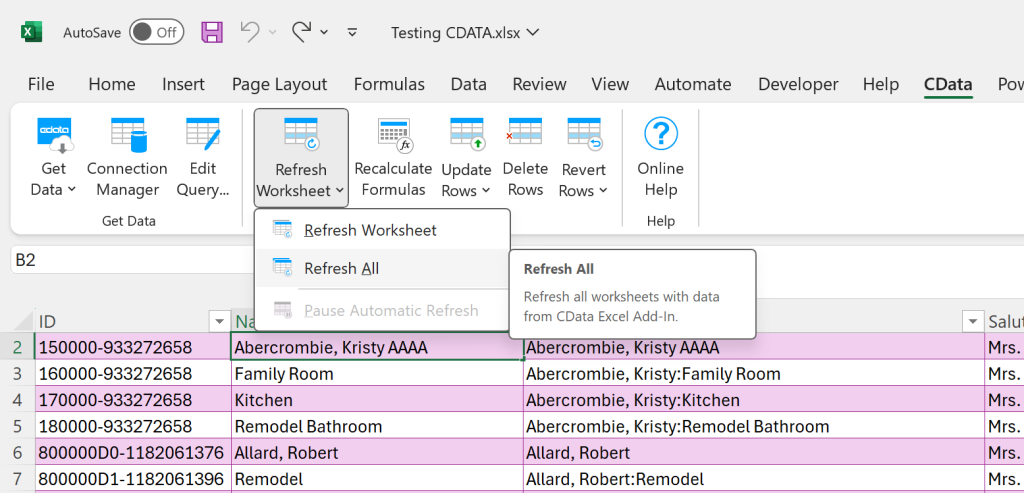
See the image below: The CDATA app makes this so easy to do, I am still amazed. An intuitive, easy to use system. I am impressed!

You can create your own QuickBooks Table, right here, in Excel. And you can write your own Query. If you like, you can Filter, Sort, etc., all in the Excel user interface.
Large Financial Benefit w/ Integration:
There is a great benefit, to integrating & Automating Microsoft Excel 365 with QuickBooks. Once it is set up, with either method, it is so easy to use. If it is fully integrated and fully automated, you can update the file in seconds, saving you hours and hours of unnecessary, manual work, each period. And did we mention fewer user errors?
- With an ODBC Driver, you can Read/Write from Excel to QuickBooks. With the ODBC Driver, you talk to QuickBooks Tables, not the reports.
- Or you can use an Excel Add-in, no drivers are needed.
- We prefer the latter.
You do not need to download a QuickBooks Report
and then import the Report into Excel. Report data is no good, you want the raw data from the data Tables. QuickBooks Tables are much like Access and Excel Tables, so why not use them.
With the ODBC Driver, Excel Power Query will extract the data directly from the QuickBooks Tables or Custom Queries for you. Integrating Microsoft Excel 365 with QuickBooks allows you to automate reading and writing Excel data to QuickBooks. Amazing.
Integration & Automation is Powerful:
You will have access to the QuickBooks Tables. That means within Microsoft Excel 365, you can use Power Query (ODBC Connection), or an Excel Add-In (CDATA) interface, to import the desired data from QuickBooks Tables & Custom Queries.
- That means I can use Joins between Excel Tables, to create Relationships. You can use the QuickBooks Data Tables just like a Relational Database, but inside Microsoft Excel.
~ Integration and Automaton in Excel is Where You Save Money ~
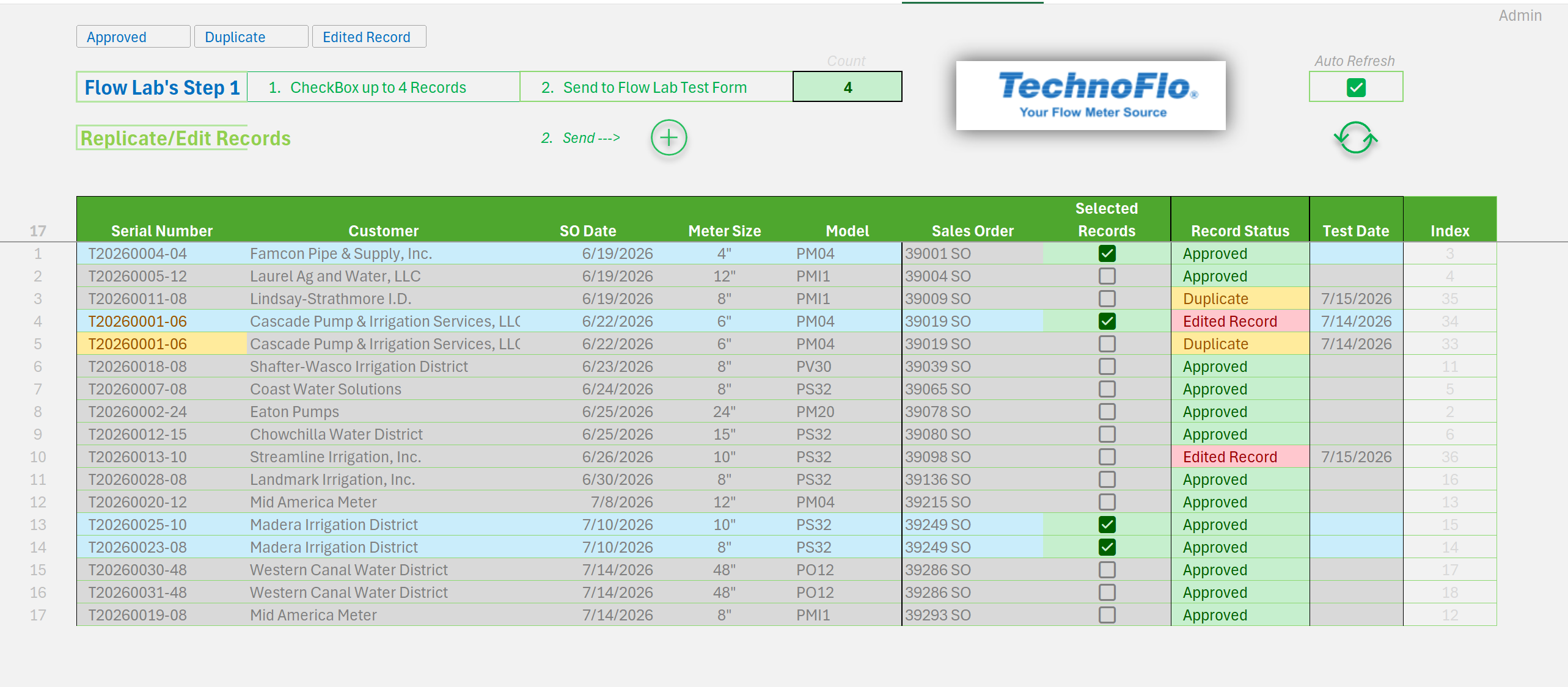
In addition to saving time, which is money, your users will love you. Users love to point-n-click, they love drop-down lists, they love Slicers and CheckBoxes, give it to them, all of it.
- To the best of your ability, take the user out of the update process. When you do need the user to do something, make it easy on them.
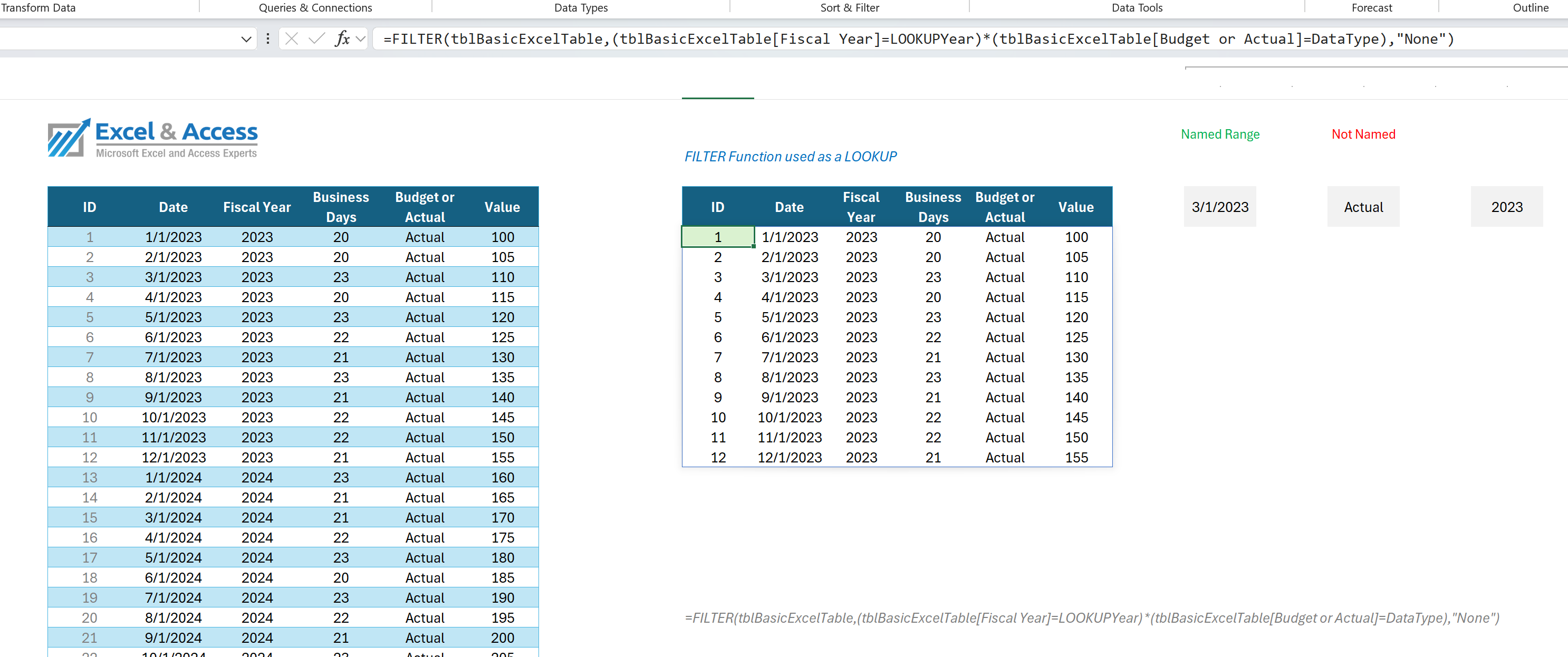
In the image below, you see the New Excel, the use of Dynamic Array Functions against Tables.

Excel 365 new Dynamic Array Functions have greatly simplified Excel programming. As you can see in the image above.
Take Aways Integrating Excel and QuickBooks
Integration is what you want to do: If you want to seamlessly automate the extraction, editing, and submission of data between Microsoft Excel 365 and QuickBooks, this is how you do it; use an ODBC Connection or the CDATA app. Forget VBA, forget links; use one of the two methods discussed in this post.
Automation is what you want to do: In order to automate your Excel solutions, you will want to use 1) Excel Tables, 2) Power Query, 3) Dynamic Array Functions, 4) VBA. Unless the user must manually type data, you can fully automate the solution, and thus, no user is required.
How easy is it to use, once set up: Once the system is set up, it will be a joy to use. It will give you power you have not had before. I see ourselves using this solution more and more, as it works so well with Power Query. It allows us to do things that we could not do before. That is game changer folks.
Is there a need for the Integration & Automation between Microsoft Excel and QuickBooks?
Yes! Yes, there is.
Increasingly we are contacted by businesses, government and education, to build a custom solution that integrate Microsoft Excel 365 with QuickBooks. We are not talking about manually downloading a QuickBooks Report, and then importing the report into Excel. Rather, we will query the QuickBooks Tables, retrieving only the data we want and need. Of course, we do this via Microsoft Power Query.
- If the user does not have a need to type data into Excel, then the user is not needed.
- If the user does need to manually select items from lists, at least make it easy for them.

Excel’s Dynamic Array Functions can look at a Drop-Down list, as the value to Filter the dataset on. Here there are two filters, Year and Name. This is a double-filter function combo.
Contact us for a Free Consultation Today.

Toll-Free: 877.392.3539 | Irvine, California: 949.612.3366 | Manhattan, New York: 646.205.3261
Contact us for a Free Consultation Today. Operators are standing by to take your call. Get a Smarter Solution.
Challenges Setting up the ODBC Driver for Integrating Excel with QuickBooks
It was not fun folks, and I am still talking with tech support. Five hours into this so far, just trying to install the driver.
Setting up the ODBC Driver, it is not easy folks: It failed every time, on two machines. It failed when tech support tried, for an hour.
I spent an hour with a QuickBooks consultant trying to install the QODBC Driver. He was able to get the driver to work between QuickBooks and Access, but not between QuickBooks and Excel. In an hour he could not set this up on my machine, and this is what he does for a living. He was smart, he knew what he was doing, it is the driver itself that is the issue. His comment, “You have got to love Windows.”
Excel should be easy to use; apps should be easy to use. Not sure if this is, as I never got a chance to use it.
- I know people who have successfully used it, but I also know a lot of people run into issues installing it.
- In my experience, this is not “Export Made Easy“, as it did not work.
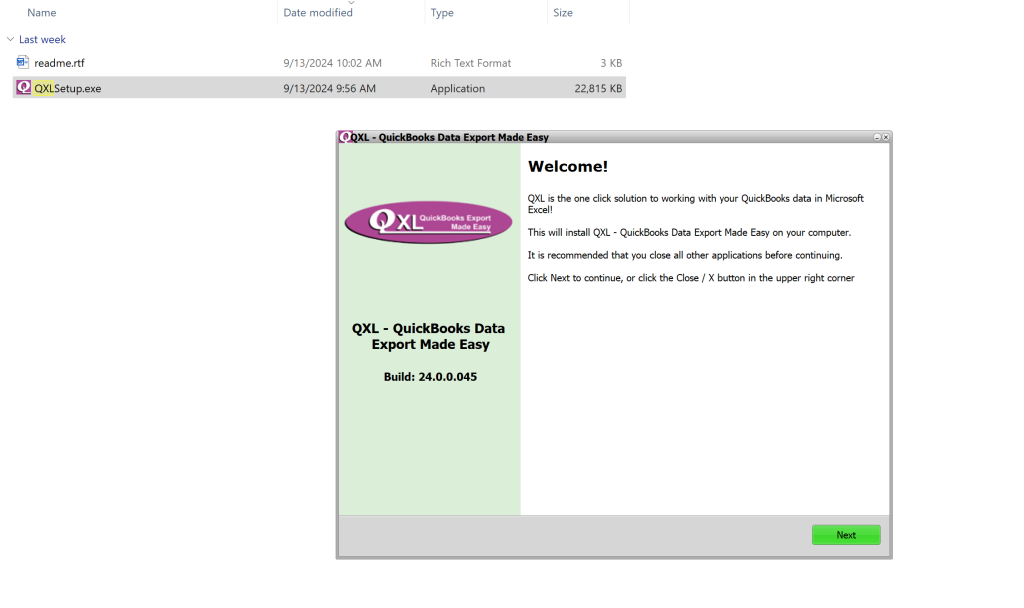
I know someone who has successfully used this application. Based on what I read, it works well. But I could not test it, as I could not install it, as such, I am recommending a different product to my clients. Ease of use is important.
Installing a Driver should be easy
Much of the problem is matching “versions” of the two applications. Is it 32 bit or 64 bit, is it online or desktop, etc. Or so I have read, and have been told.
We gave up. I went with a different product, one that I have yet to read instructions on ,so intuitive.
- Excel Version
- Desktop or Online
- 32 or 64
- QuickBooks Version
- Version #
- Desktop or Online
- You have to match four points. Windows makes this a complete pain.
I am passing on this one. It is too hard to setup. I do not recommend it.
I would have liked to use it, it is affordable, but …… what a pain to try to setup. Several hours into it and I have one machine that will allow the app to connect via Access, not Excel. I need to use Microsoft Excel, not Access. So I pass on this method of connecting Excel to QuickBooks.
Below are the steps to setup the ODBC Driver. The images are from the PC where it would not install. Even after following all recommendations.
My Recommendation, do not use this application if ease of use is important.
The screenshots below show the steps to the install.
Almost there!
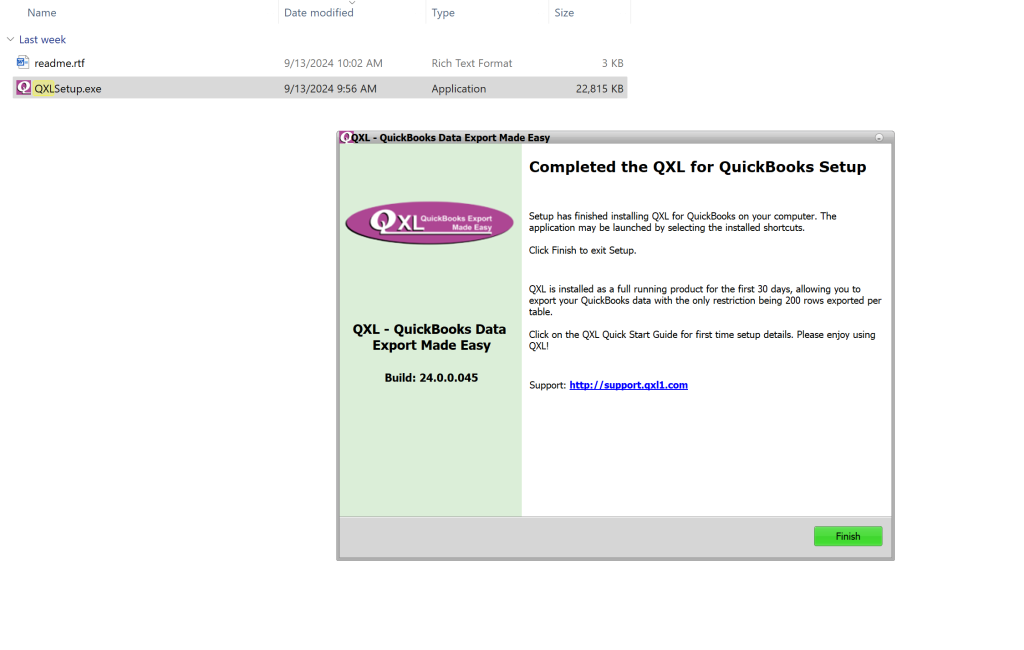
Not there!
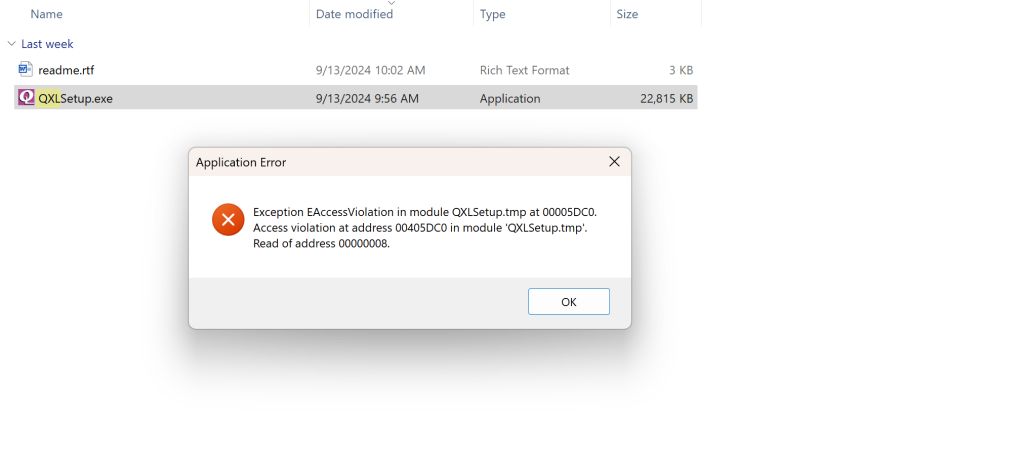
Still waiting on tech support!
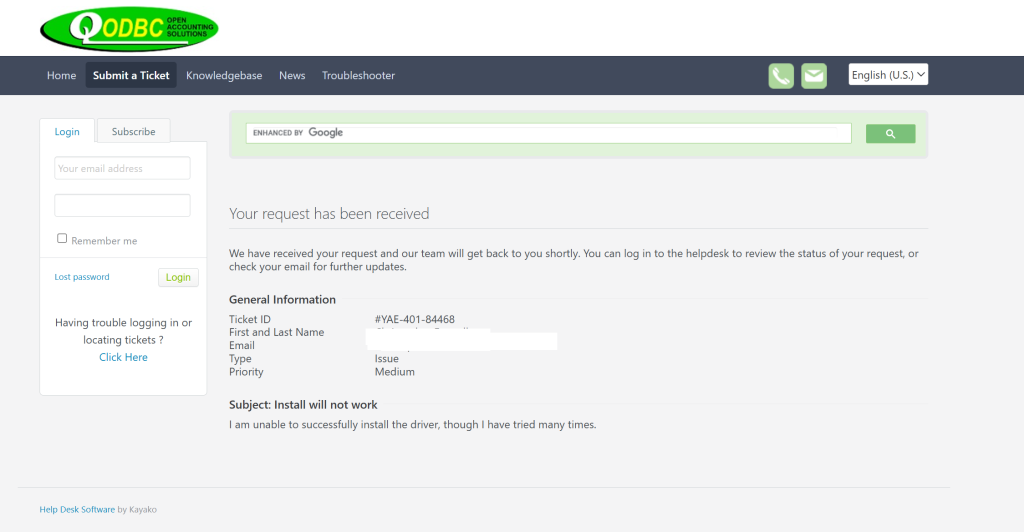
They assign my issue a medium priority. I cannot install the software, that is a HIGH priority to me; as I have work to do.
After two days of waiting, I get this:
Hi Christopher,
I would suggest downloading the installer again and let us know if still facing the issue.
—
Regards
Raj
Still unable to install the driver
Hi Christopher,
I would suggest that you uninstall the QODBC.
Start >> All Apps >> QXL – QuickBooks Data Export Made Easy >> Uninstall QXLPlease also delete the optimizer file and the file listed below.
1.) C:\Users\Your UserName\ AppData\Roaming\QXL – QuickBooks Data Export Made Easy
2.) Please remove the “qxlfqqb32.dll” file from the below path.
C:\Windows\SysWOW64Please restart the machine.
Now, please reinstall the QXL driver and check if it resolves the issue.
I would suggest that you download the latest version of the QODBC 24.0.0.045 and check if it resolves the issue.
You can download the QODBC Desktop Version 24.0.0.045 from our website.
https://qxl1.com/download-qxl-quickbooks-desktop/Please refer to.
QXL options and settings
https://support.flexquarters.com/esupport/index.php?/Knowledgebase/Article/View/2786If you are facing any issues using the release candidate version, please attach the files listed below when replying to the ticket.
1. Screenshot of QXL Application –>Settings/Options–> About Tab
2. Screenshot of the problem you are facing. (as an attachment)
Please share the entire log file as an attachment in text format.
3. QXL Logs from QXL -> Options -> Messages -> Review QXL Message Or %AppData%\QXL – QuickBooks Data Export Made Easy\QXLMessages.txt
4. QXL Logs from QXL -> Options -> Messages -> Review SDK Messages (as an attachment)
Please refer to How to take a screenshot: www.qodbc.com/links/screenshot.htm
I am about to move on.
Others might have this working, but I have not been able to get a successful install.
I do have one more meeting with tech support, so hopefully they can resolve the issue, and I can test their application.
- I also have the client’s IT Department trying to get the driver installed.
Installing the CDADA Excel Add-In was easy.
I have yet to look for or to read instructions on the application, even though I have been using it in a test setting. Intuitive.
Using the application was even easier – Intuitive
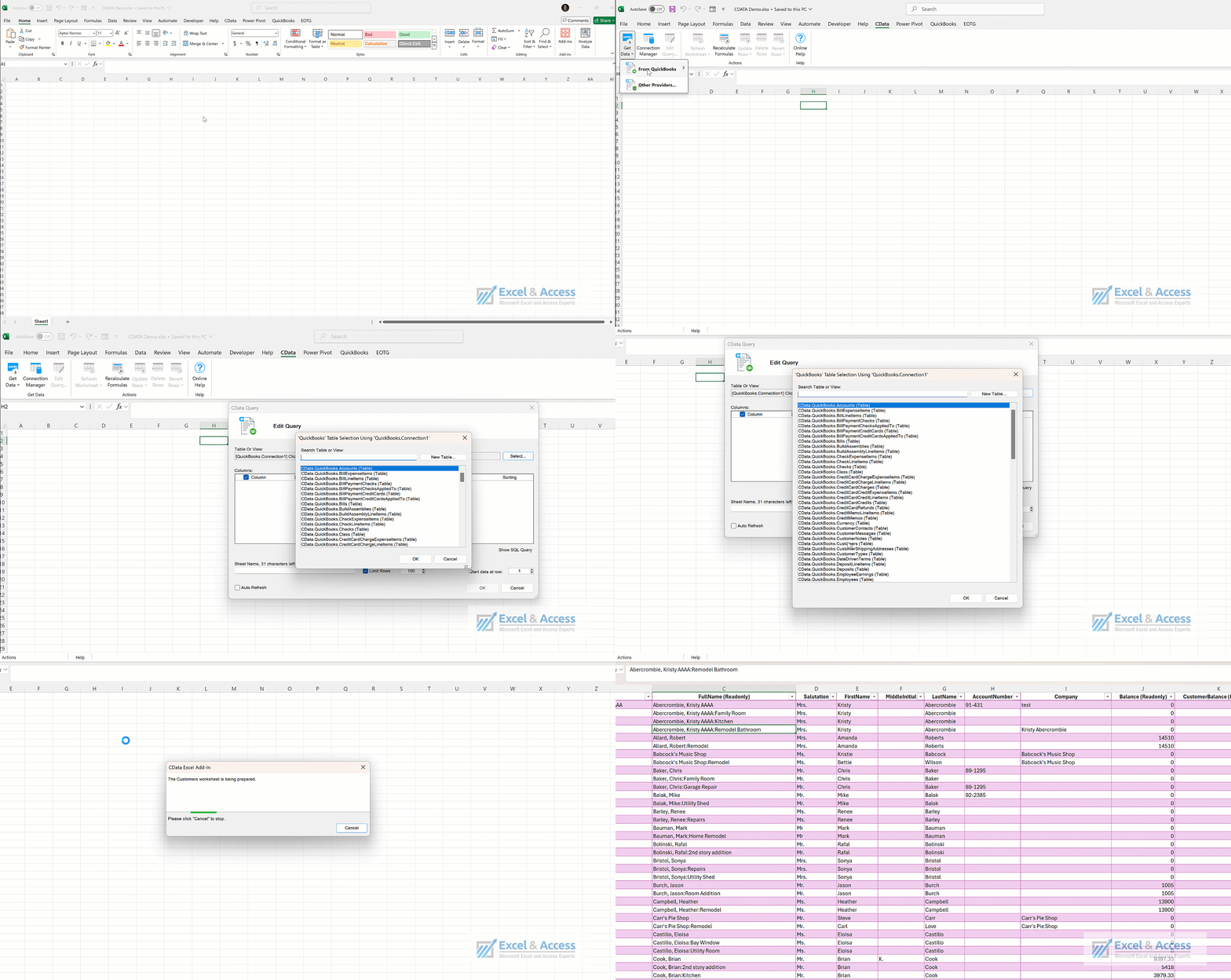
Below are images of the Excel Add-In Install Steps as well as its use.
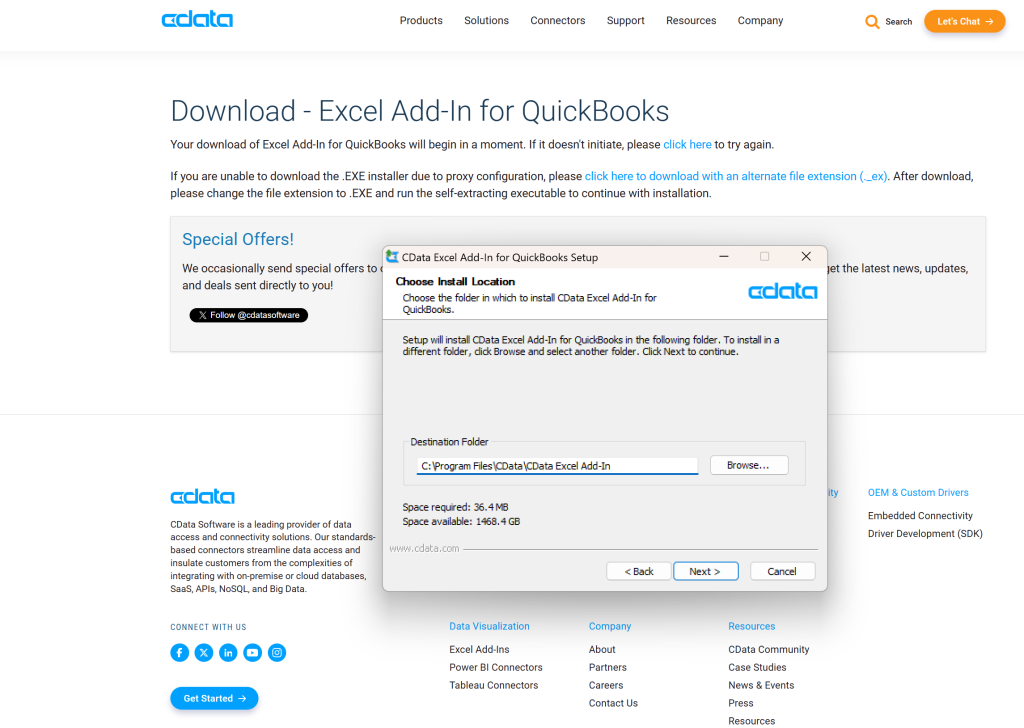
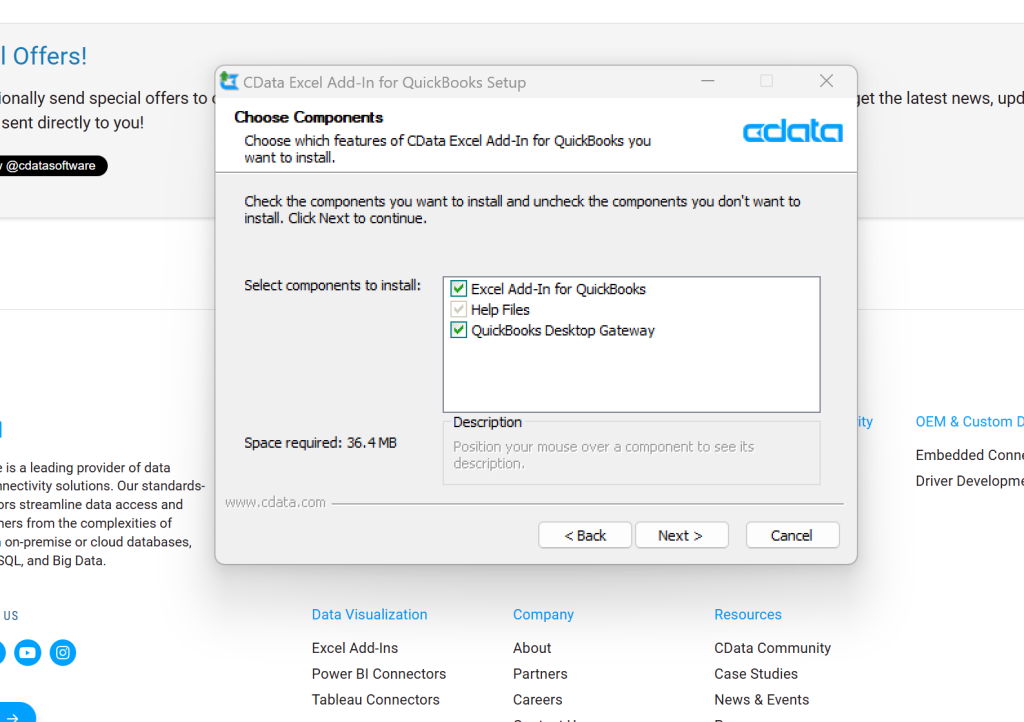
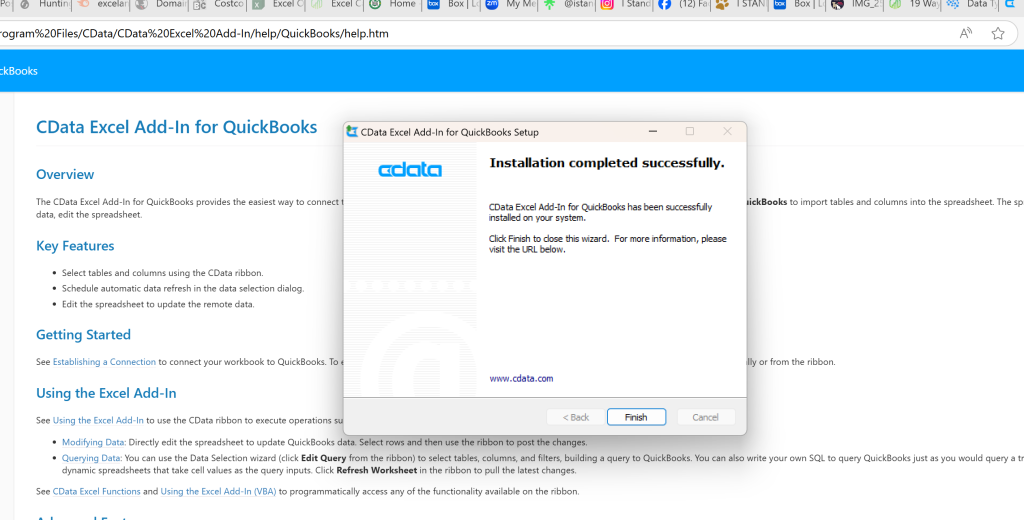
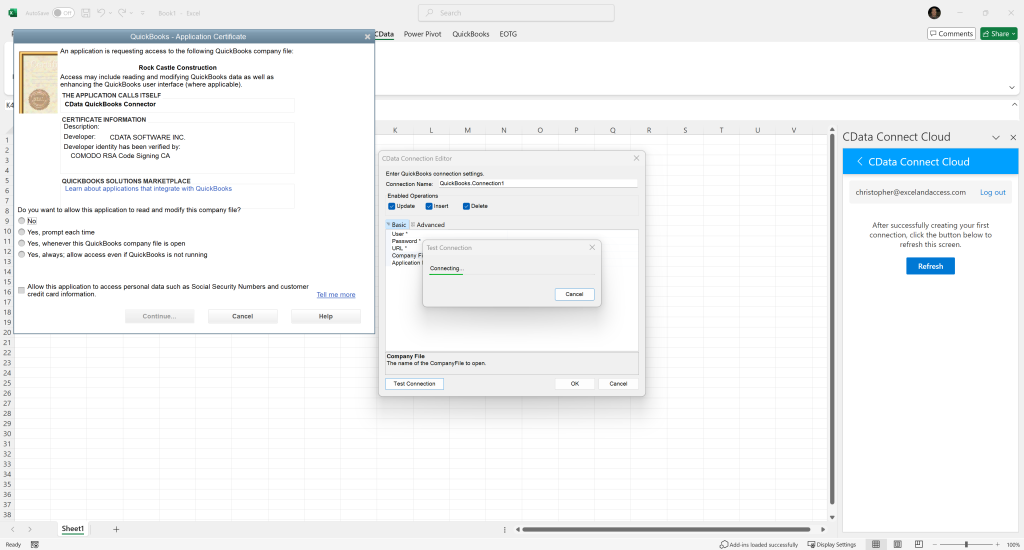
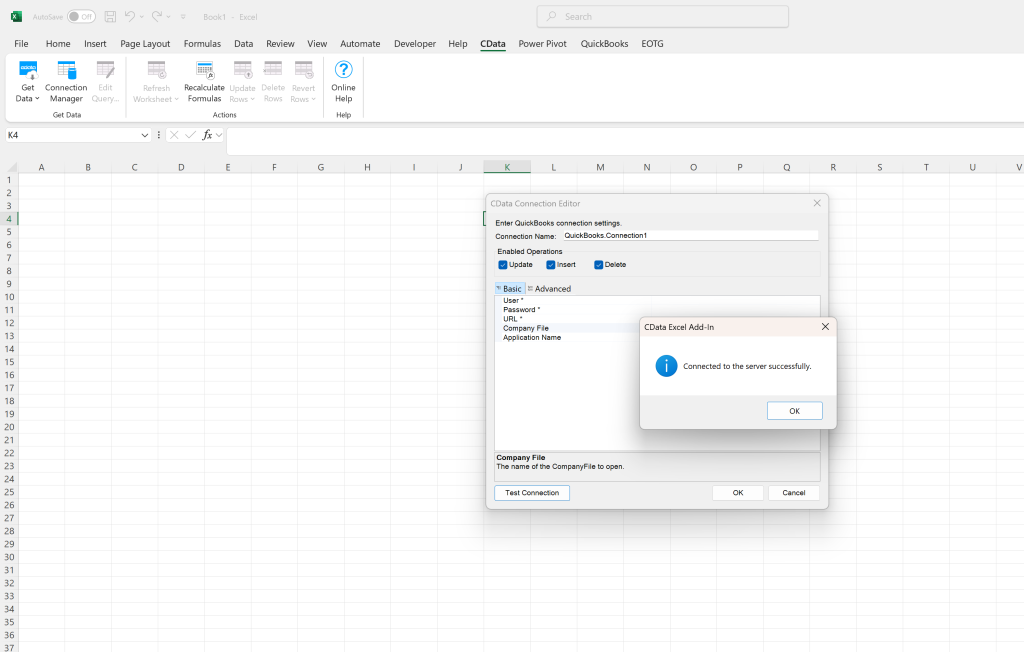
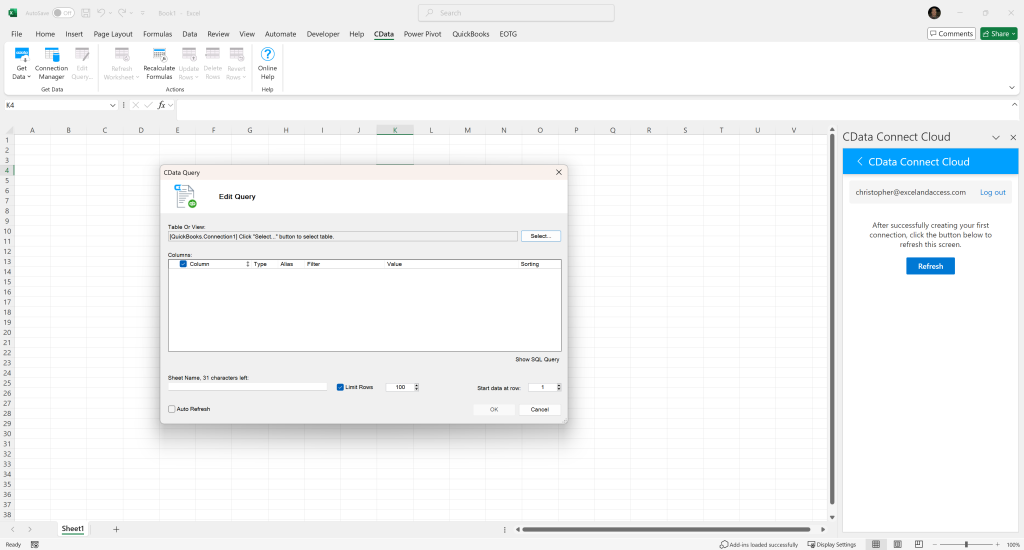
There it is! QuickBooks Table Data in Microsoft Excel!
Above you see me accessing one of the Tables in QuickBooks. You can even create your own Table, right here.
This is how to integrate Excel with QuickBooks.
Seriously, I love this application, and I plan to use it on all of our custom Excel & QuickBooks Intergration Solutions.
Sample Images & video from the test
Closing: You will want to Integrate Microsoft Excel with QuickBooks
Once setup, it is easy to use, and there is so much you can do with it. Look at the video above, does that not look easy?
Each time you use it, you will save a lot of time. No longer manually downloading QuickBooks reports, and then importing them into Excel, etc. This is integration and automation at its finest.
Let us know if you need help integrating and automating Microsoft Excel with QuickBooks.
877-392-3539
Free consultants, please call today.









Leave a Reply